Social Media Management Website Guide for 2026
Social-media users use an average of 6.83 platforms each month, according to GWI figures cited by DataReportal. That's the reason to consider a social media management website: not to produce more posts, but to manage the scattered work around them. A useful dashboard should help you finish the week with fewer loose ends, a manageable publishing rhythm, and a clear answer to whether your effort mattered.
Why Seven Apps Need One Desk
It's Tuesday morning, and a designer is launching a portfolio project. The finished case study is ready, but the social work isn't: a vertical crop needs checking, a professional-network caption needs context, and someone has asked whether the project is available for licensing.
None of those tasks is especially difficult. The trouble is that each lives somewhere different, alongside unrelated notifications and another account's drafts. Before the designer has answered the licensing question, they've forgotten which version of the launch caption was approved.
A shared desk, not another feed
A social media management website is a web dashboard for coordinating planning, publishing, monitoring, and audience response across connected social accounts. Think of it as a newsroom desk: calendar on the left, outbox in the middle, listening post on the right.
The desk doesn't replace editorial judgment. It gives that judgment somewhere to happen without repeatedly opening the apps that compete for your attention.
The scale of social activity helps explain the coordination problem.
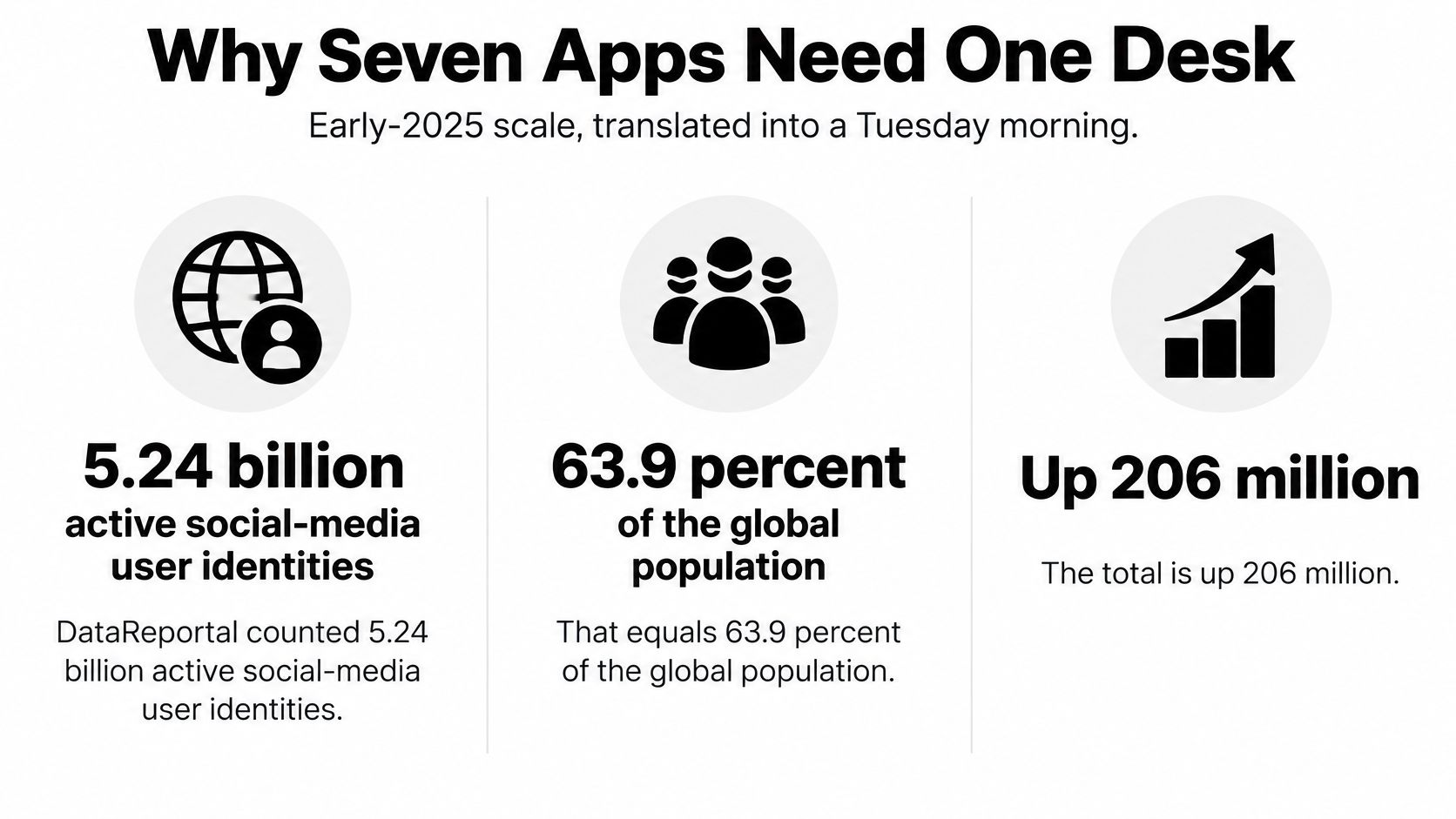
There's an important distinction in that display: user identities aren't necessarily unique people. Someone may maintain several accounts across services, so identity totals shouldn't be read as a count of individual audience members.
Nor does widespread platform use mean you need an account everywhere. Your desk should support the places where you can serve an audience well, not make every available connection feel compulsory.
Keep the handoffs visible
For a global creator, coordination also means recording the intended language, region, time zone, and format. A translated caption still needs an editorial check; a scheduled launch still needs someone to confirm that the destination page is live.
If the bigger difficulty is agreeing who owns those handoffs, TheContentMap's resource can help you compare collaboration tools for editorial teams before adding another social-specific subscription.
The practical test is simple:
- Before publication: Can you tell what's ready and who's responsible?
- During the campaign: Can you find the conversations that need attention?
- Afterward: Can you make a decision without assembling a report from screenshots?
A dashboard earns its place by making those answers easier, not by keeping you busy inside it.
The Jobs One Website Takes Over
What a social media management website handles
| Job | What the site does | Replaces | Watch-out |
|---|---|---|---|
| Planning | Shared calendar, content buckets, approval status | Spreadsheet plus chat threads | A calendar so full it forces daily posting |
| Publishing | Queue, per-network length and format, scheduled send | Logging into each app at post time | A caption or ratio that fails on one network |
| Monitoring | Unified inbox for comments, mentions, and messages | Phone notifications across apps | Alert fatigue and unanswered threads |
| Measurement | A few figures tied to one objective | Screenshot reports from each app | Vanity reach that doesn't match the goal |
| Collaboration | Roles, client access, approval trail | Shared passwords | A permission scope wider than the person needs |
The site coordinates work the native apps weren't designed to share.
Treat this table as a set of jobs to evaluate, not a promise that every website performs them equally well. A tool may schedule to a network but offer limited inbox access there. Another may provide excellent reporting while leaving approval conversations outside the workspace.
Planning and publishing are different jobs
A calendar records an editorial commitment. A queue carries out an approved instruction. Confusing them creates a familiar problem: someone drags an unfinished idea onto a date, and the team assumes it's ready to publish.
Give drafts an owner and a status before assigning a send time. Content buckets, such as process, finished work, and community questions, should help you choose a useful mix, not create quotas you feel obliged to fill.
Publishing requires another kind of care. The same project might need a tightly cropped preview in one place and a longer explanation elsewhere. Look for a composer that lets you inspect each version, rather than assuming that successful cross-posting means identical content.
Monitoring and collaboration need boundaries
A unified inbox is valuable only if someone can tell which conversations remain open. Assignment, resolution, and internal notes matter more than an impressive total of collected mentions.
Try a realistic scenario during a trial: a customer asks a question, a teammate claims it, and another teammate needs to see that it's handled. If everyone still checks the native app to avoid duplicate replies, the dashboard hasn't replaced the manual habit.
For collaboration, separate permission to prepare from permission to publish. A freelance designer may need to upload assets without seeing private messages; a client may need to approve copy without changing account connections.
Automation belongs around stable handoffs, not unresolved decisions. Our guide to no-code AI automation is useful when you're deciding which repetitive actions can be connected without surrendering editorial control.
Measurement completes the loop, but it shouldn't become a second production job. If a report takes longer to interpret than the decision deserves, remove charts until the useful signal becomes visible.
Numbers Worth Keeping and Data You Give Up
A survey described in the National Law Review's marketing-strategy release found that 69.4% of respondents use engagement, 60.7% use reach or impressions, 60.2% use website traffic, and 31.1% struggle to measure return on investment. Those figures describe respondents' measurement practices, not which metric your project should prioritize.
A dashboard can make a number easy to read without making it meaningful. Platforms can define similar labels differently, attribution can miss part of a customer's journey, and bots or a brief viral spike can distort the picture.
The common measurement mix is a starting point, not a scorecard for every creator.
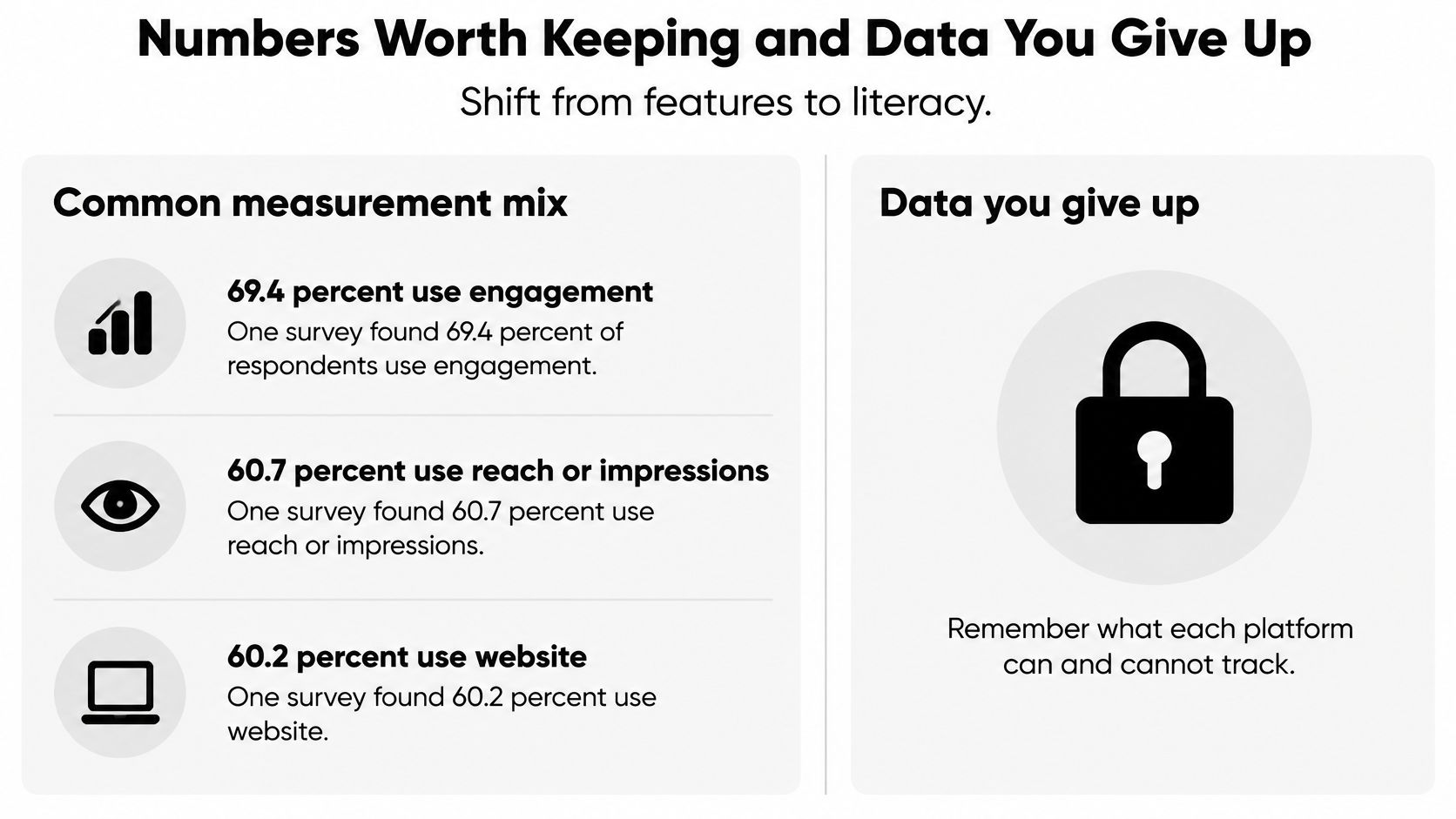
Match the figure to the decision
Measurement rule: Pick the objective before the metric, and report a trend or a defensible range instead of false precision.
Which metric matches which objective
| Objective | Figure to watch | What it does not prove | Safer check |
|---|---|---|---|
| Awareness | Reach or impressions | Sales, loyalty, or quality of attention | Review a four-week trend rather than one spike |
| Engagement | Saves, replies, substantive comments | That an algorithm favors you | Compare with your own baseline, not a rival's screenshot |
| Traffic | Tagged links and first-party analytics | Platform click counts by themselves | Use lawful tags you can reconcile on your site |
| Return | Inquiries or assisted conversions | That one viral post paid for the month | Report a range over time, not falsely precise ROI |
Say your goal is portfolio visits. A popular preview is encouraging, but it doesn't answer whether anyone reached the case study. Keep the post's destination and campaign tags consistent enough to reconcile social activity with visits recorded on your site.
For a plain-language companion when choosing report labels, Bruce and Eddy's social metrics guide can help you distinguish the signals you want to monitor. Write down the definition you're using, including the denominator for any rate, so a later platform change doesn't look like an unexplained performance shift.
Inspect the access behind the charts
Connecting an account is also a data-sharing decision. Before authorizing it, check these details:
- Permission scopes: Does the connection request publishing, messages, analytics, or account-management access?
- Retention: What remains after you disconnect or delete the workspace?
- Visibility: Which teammates and clients can see account information?
- Security: How are sign-ins protected, and how do you revoke a departing collaborator's access?
- Content reuse: Do AI recommendations reuse uploaded material, and what controls are available?
Don't grant broader access merely because the connection screen recommends it. Choose the smallest permission set that supports the work, and keep a record of connected services.
The best dashboard may be the smallest one that supports a decision. More collected data isn't automatically more useful, especially when nobody can explain why you need it.
How a Week Moves Through the Dashboard
Say you're launching a small portfolio project. The campaign needs a destination, a manageable set of posts, and time to answer interested people, not a permanently full calendar.
Use this overview to see the campaign as a complete cycle.
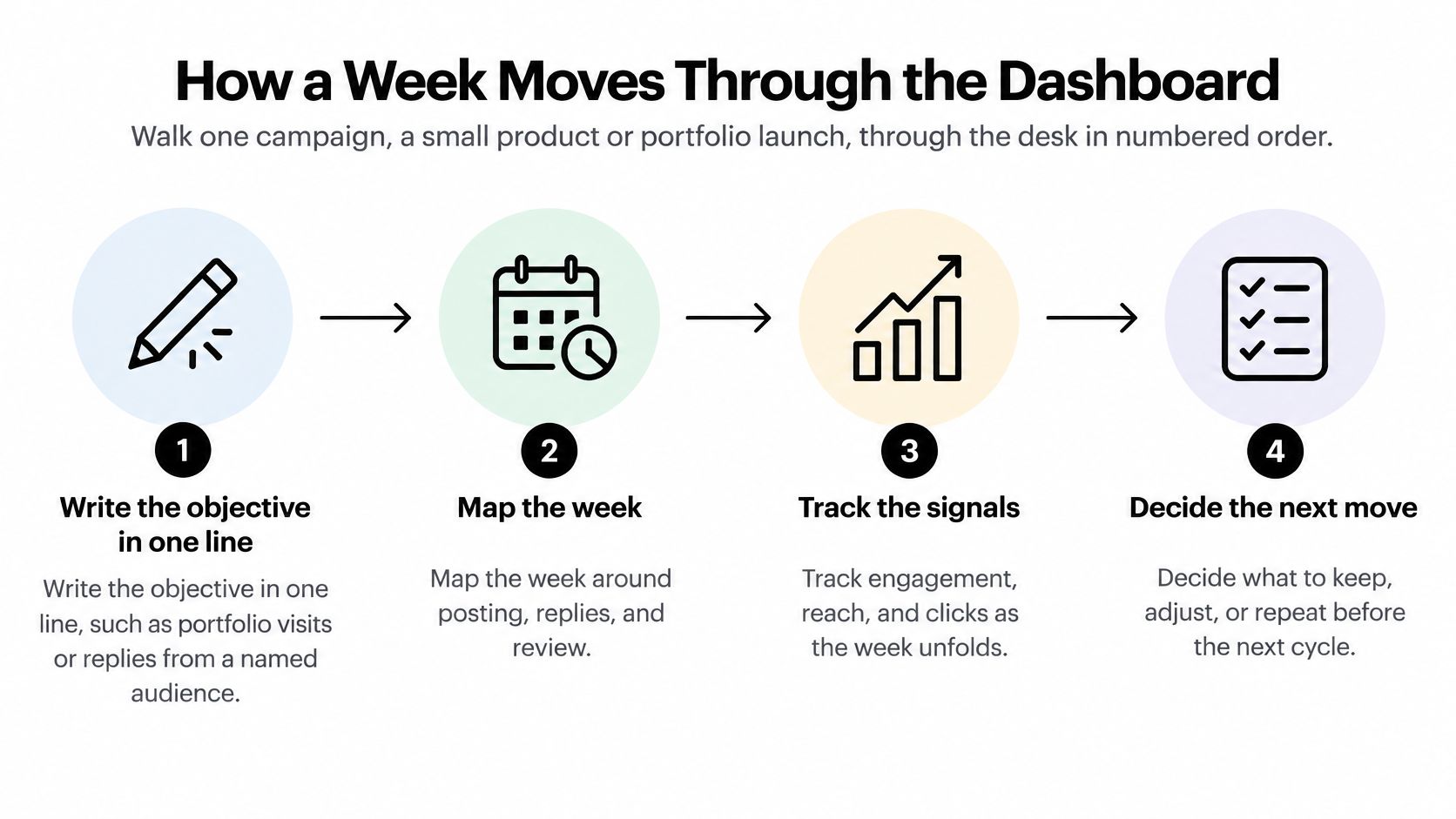
Prepare the work before scheduling it
Write the objective. Use a sentence such as “Help prospective collaborators visit the new case study.” Choose the destination before opening the calendar, so you don't confuse filling slots with making progress.
Batch the minimum useful content. Prepare the launch announcement and supporting material you can maintain comfortably. Adapt captions and crops per network, and use our social media scheduling template to keep assets, destinations, and approvals together.
Check accessibility before queuing. Add useful image alternative text, check video captions or transcript availability, and replace vague link wording with text that explains the destination. Capturing this information now avoids trying to reconstruct it after publication.
The World Wide Web Consortium's guidance on social-media authoring tools identifies Authoring Tool Accessibility Guidelines, or ATAG, as the relevant standard for tools that create social content. The distinction matters: the dashboard should be accessible to its users and help those users create accessible posts.
Test keyboard navigation, visible focus, labeled fields, sufficient contrast, and status updates that a screen reader can announce. An error shouldn't be indicated only by a change of color.
Publish, respond, and review
Give each outbound post a visible status. Use draft, needs approval, and scheduled states deliberately. If a queued post doesn't send, inspect its status before opening the native app and publishing manually; otherwise, a later retry could create a duplicate.
Work the inbox in planned windows. Assign conversations that need a specialist response and mark completed threads clearly. Leave notifications for urgent situations rather than treating every reaction as an interruption.
Review the chosen figure against the objective. For this hypothetical campaign, examine a four-week trend in tagged portfolio visits rather than celebrating the loudest post. Record what you'll keep or change, including whether the effort was reasonable.
For public-facing notices, make missing alternative text or captions an explicit review flag. If an authorized editor overrides it, record the reason rather than bypassing the check.
Done means the campaign was prepared coherently, sent with visible accountability, and reviewed against its purpose. It doesn't mean every available slot was filled.
Why a Scheduled Post Never Leaves the Queue
A scheduled status means the website intends to publish. It doesn't guarantee that the receiving network will accept the post when send time arrives.
Each network has its own connection rules and usage limits. The Superdirector guide to social-media API rate limits describes YouTube's weighted daily quota of 10,000 units, X's request and posting windows, and TikTok's requests-per-minute limits per user token.
Platform publishing limits a scheduler must respect
| Network | Limit | What the scheduler stores |
|---|---|---|
| YouTube | Weighted daily quota, with different actions carrying different costs | Endpoint cost and reset time |
| X | Request and posting windows | Window limits and token scope |
| TikTok | Requests per minute per user token | Per-token rate and reset time |
Read the failure before intervening
A dependable scheduler places the outbound post in a queue, then checks or reserves the account's available quota before attempting publication. Its platform-specific connection layer should track endpoint costs, account limits, permissions, and reset times.
You don't need to build that machinery. You do need enough visibility to understand what it's doing.
- Waiting for capacity: The dashboard should name the affected network and show when another attempt is appropriate.
- Authorization failure: Check whether the connection expired or lacks the required permission. Repeated send attempts won't repair access.
- Validation failure: Inspect the caption, crop, file, or other content requirement named in the error.
- Uncertain publication: Check whether the post already exists before authorizing another attempt.
A retry needs a reason
When the platform throttles requests, the scheduler should wait using exponential backoff, meaning progressively longer delays, rather than retrying continuously. If the platform supplies a Retry-After instruction, that should take priority over the scheduler's own delay.
The website should also preserve the job's history and use a duplicate-prevention mechanism. Reconnecting the same account shouldn't be treated as a reliable way to escape a limit.
A useful failure message tells you what happened, whether the system will try again, and what you need to do. Visible limits beat a silent retry, especially when a launch is already underway.
Three Setups From Solo to Public Team
The right desk looks different depending on who sits behind it. These examples show how responsibility changes the setup without making output volume the measure of success.
Use the illustration to distinguish the workflows, not to rank them by sophistication.
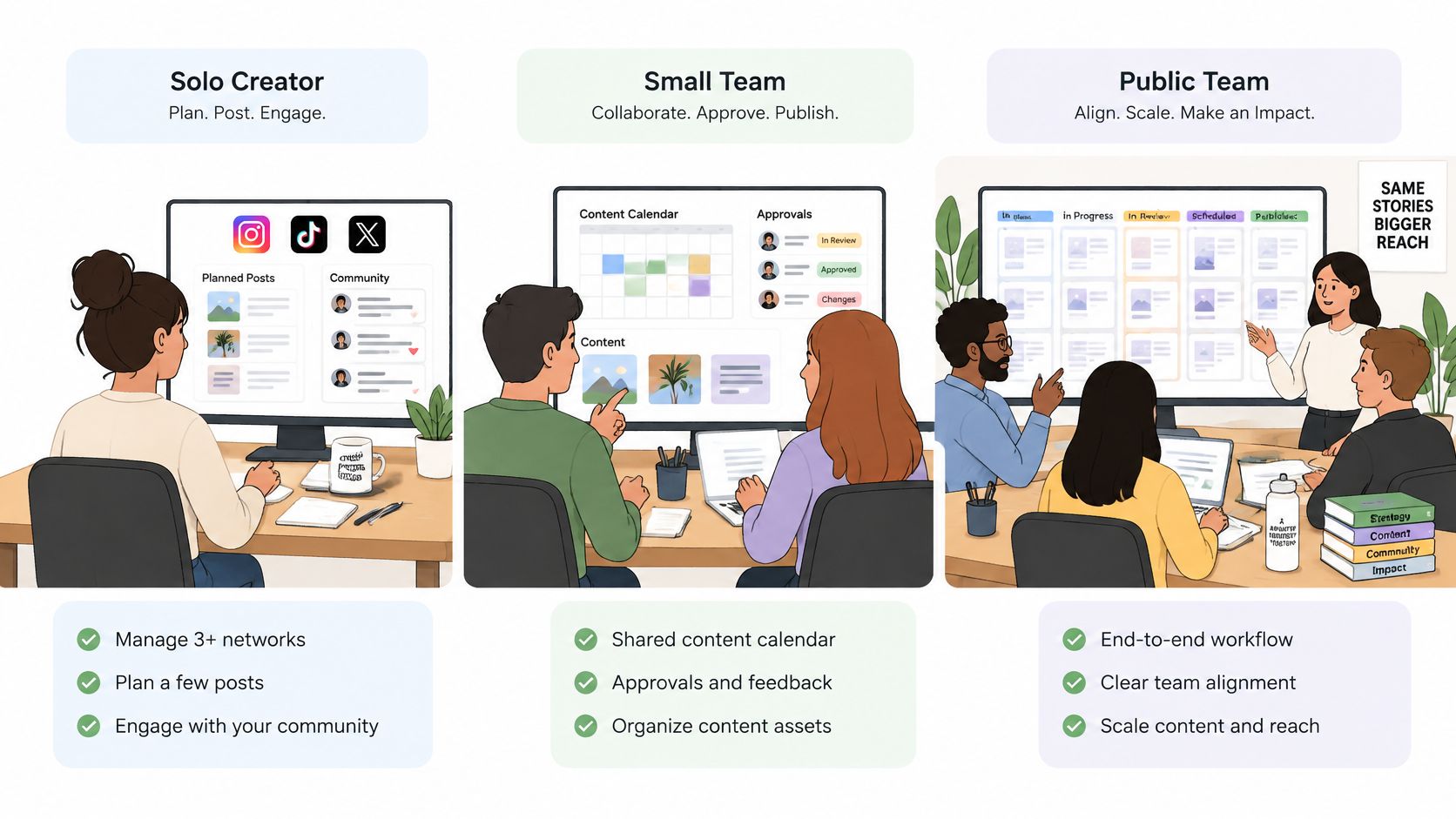
The solo creator's deliberately small queue
Say a freelance illustrator maintains a few selected accounts. Their desk needs approved assets, a modest queue, and a bounded community-response window, with a rest day left empty on purpose.
That isn't laziness disguised as strategy. A 2025 study of 542 North American creators found that 62% experienced burnout and 65% reported work-related anxiety or depression.
Those findings concern the creators studied, not every person who posts online. They're still a compelling reason not to design a workflow that turns algorithm uncertainty, performance anxiety, and income pressure into an endless list of suggested tasks.
Define minimum viable cadence as the amount of publishing you can sustain while doing the work you want to be known for. When a campaign has achieved its purpose, pause unnecessary promotional posts rather than finding more slots to fill.
The studio's shared responsibility
For a small brand or creative studio, the important change is ownership. A client approves the message, a producer schedules it, and an assigned teammate handles responses, so the designer doesn't become the default owner of every task.
Approved files need a dependable home outside the composer. Our guide to brand asset management tools can help you organize the source material that feeds the publishing workflow.
For a visual companion to these setup decisions, use the video below alongside your own responsibility map.
The public or community team's accountable desk
A public or community team needs a named owner for notices, a clear escalation route, and a record of exceptional decisions. Scheduled information also needs a review when circumstances change; convenience isn't a reason to leave an outdated notice in the queue.
Across these setups, automation is useful when it removes repetitive handling. It isn't kinder by default if every saved minute becomes a demand for more content.
Keep an owned channel, such as an opt-in email list, alongside platform activity. When reach drops, investigate distribution and audience response without treating the number as a verdict on your ability or worth.
Choose the Smallest Site That Answers One Question
Write down the question your social media management website must answer this week. It might be “Did the approved work ship?”, “Were interested people answered?”, or “Did the campaign send useful visits to the portfolio?”
If a candidate dashboard can't answer that question clearly, additional automations don't rescue it. You're choosing a working environment, not collecting capabilities for a hypothetical future team.
Test with your actual work
Use a draft, an ordinary approval, and a realistic inbox conversation during the trial. A polished demonstration won't show whether you can find the right asset when you're tired or understand a failure message without support.
Keep the acceptance checklist short:
- Network fit: It supports the accounts and content types you use.
- Publishing fit: You can adapt, preview, and queue a post without losing necessary details.
- Response fit: Its inbox is clear enough to open on a schedule and finish handling.
- Measurement fit: The figure you need is easy to locate and interpret.
- Access fit: Each person can do their work without unnecessary permissions.
Reject a tool whose value only becomes convincing if you publish more. A quiet calendar can be the correct calendar.
Shortlist before connecting accounts
At Creators Toolbox, we help designers, developers, and creators keep up with new products, useful tools, product updates, resources, and jobs. Our side-by-side comparisons cover features, pricing, and workflow fit, including comparisons such as Canva versus Adobe Photoshop, so readers can narrow a choice without working through a giant roundup.
We also direct visitors to each tool publisher's website for current pricing, availability, and requirements. Confirm those details before connecting an account, especially when an attractive feature is restricted to a different plan or account type.
Try the smallest candidate that passes your checklist for a trial week, using a minimum viable cadence. Keep it only if your question became easier to answer and the administrative work stayed proportionate.
Visit Creators Toolbox to explore useful tools, product updates, resources, and side-by-side comparisons for your creative workflow. Shortlist a social media management website around the question you need answered, then test it with a real campaign before expanding your setup.