How to Choose a Markdown Notes App That Fits Your Workflow
A Markdown notes app keeps your writing in plain text files, with a few simple keyboard symbols mixed in. The app reads those symbols and displays a formatted page. Type two asterisks around a word and it appears in bold, yet the file still holds the plain asterisks underneath.
How a Markdown Notes App Turns Symbols Into Pages
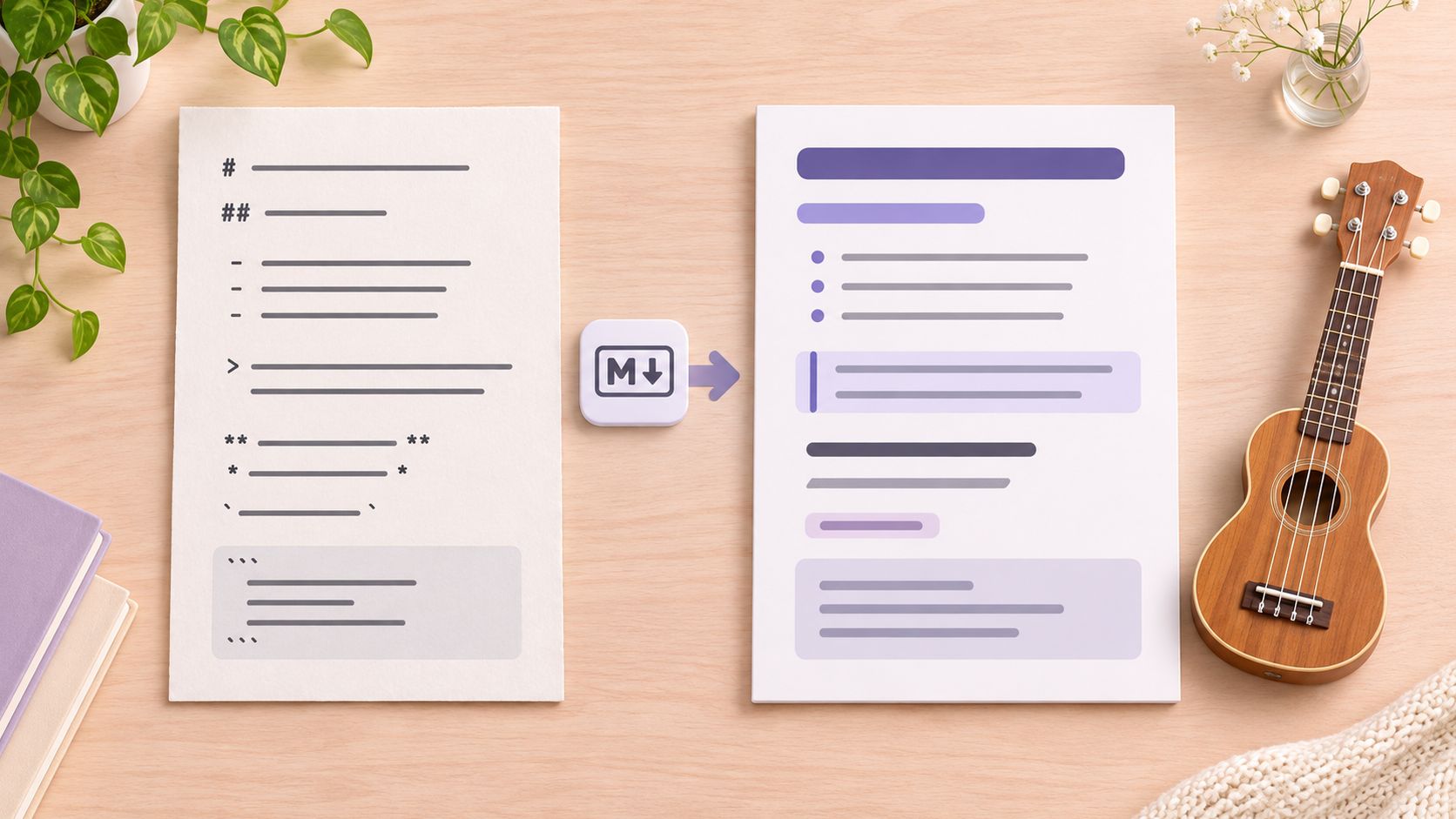
Think of Markdown as sheet music. The markings tell a musician when to pause, how loud to play, and where to lean into a phrase. The paper is not the performance, though. The instrument is what brings those marks to life, and in this case, the app is the instrument.
The basics come down to a handful of ideas:
| Feature | What It Means |
|---|---|
| Storage | Plain .md text files you own |
| Formatting | Simple symbols such as #, *, and - |
| Display | Rendered in a preview or live view |
| Portability | Opens in any basic text editor |
Three Quick Before-and-After Examples
The syntax is smaller than most people expect. Here are three common cases.
# Weekly Planbecomes a large heading that reads "Weekly Plan."- sketch logoand- pick fontsturn into a bulleted list.project briefbecomes a clickable link.
Editing View Versus Preview Pane
Most apps give you two ways to look at a note. The editing view shows the raw symbols, which is useful when you want precise control. The preview pane shows the finished page, which is what you read or share.
Some apps skip the split entirely and render formatting as you type. That feels a lot like a word processor, but the symbols are still there in the file, quietly doing their job.
Content and presentation are separate things. Your words live in the file, and the look is applied only when you read them.
Who Benefits Most
A few groups tend to get the most out of this setup:
- Writers drafting long pieces without formatting distractions
- Designers keeping project briefs and revision notes
- Developers storing technical docs right next to their code
- Students organizing lectures and research
- Anyone building a long-lived reference library
If the format is new to you, this guide walks through how Markdown fits into everyday team writing. You can read more in writing PR-ready docs in Markdown.
Because the files belong to you, your notes stay readable even if the app disappears one day. That durability is the real reason many people pick this approach over closed formats. Start small, write one note today, and check that it still opens in a plain editor.
March 2004 is when a fairly ordinary frustration finally got a practical fix. People wanted formatted documents without giving up the ability to read and edit the source file, so John Gruber, working with Aaron Swartz, introduced Markdown. A note written in it stayed readable in any basic text editor, yet it could still turn into a polished page once rendered.
The syntax borrowed characters people already knew. Two asterisks meant emphasis, hash marks made headings, brackets built links. Sitting next to HTML's heavier tags and attributes, the raw file felt friendly instead of cryptic. Gruber's first converter, which turned Markdown into HTML, was written in Perl, and it proved the format could travel from a human-readable source into a real web page.
That origin explains the split at the heart of the idea. Gruber described Markdown as a way to write in an easy-to-read, easy-to-write plain text format, and the core syntax covers the familiar pieces: headings, emphasis, links. It is why a Markdown notes app can give you formatting without chaining your stored notes to one company's editor.
A Recipe Card, Not a Locked Recipe
A Markdown file works like a handwritten recipe card. Any kitchen can read it. A rich-text note is closer to a finished dish sealed inside a single appliance. Swap the appliance and your access may go with it. With plain text, the ingredients stay readable no matter what cooks them.
That portability shapes real buying decisions today. If an app stores your notes as ordinary text files, they survive an app shutting down, a subscription lapsing, or a jump from desktop to mobile. Open them in another editor, drop them into a new workspace, or read them with whatever basic tools your system already has.
iA Writer shows what this looks like in practice. It keeps notes as plain .md files you can open in any text editor and carry into another app without an export step. Nothing about your writing gets held hostage.
Markdown was never just a programmer's tool, either. Writers, students, designers, and researchers can pick up the core syntax in minutes, and plenty of apps hide the symbols entirely behind shortcuts or a live preview. You end up with something that behaves like a word processor, minus the proprietary file format.
Different flavors and extensions exist for the same reason a kitchen has more than one knife. Tables, footnotes, math, task lists: you take what your workflow actually calls for.
Plain text keeps your notes readable, portable, and independent of whichever app happens to display them.
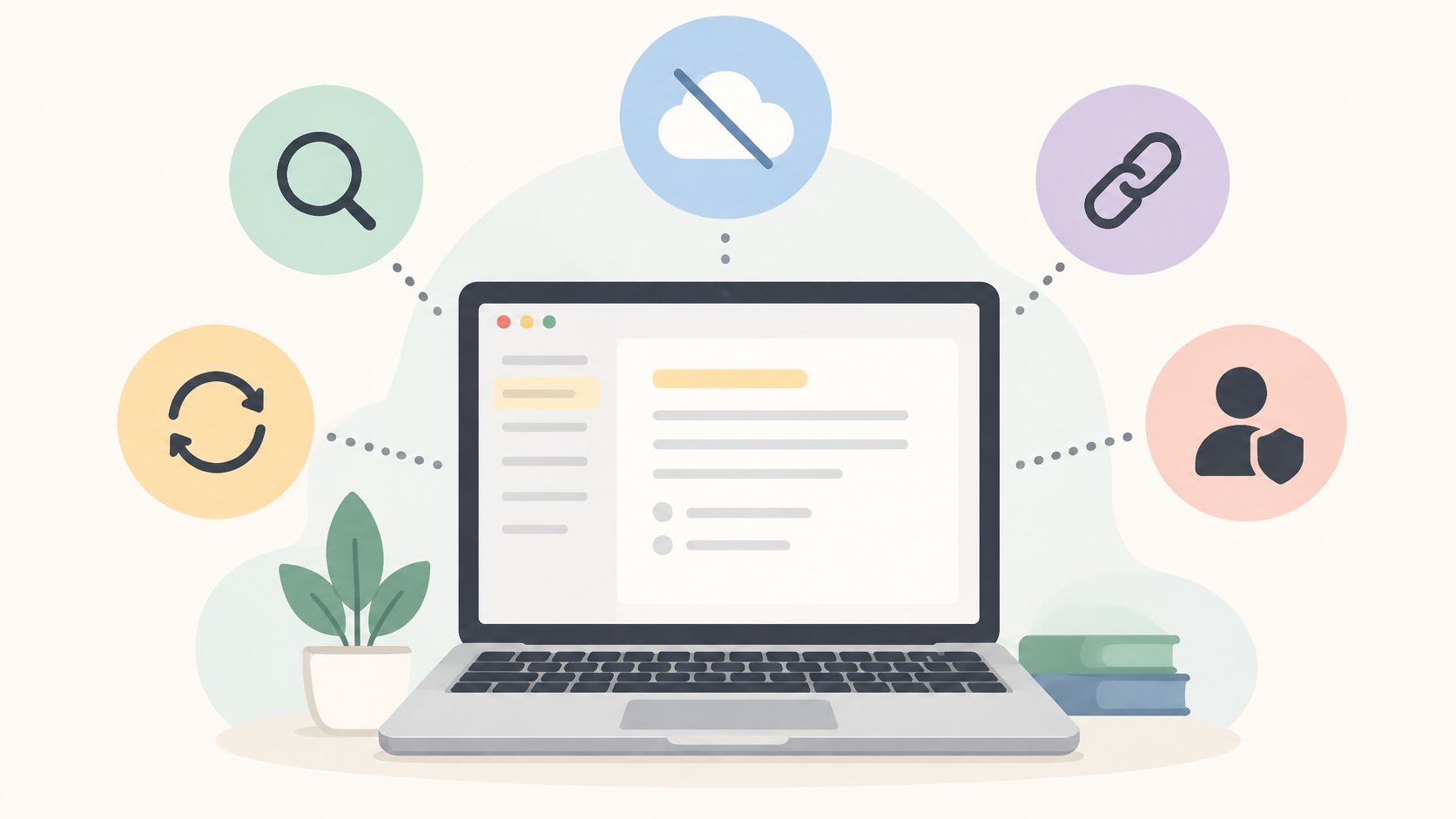
Students, writers, designers, software teams, and businesses all lean on these apps for different reasons. Market estimates vary a lot, so the better test is how an app fits your workflow, where it ranks on a list.
Ownership and Where Your Notes Live
Start here, because every other feature depends on it. Ask where the files actually sit: on your own drive, inside a synced folder, or on a vendor’s server.
- Question: Can I open my notes in a basic text editor?
- Warning sign: Notes stored only in a proprietary database or bundle.
Offline Access and Sync Behavior
Offline access decides whether a thought can be captured on a train or a plane. Sync decides whether that thought shows up on your other devices without a fight.
- Question: Does the app work fully offline on mobile as well as desktop?
- Warning sign: Edits made offline silently overwrite changes from another device.
Search Speed and Full-Text Indexing
Search matters most after a year of notes, when memory starts to fail you. Check whether the app indexes the text inside each file, beyond titles.
- Question: Does a search for a phrase from a paragraph find the right note in under a second?
- Warning sign: Results only match filenames, forcing you to remember exact titles.
Linking, Backlinks, and Organization
Links turn a pile of files into a web of ideas. Backlinks show which notes point back to the current one, so context appears without extra effort.
Folders give each note one home, while tags let a note belong to several places at once. Many writers use both, with folders for stable projects and tags for loose themes.
- Question: Can one note appear in more than one context without duplicating the file?
- Warning sign: Tags exist, yet nested folders remain the only way to group related notes.
Export, Version History, and Encryption
These three features protect your work when things go wrong. Export lets you leave, version history lets you recover from mistakes, and encryption keeps private notes private.
- Question: Can I export every note as standard Markdown files in one step?
- Warning sign: Export works only into a proprietary bundle or drops formatting.
A backup you cannot read is not really a backup.
Plugins and Extensibility
Plugins add features, and they add maintenance too. Check whether the app supports a standard plugin model and whether the core workflow still works without them.
- Question: Would my workflow still function if the plugin stopped being updated?
Comparing Features at a Glance
| Feature | Why It Matters | Red Flag |
|---|---|---|
| File ownership | Keeps your writing portable | Proprietary database |
| Offline access | Capture ideas anywhere | Edits lost without a connection |
| Sync behavior | Stays consistent across devices | Silent overwrites |
| Full-text search | Finds forgotten details fast | Titles-only results |
| Backlinks | Reveals connections between ideas | No link support |
| Tags and folders | Supports different organizing styles | One rigid method only |
| Export | Lets you leave without losing data | Single proprietary format |
| Version history | Recovers earlier drafts | No history or paid-only |
| Encryption | Protects sensitive material | Unclear or missing |
| Plugins | Extends core functions | Breaks after updates |
Want help finding tools that truly match your workflow? Learn more about product discovery services in our article.
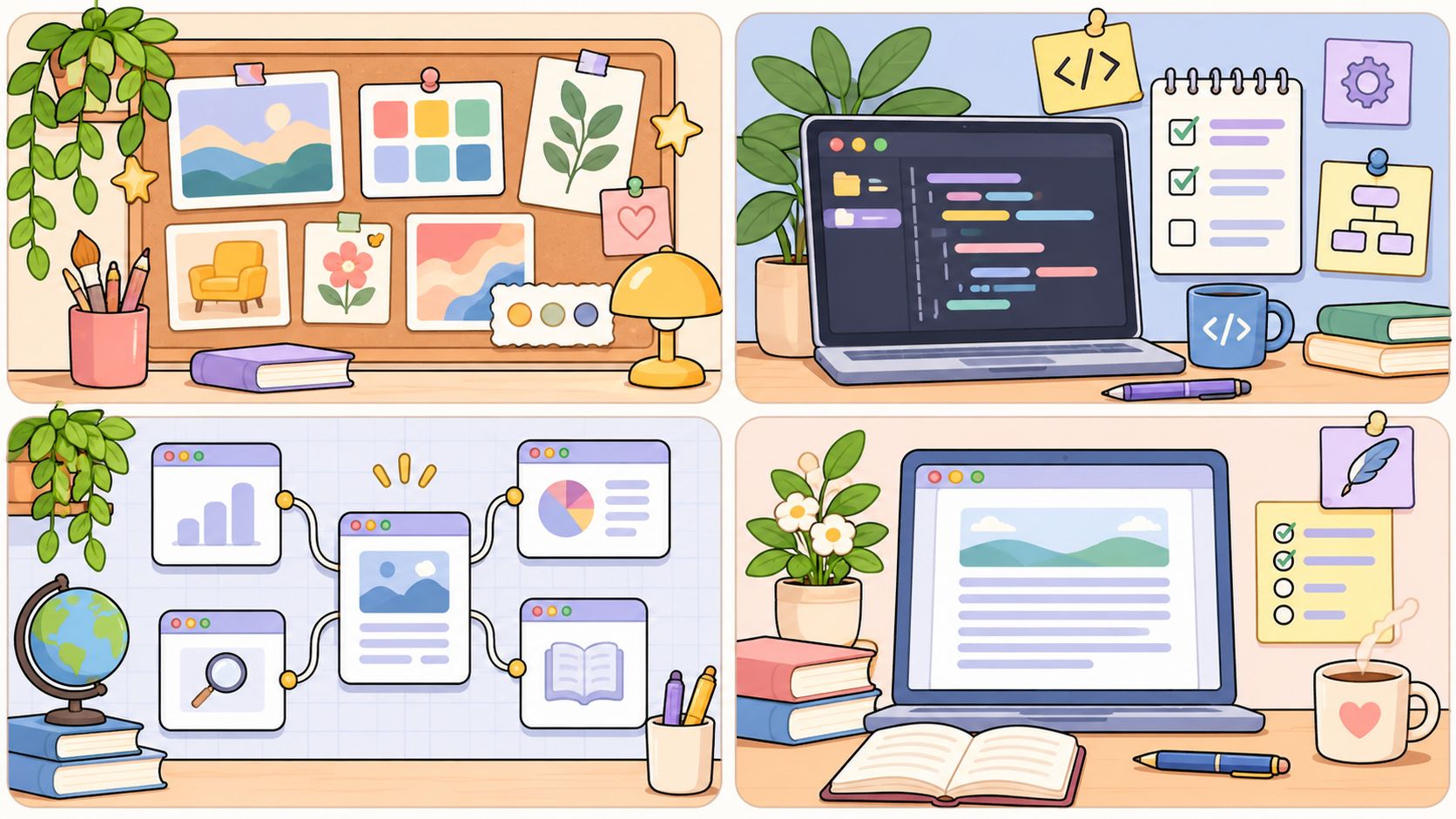
A good Markdown notes app earns its keep when it adapts to your actual work. The same plain-text foundation can support very different habits. Here are four walkthroughs you can copy.
The Designer's Project Log
A freelance designer keeps one folder per client, named with the year and client name, such as 2026-brand-acme. Inside sits a brief.md file, plus links to mood boards and a revisions.md log.
Each brief links to its mood board with a plain link, such as Moodboard. The naming habit is the key. Searching acme returns every brief, board, and revision in one list.
The payoff comes at revision time. Opening the brief shows every past round of feedback, so nothing gets lost in an email thread.
Keeping a Developer's Technical Journal
A developer keeps a journal/2026/11/ folder with one file per day, named 2026-11-24-debug.md. Fenced code blocks hold the snippets, so the notes stay readable and copyable.
def slugify(title): return title.lower().replace(" ", "-")
The payoff arrives during a late-night bug hunt. Searching slugify finds the exact snippet and the notes explaining why it broke.
Building a Connected Research Library
A researcher's literature notes start as one file per paper, named author-year-topic.md, such as gruber-2004-markdown.md. Each note lists the main claim, the method, and a quote.
Backlinks do the heavy lifting. Writing [[gruber-2004-markdown]] in a new note creates a two-way connection, so each paper shows every note that cites it.
After six months, the library connects ideas across dozens of papers. The payoff comes when a new question sends you back through old reading without a single dead end.
Moving a Draft Through a Writer's Pipeline
A writer keeps a single file moving through folders: inbox/, drafting/, editing/, then published/. The filename never changes, such as remote-work-tools.md, so links stay intact.
The outline sits at the top as headings. Each heading becomes a section, so you draft under it and never retype the structure.
Publishing is a copy of the same file, not a rebuild. The payoff comes on the day you publish, when the work you did in the outline is already finished.
Capture Loosely, Then Structure Later
Progressive summarization means capturing loosely first, then structuring later. You dump raw thoughts into the inbox, then bold the key lines on a second pass.
Markdown makes this practical because the cost of restructuring is nearly zero. Adding a # heading takes one keystroke, not a reformatting session.
Structure should emerge from use rather than be imposed up front.
For more tools that fit these workflows, the Top Productivity Apps page on Creators Toolbox covers productivity apps for designers and creators on desktop and mobile.
Start with one folder and one naming rule this week. Let the rest of your structure grow as your notes do, and your Markdown notes app will feel like it was built for you.
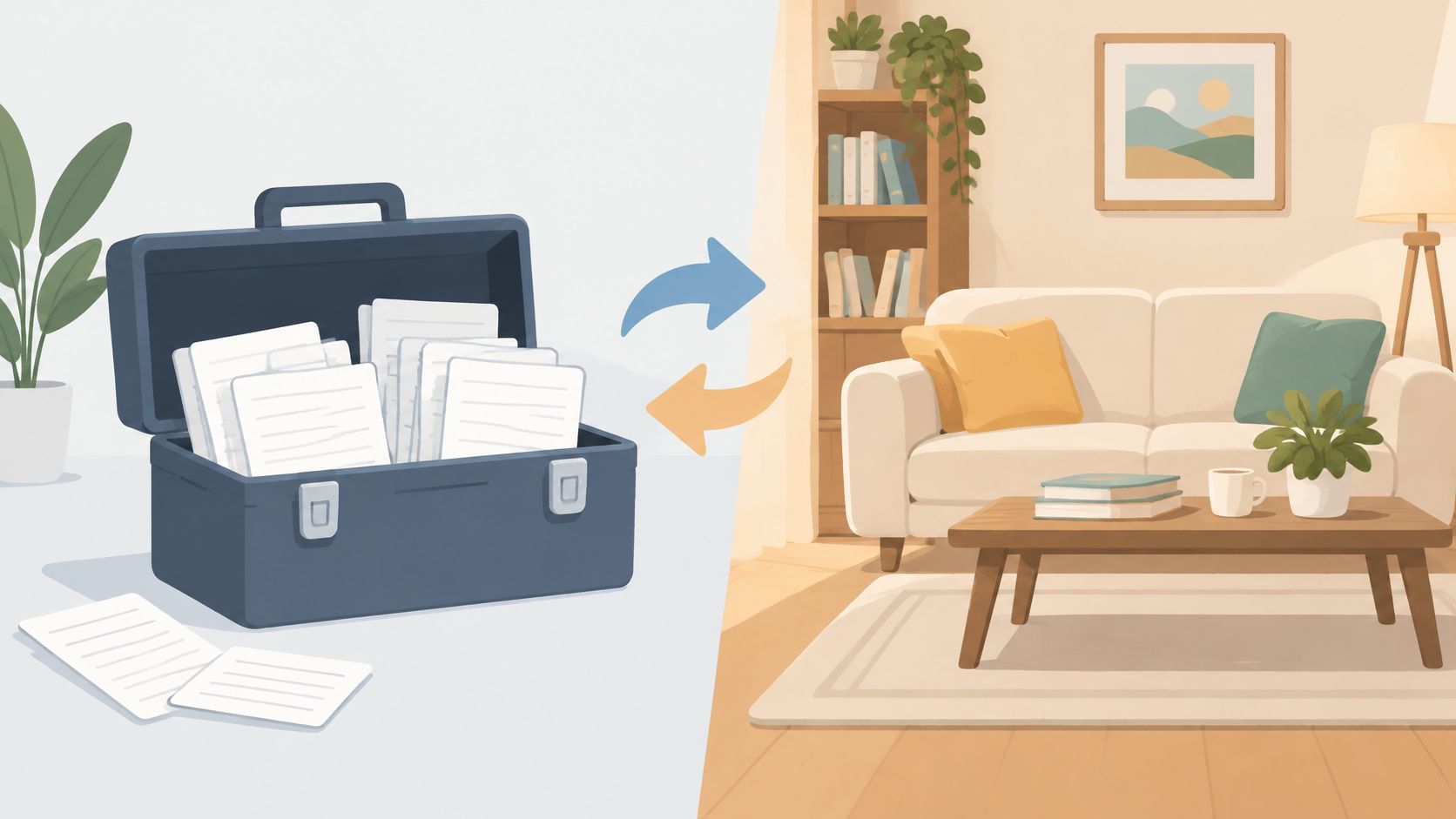
A rich-text editor is like renting a furnished apartment. The couch is already in place, the lights work, and you can sit down tonight. A Markdown notes app is more like owning a toolbox. It takes a bit of skill to use, but the toolbox comes with you when you move.
The difference rarely shows up on day one. It shows up months later. Comfort is real, but so is the cost of a format you can't open somewhere else.
Where Each Format Wins
Plain Markdown shines when it comes to portability and long-term access. Open a .md file in almost any text editor and your words are still there, readable and intact. The formatting stays simple. That's a real advantage if you like clean headings and lists, but it can feel limiting when you need precise, pixel-level layouts.
Rich text and block-based tools earn their keep where people work together in real time:
- Real-time co-editing lets several people type in the same document at once
- Complex tables are easier to build, sort, and scan
- Visual layouts match what non-technical teammates already expect
- Embedded media, comments, and embeds live right inside the page
Choose the format your future self can still open, not just the one that feels easiest this afternoon.
A Decision Matrix You Can Use
Find the row that sounds like your situation, then follow the advice in the last column. One honest match will serve you better than a long feature checklist.
| Your Situation | Better Fit | Act On This |
|---|---|---|
| Solo writing you may move between apps | Markdown notes app | Store notes as plain .md files |
| Team needs live cursors and comments | Rich text | Use a shared editor |
| Heavy tables, decks, or visual pages | Block-based tool | Keep drafts where layout matters |
| Mixed habits across writers and editors | Hybrid app | Confirm files stay plain text |
The Hybrid Middle Ground
Some apps hide Markdown symbols while you type. Others give you a visual editor but save ordinary files underneath. That middle path can feel comfortable and still leave you holding the toolbox.
Test the claim before you trust it. Find one note, then open it in a basic editor like TextEdit or Notepad. If you see readable sentences with symbols like # and * scattered through them, the file is portable. If you see a bundle, a database, or scrambled markup, the comfort is rented.
Creators Toolbox compares tools this same way, with side-by-side pages covering features, pricing, and best-fit workflows. If AI features are part of your decision, check out our guide to the best AI note taking app.
Signals Markdown Is the Wrong Choice
Markdown is a poor fit when several of these signals show up together:
- Most teammates won't learn even light syntax
- The work depends on live comments and simultaneous editing
- Documents need complex tables or designed page layouts
- Notes are throwaway rather than a library you expect to keep for years
If that describes your team, go with rich text and spend your energy on the writing instead of the format.
You can get a working Markdown notes app setup running in one afternoon. Keep the structure small, prove that you can recover your files, and only then start trusting it with the notes that matter.
Choose a Home You Control
- Pick storage you own. A folder on a drive you control works well, and so does a sync folder like iCloud or Dropbox. If a plain text editor can't open the files, the location is the wrong choice.
- Make just four folders. Name them
inbox,projects,reference, andarchive. It's tempting to build a detailed system on day one, but a big taxonomy usually turns into clutter you stop maintaining within a month. - Add one daily note. Save it as
2026-04-12.mdand paste in this template.
2026-04-12
Today's Focus
- One outcome that would make the day count
Captures
- Loose thoughts, links, and meeting scraps
Next Actions
- The next physical step
The date in the filename keeps search useful later on. Focus, captures, and next actions cover a normal day without any extra fields.
Move Old Notes Without Stalling
- Export a small batch first. Move about ten notes, not the whole archive. Open each one and check that the headings and lists came through intact.
- Fix image paths as you go. Store images and attachments in an
attachmentsfolder beside the note. A relative link such as `` keeps working after you move the folder. - Settle on one naming habit.
YYYY-MM-DD-short-title.mdworks well for both daily notes and project files. Lowercase words with hyphens are easier to search than names with spaces. - Set up sync, then add a separate backup. Sync keeps your phone and laptop current. A backup is a second copy on another drive. People often mix these up, but they do different jobs.
- Restore one file today. Delete a copy, bring it back from the backup, and open it. If the words and the image both return, you know the system works.
Confirm the System Before You Trust It
Before you move your real work in, check these things:
- The four folders exist, and you haven't added any extra categories yet
- The daily note opens in a plain text editor
- One image and one attached file still resolve correctly
- The same file shows up on a second device after sync
- The restored file matches the original
A system you have not restored is a system you have not tested.
Creators Toolbox offers free productivity tools for designers and creators, including interactive generators, calculators, and utilities. If you want some helpers while you set this up, they're worth a look. You might also enjoy our guide on open source alternatives for creative tools.
After two weeks, take one honest look at the folders. Archive finished project notes, and remove any folder you never opened. Add a new category only when your notes keep asking for one. That habit keeps the structure useful instead of bloated.
Do You Need to Learn Markdown Syntax First?
Not really. Most of the time, a few symbols will do the job, and most apps offer toolbar buttons or keyboard shortcuts that handle the typing for you. In practice, three or four patterns cover nearly everything: # for headings, - for lists, and brackets for links. The rest can wait until you actually need it.
What Happens to Your Notes If the App Shuts Down?
Think of a Markdown file as a plain letter instead of a sealed envelope. If your notes are .md files in a folder you control, you can open them almost anywhere, even in a basic text editor.
Plain text outlasts the software that created it.
Try exporting a folder and opening a few files to see whether the headings and links still make sense. If the files only open inside one app, take that as a warning sign.
Can Markdown Notes Apps Handle Images and PDFs?
Yes, usually through linked files stored beside the note. Images generally look good in most setups. PDFs tend to open as attachments, though, so you lose the annotation and layout control a visual tool would give you. For heavily designed material, keep the original file and a Markdown summary side by side.
Is Markdown Good for Team Documentation?
It fits stable reference material well, such as specs, technical docs, and onboarding guides. It starts to strain when collaborators expect live cursors, inline comments, or editing without any markup knowledge. Many teams end up pairing a Markdown repository with a rich-text tool for drafts that need feedback.
Find more tools for your workflow at Creators Toolbox, with free productivity resources and side-by-side comparisons at creatorstoolbox.com.