The 12 Best Graphic Design Apps for Creatives in 2026
By Steven Van ·
Discover the best graphic design apps for your workflow. We review the top 12 tools for pros and beginners, covering features, pricing, and use cases.
Finding the right tool for your creative work can feel overwhelming. The market is saturated with options, each claiming to be the definitive solution for designers. This guide cuts through the noise to provide a direct, practical comparison of the best graphic design apps available today. Whether you're a seasoned professional crafting complex vector illustrations, a marketer creating social media assets, or a student just starting your design journey, the perfect software for your specific needs is detailed here.
This resource is structured to help you make an informed decision quickly. Instead of just listing features, we provide an in-depth analysis of each application, covering its ideal user, core strengths, and genuine limitations. We'll explore established industry standards like Adobe Photoshop and Illustrator, alongside powerful challengers such as Affinity Designer and Procreate. You’ll also find details on collaborative web-based platforms like Figma and accessible tools like Canva, ensuring a well-rounded view of the current software environment.
Each entry includes:
- Key Features and Use Cases: What the app does best and who it's for.
- Pros and Cons: An honest look at both its advantages and drawbacks.
- Pricing: A clear breakdown of costs, from subscriptions to one-time purchases.
- Workflow Insights: Practical tips for integrating the app into your creative process.
We provide direct links and screenshots for every application, allowing you to see the interface and explore it for yourself. Our goal is to equip you with the information needed to select the app that not only matches your skill level and budget but also empowers your creative workflow for years to come. Let's dive in.
1. Adobe Photoshop
Adobe Photoshop remains the undisputed industry standard for raster-based image editing and one of the best graphic design apps for professionals. Its power lies in its deep, layer-based editing system, which gives users granular control over every element of an image. From intricate photo retouching and complex digital compositing to creating web banners and social media graphics, Photoshop’s toolset is built for precision.
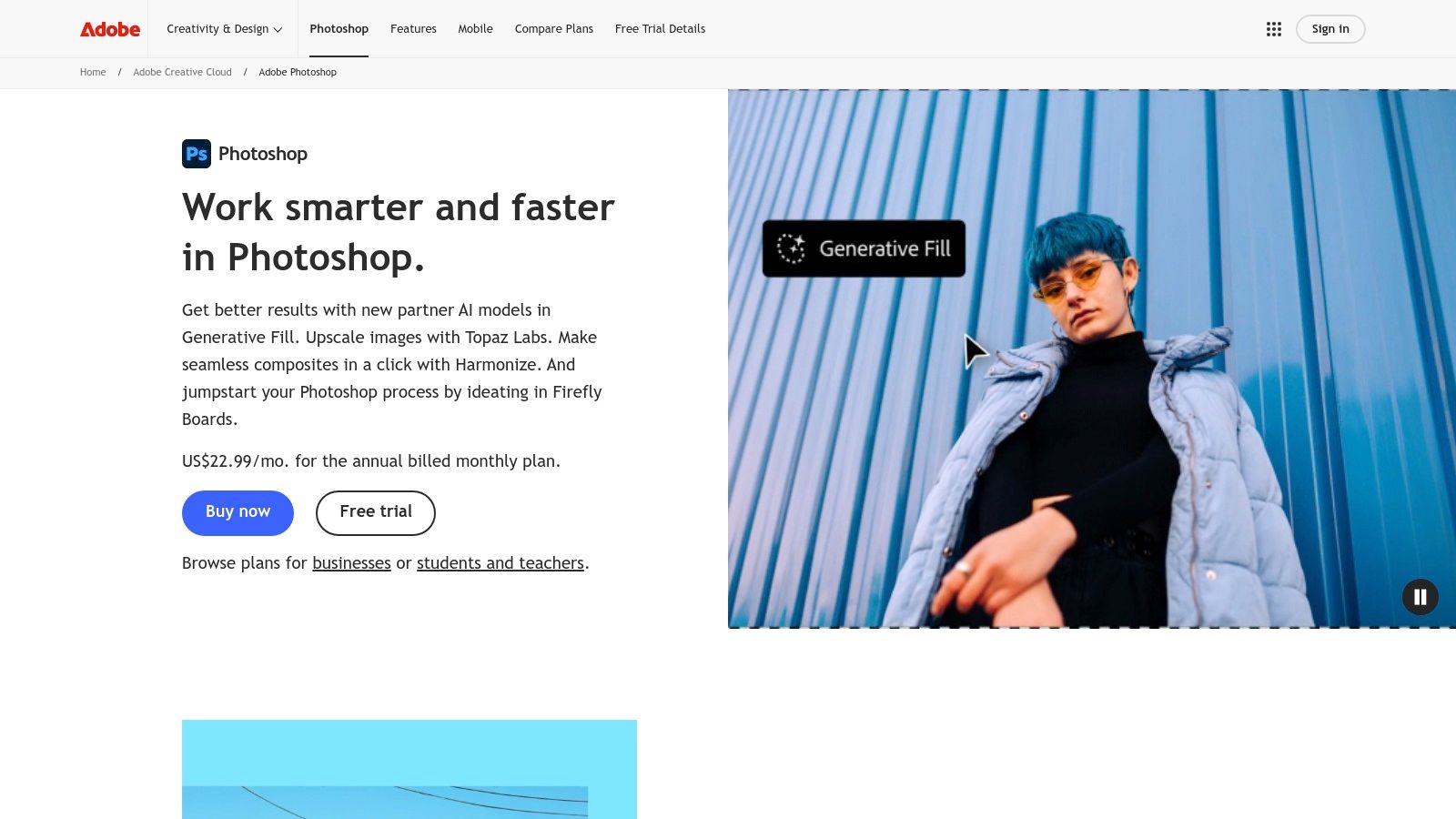
The recent integration of Adobe Firefly, its generative AI engine, has introduced features like Generative Fill and Expand, allowing designers to add, remove, or extend content non-destructively using text prompts. This, combined with its renowned selection and masking tools, makes complex edits faster than ever. For a practical application of these tools, see our complete guide on how to remove backgrounds in Photoshop.
Key Details & Pricing
- Best For: Photo editing, digital painting, web graphics, and complex composites.
- Pros: Top-tier retouching and selection tools, vast ecosystem of plugins and tutorials, seamless cross-platform syncing.
- Cons: Steep learning curve for newcomers, expensive subscription-only model.
- Pricing: Access is through an Adobe Creative Cloud subscription. The Photography Plan (including Lightroom) starts at $9.99/month, while the single app plan is $22.99/month.
Website: adobe.com/products/photoshop
2. Adobe Illustrator
Where Photoshop masters the pixel, Adobe Illustrator commands the vector. As the industry benchmark for vector illustration, Illustrator is essential for creating artwork that needs to scale flawlessly from a business card to a billboard. Its strength is in its precision drawing tools, which allow for the creation of clean, mathematically defined lines and shapes perfect for logos, icons, and complex illustrations.
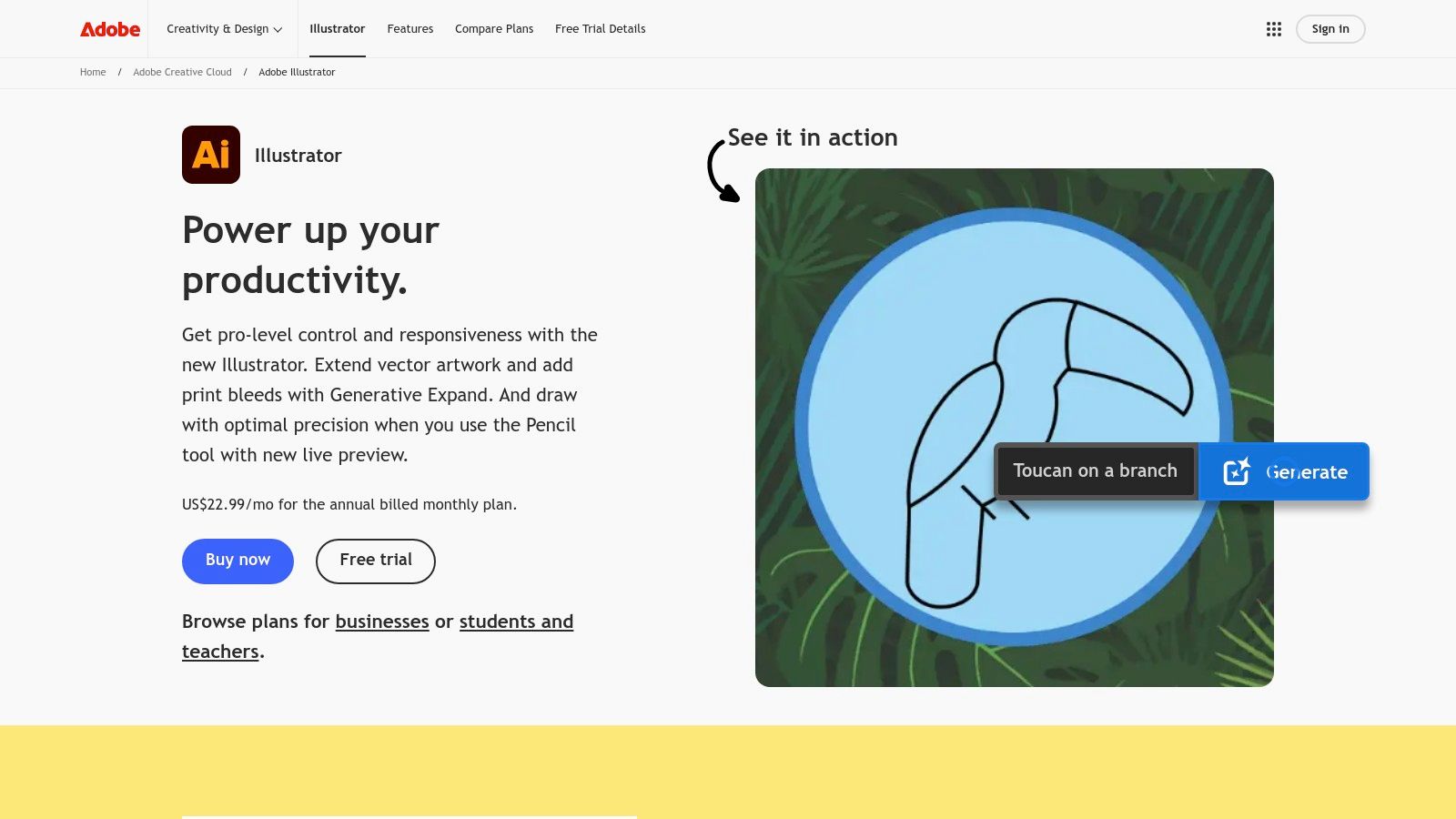
The application excels in branding and identity projects, offering robust typography controls and the ability to manage up to 1,000 artboards in a single document for extensive campaign work. Its powerful Pen Tool provides exacting control over anchor points and curves, a skill fundamental to professional vector art. For those looking to create clean, scalable vector art from raster images, you can also learn how to master tracing images in Illustrator. Additionally, our guide on how to trace images in Illustrator provides a step-by-step workflow for this common task.
Key Details & Pricing
- Best For: Logo design, branding, iconography, and print-ready vector artwork.
- Pros: Industry-standard vector format compatibility, excellent for branding and packaging, powerful iPad app with Apple Pencil support.
- Cons: Subscription-only pricing, can feel heavy for quick edits or template-driven tasks.
- Pricing: Available through an Adobe Creative Cloud subscription. The single app plan costs $22.99/month, or it can be bundled with all Creative Cloud apps starting at $59.99/month.
Website: adobe.com/products/illustrator
3. Canva
Canva has established itself as the go-to browser-based design platform, making graphic creation accessible to everyone from beginners to seasoned professionals needing quick turnarounds. Its primary strength lies in its template-first approach, offering millions of pre-made layouts for social media posts, presentations, and marketing materials. This makes it one of the best graphic design apps for speed and team-wide consistency.
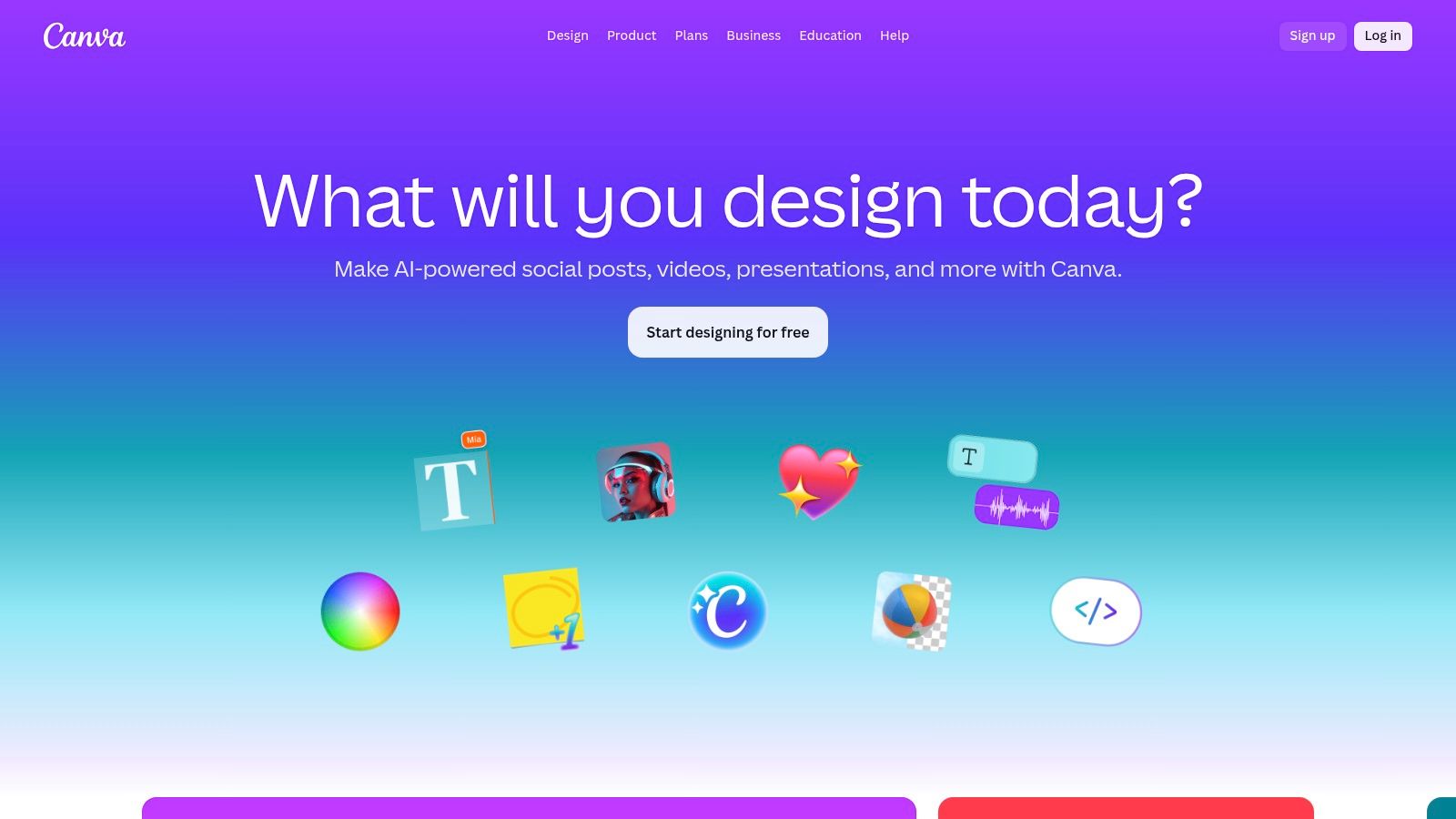
The platform is built around a drag-and-drop interface, supported by a massive library of stock photos, videos, graphics, and fonts. For teams, its Brand Kit feature is a standout, allowing users to pre-load logos, color palettes, and fonts to maintain brand integrity across all designs. Real-time collaboration lets multiple users work on a single design simultaneously, leaving comments and making edits, which is ideal for marketing departments and agencies.
Key Details & Pricing
- Best For: Social media content, marketing materials, presentations, and quick-turnaround projects for non-designers.
- Pros: Extremely easy to use with a minimal learning curve, strong brand management and real-time collaboration tools, huge library of templates and assets.
- Cons: Limited advanced editing capabilities for vector and raster graphics, feature tiers and pricing can get complex with multiple seats.
- Pricing: A robust free plan is available. Canva Pro starts at $14.99/month for one person, with team pricing varying by the number of users.
Website: canva.com
4. Affinity Designer
Affinity Designer has established itself as a powerful and direct competitor to Adobe Illustrator, earning its spot among the best graphic design apps for its professional-grade vector tools and one-time purchase price. It provides a remarkably fast and fluid experience, whether you are creating intricate illustrations, UI mockups, or print-ready branding assets. Its key strength lies in its precise vector engine, supporting advanced features like artboards, symbols, and constraints for a non-destructive workflow.
A standout feature is its dual-persona environment, allowing you to switch between vector (Designer Persona) and raster (Pixel Persona) toolsets within the same application. This removes the need to jump between programs for simple pixel-based edits. The app also integrates seamlessly with its siblings, Affinity Photo and Publisher, via the StudioLink feature, creating a unified creative suite for those who want to move away from a subscription model.
Key Details & Pricing
- Best For: Vector illustration, UI/UX design, concept art, and print projects.
- Pros: Exceptional performance and speed, clean user interface, one-time payment model is a major draw for many users.
- Cons: Smaller third-party plugin ecosystem compared to Illustrator, licensing and pricing can vary so checking the current offers is recommended.
- Pricing: Affinity V2 is sold as a one-time purchase. The Universal License (including Designer, Photo, and Publisher for all platforms) is a single payment of $164.99, or apps can be bought individually for Mac/Windows at $69.99 each.
Website: affinity.serif.com
5. Procreate
For digital illustrators and lettering artists, Procreate has become the essential iPad application, widely regarded as one of the best graphic design apps for touch-based creation. It is celebrated for its incredibly fluid and responsive drawing experience, which pairs perfectly with the Apple Pencil. The app's power comes from its Valkyrie graphics engine, allowing for high-resolution canvases, over 100 layers, and zero lag, creating a drawing feel that closely mimics traditional media.
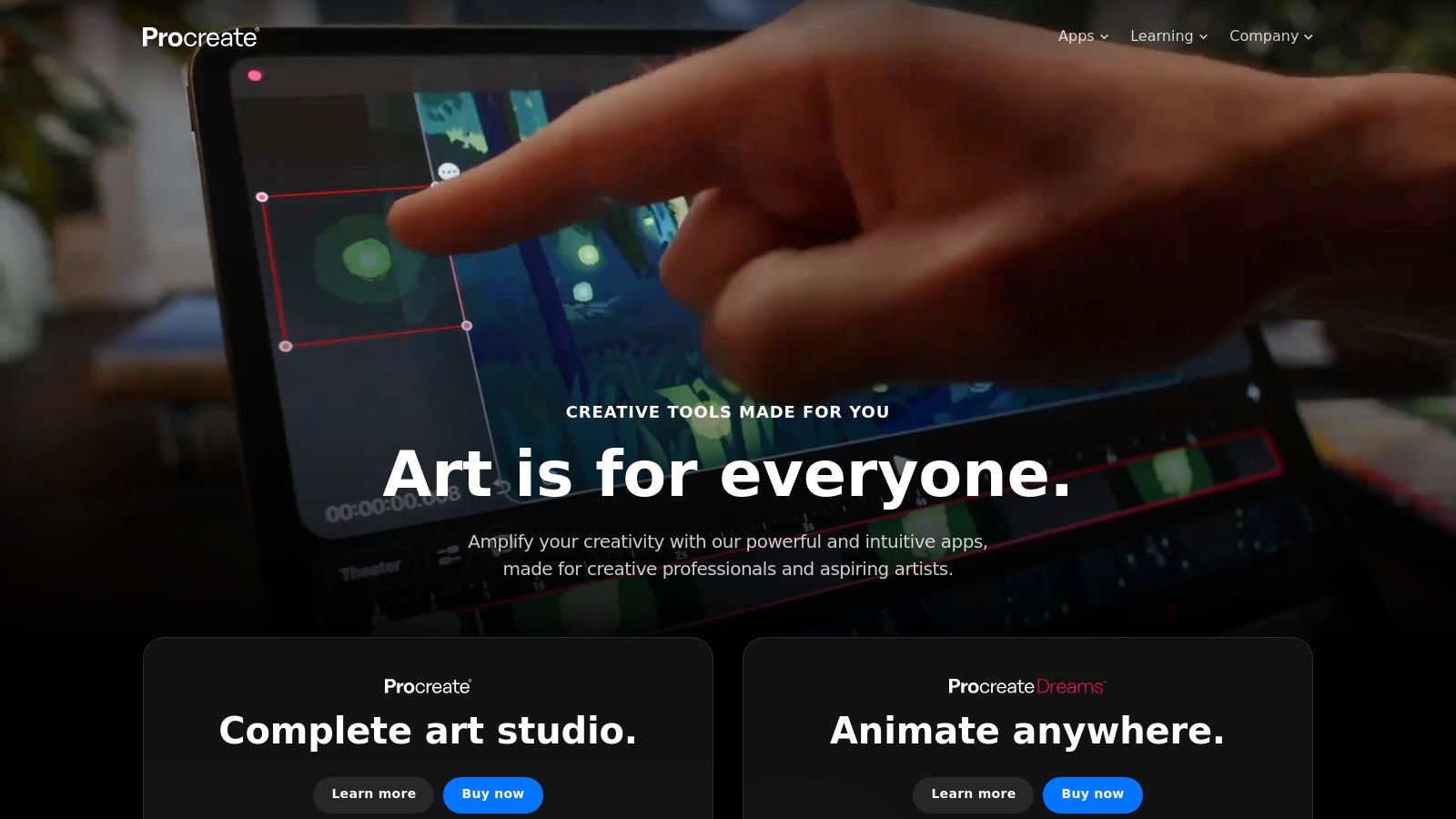
Its main distinction is its focus on the drawing and painting process itself. Features like the full Brush Studio let artists create and customize every aspect of their brushes, or import thousands of sets made by the community. Additionally, the automatic Time-lapse recording captures every stroke, providing valuable content for social media. Recent updates have even added support for 3D model painting, expanding its utility for concept artists and character designers.
Key Details & Pricing
- Best For: Digital illustration, lettering, concept art, and digital painting on the go.
- Pros: Best-in-class drawing and painting feel on iPad, powerful brush engine, one-time purchase with no subscription required.
- Cons: iPad-only with no native desktop version, limited multi-page layout and print workflows compared to desktop suites.
- Pricing: A single, one-time purchase of $12.99 on the App Store.
Website: procreate.com
6. CorelDRAW Graphics Suite
CorelDRAW Graphics Suite is a long-standing powerhouse in the world of vector illustration and page layout, making it one of the best graphic design apps, particularly for production-focused industries. It excels in workflows for signage, large-format printing, apparel design, and engraving. The suite bundles CorelDRAW for vector work, PHOTO-PAINT for image editing, and other utilities, providing a complete toolkit for print professionals.
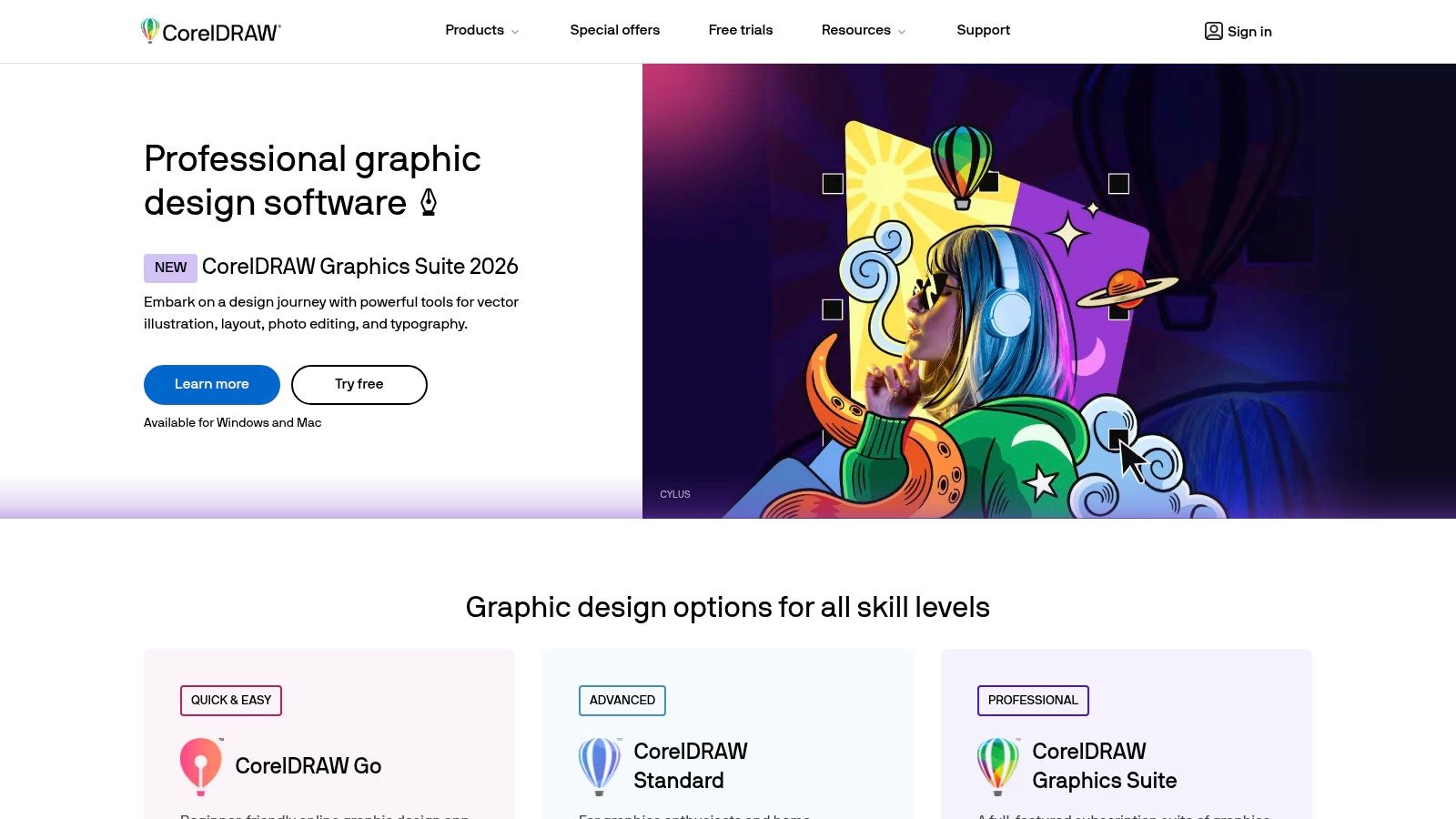
One of its most acclaimed features is PowerTRACE, a superior bitmap-to-vector tracing tool that is often considered more effective than competing software's equivalents. This is critical for designers who frequently need to convert raster logos or scanned artwork into scalable vector graphics. With the introduction of CorelDRAW.app, users also gain browser-based access for viewing and light editing, adding a layer of cloud-based flexibility to the traditional desktop application.
Key Details & Pricing
- Best For: Signage, print production, apparel design, and vector tracing.
- Pros: Excellent bitmap-to-vector tracing, strong prepress tools, perpetual license option is available.
- Cons: Interface can feel less modern than some rivals, file compatibility with Adobe-centric workflows can sometimes require extra steps.
- Pricing: CorelDRAW offers flexibility with a subscription starting at $22.42/month (billed annually) or a one-time purchase option for the perpetual license, which is currently $549.
Website: coreldraw.com
7. Figma
Figma has cemented its position as the go-to platform for collaborative UI/UX design, but its robust vector tools also make it one of the best graphic design apps for a wider range of projects. Its primary strength is its browser-first, cloud-based environment, which allows multiple designers, developers, and stakeholders to work on the same file in real time. This frictionless collaboration eliminates version control issues and streamlines the entire design-to-development workflow.
Beyond interface design, Figma is a powerful tool for creating vector illustrations, social media graphics, presentations, and interactive prototypes. Features like components, variables, and auto layout allow designers to build scalable design systems that maintain consistency across large projects. For those starting out, it's beneficial to understand foundational processes; you can master the Figma wireframe template to speed up your initial design phase. To explore some of its more advanced visual capabilities, check out our Figma glass effect playground.
Key Details & Pricing
- Best For: UI/UX design, real-time collaboration, prototyping, and design systems.
- Pros: Best-in-class real-time collaboration and sharing, scales from solo use to large organizations with design systems, strong free plan.
- Cons: Web-first approach can feel different from native desktop workflows, seat-based pricing can become expensive for large teams.
- Pricing: A generous free plan is available for individuals. Paid plans with team features start at $12 per editor/month (Professional) and scale up for enterprise needs.
Website: https://www.figma.com/
8. Sketch
Sketch carved its niche as a polished, Mac-first vector design app that became a favorite for UI and digital product design. Its strength lies in a clean, intuitive interface and a robust component-based workflow. Creating and managing design systems is straightforward thanks to its Symbols, which act as reusable elements that can be updated across an entire project from one master component. This makes it ideal for maintaining brand consistency in marketing materials, app interfaces, and website layouts.
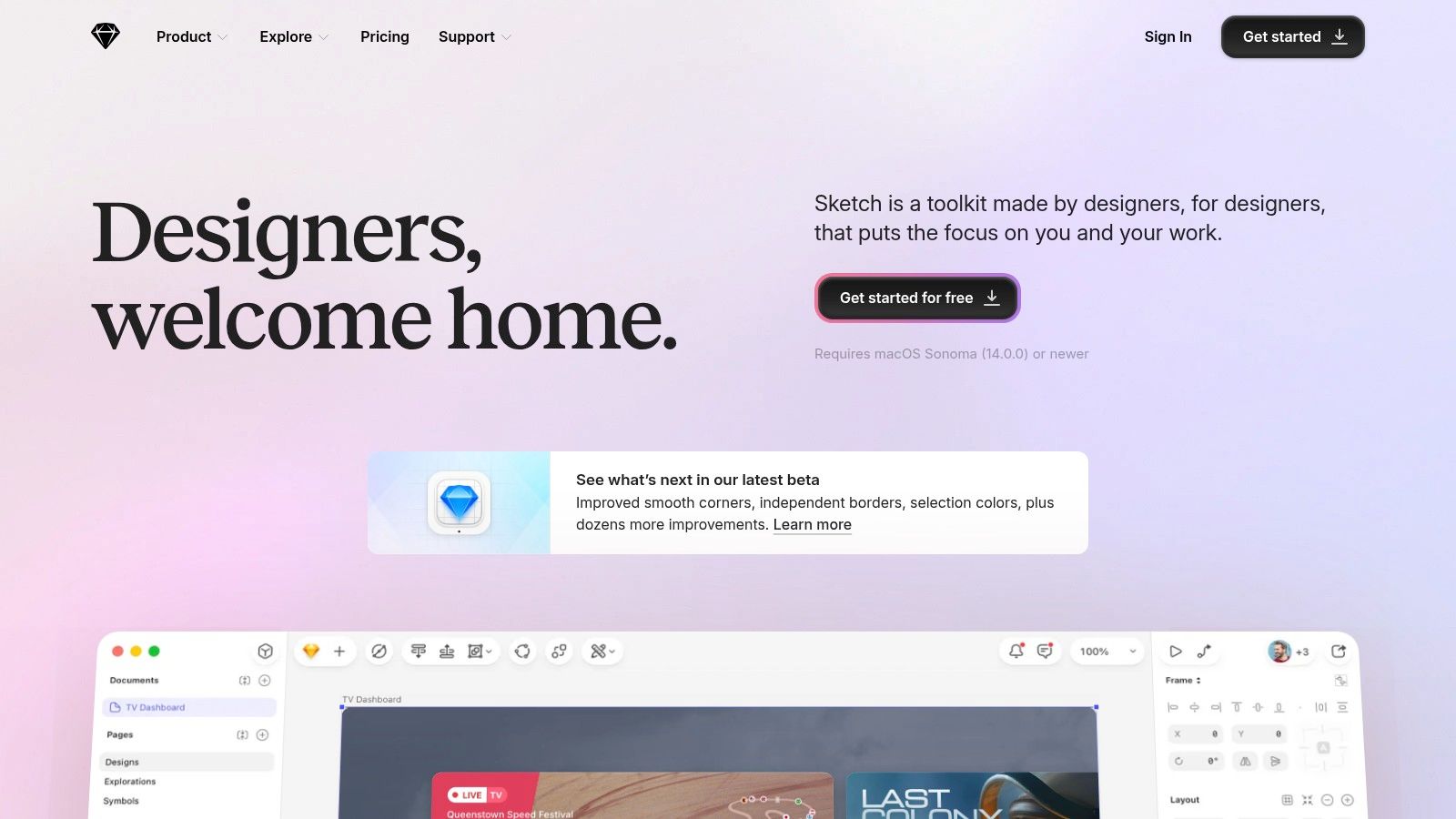
While the editor is a native macOS application, Sketch has expanded its ecosystem with a web-based workspace. This allows for real-time collaboration, feedback from stakeholders on any operating system, and developer handoff with inspect tools. This hybrid approach offers the speed of a native app with the accessibility of cloud-based platforms, positioning Sketch as one of the best graphic design apps for Mac-based teams needing to collaborate more widely. Its focused toolset avoids the feature bloat of some competitors, making it faster to learn and use for its core purpose: vector illustration and UI design.
Key Details & Pricing
- Best For: UI/UX design, mobile app interfaces, and creating scalable design systems.
- Pros: Fast, native macOS experience; powerful component and shared library workflows; clear per-editor pricing.
- Cons: Editing is restricted to macOS; smaller plugin ecosystem compared to Illustrator or Figma.
- Pricing: A Standard subscription costs $12 per editor/month or $120 per editor/year. This includes the Mac app and workspace access, with free viewer accounts for collaborators.
Website: sketch.com
9. Inkscape
For designers seeking a powerful, professional-grade vector graphics editor without a price tag, Inkscape is an exceptional open-source solution. It stands as a direct, community-driven alternative to Adobe Illustrator, offering a surprisingly deep toolkit centered around the SVG (Scalable Vector Graphics) format. This makes it ideal for creating logos, technical diagrams, illustrations, and even multi-page documents for both web and print.
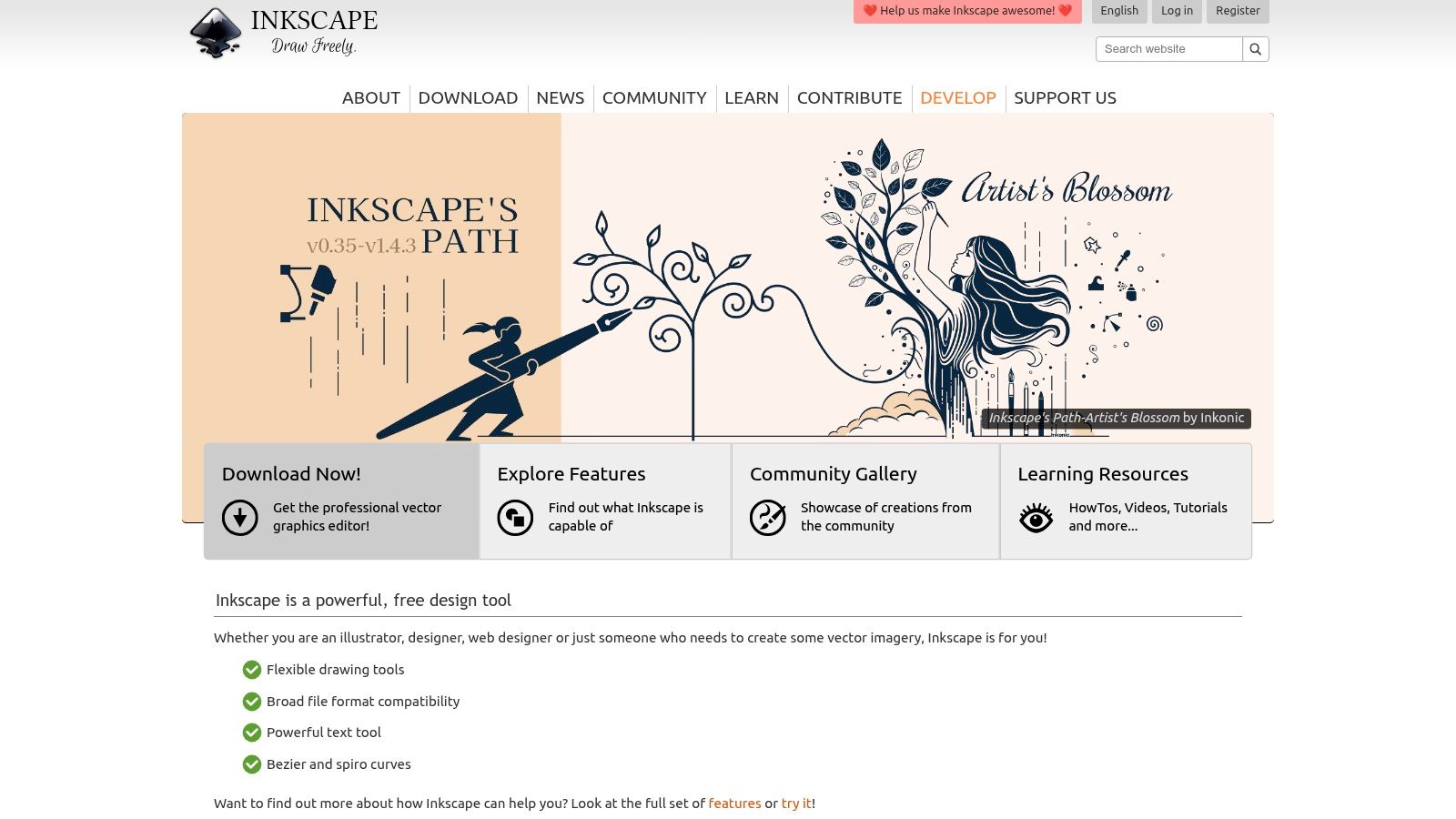
Unlike many free tools that compromise on functionality, Inkscape provides advanced features like node editing, complex path operations, and extensive object manipulation. Its support for multi-page documents (added in version 1.2) significantly improved its utility for projects like brochures or user guides. As a cross-platform application available on Windows, macOS, and Linux, it ensures accessibility for a broad user base, cementing its place as one of the best graphic design apps for those on a budget or who champion open-source software.
Key Details & Pricing
- Best For: Vector illustration, logo design, SVG editing, and academic or technical diagrams.
- Pros: Completely free and open source, strong community support with many extensions, native SVG workflow.
- Cons: The user interface can feel less polished than commercial alternatives, and some advanced CMYK print workflows may require extra steps.
- Pricing: Free. As an open-source project, Inkscape is maintained by volunteers and supported by donations.
Website: https://inkscape.org/
10. GIMP
GIMP (GNU Image Manipulation Program) stands as the most powerful open-source raster graphics editor, making it one of the best graphic design apps for those on a zero-dollar budget. It offers a surprisingly robust feature set that mirrors many capabilities found in premium software like Photoshop. Users can perform detailed photo retouching, create complex digital composites, and design graphics using a familiar layer-based system with masks, blend modes, and a wide array of filters.
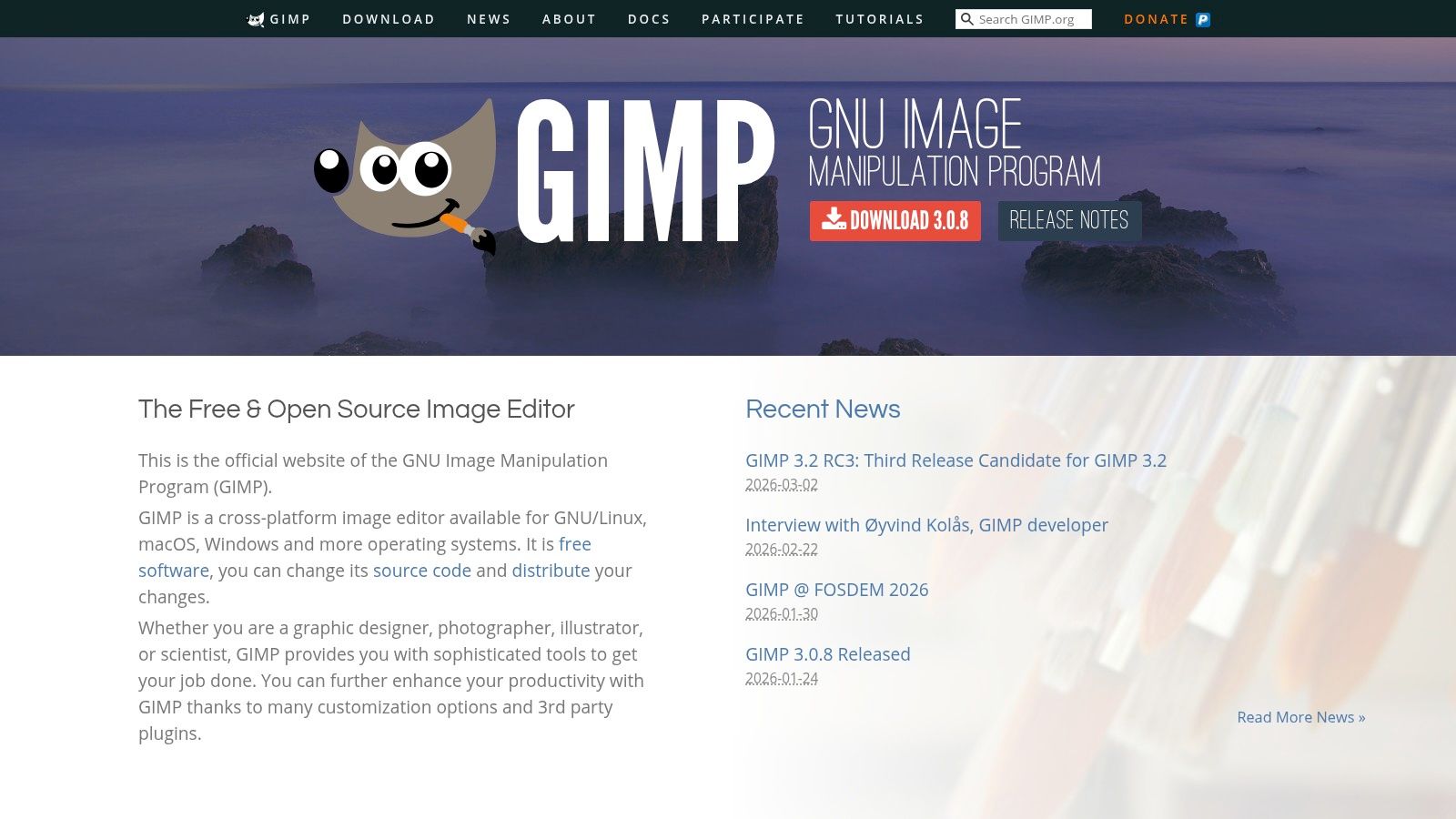
What makes GIMP a long-standing favorite in the open-source community is its extensibility. Its functionality can be significantly expanded through third-party plugins and scripts, allowing users to add new features or automate repetitive tasks. While its default user interface and workflows can feel less polished than modern commercial alternatives, its core power for image editing is undeniable. It's a fantastic, no-cost entry point for aspiring designers or a reliable tool for anyone needing professional-grade editing without the subscription fee.
Key Details & Pricing
- Best For: Budget-conscious users, students, and open-source advocates needing powerful photo editing and digital painting tools.
- Pros: Completely free with no ads or subscriptions, highly extensible via plugins and scripting, cross-platform support for Windows, macOS, and Linux.
- Cons: Interface and workflows can feel dated compared to commercial apps, fewer professional print/color features (like CMYK) out of the box.
- Pricing: Free and open source.
Website: www.gimp.org
11. Linearity Curve
Linearity Curve is a modern, Apple-centric vector design application that has earned its place among the best graphic design apps by offering a powerful yet approachable alternative to more complex software. It provides a fluid, intuitive experience for creating everything from detailed illustrations and logos to UI mockups and marketing assets. Its core strength is a clean interface that lowers the barrier to entry for vector graphics without sacrificing professional-grade tools like a shape builder, pen tool, and CMYK support.
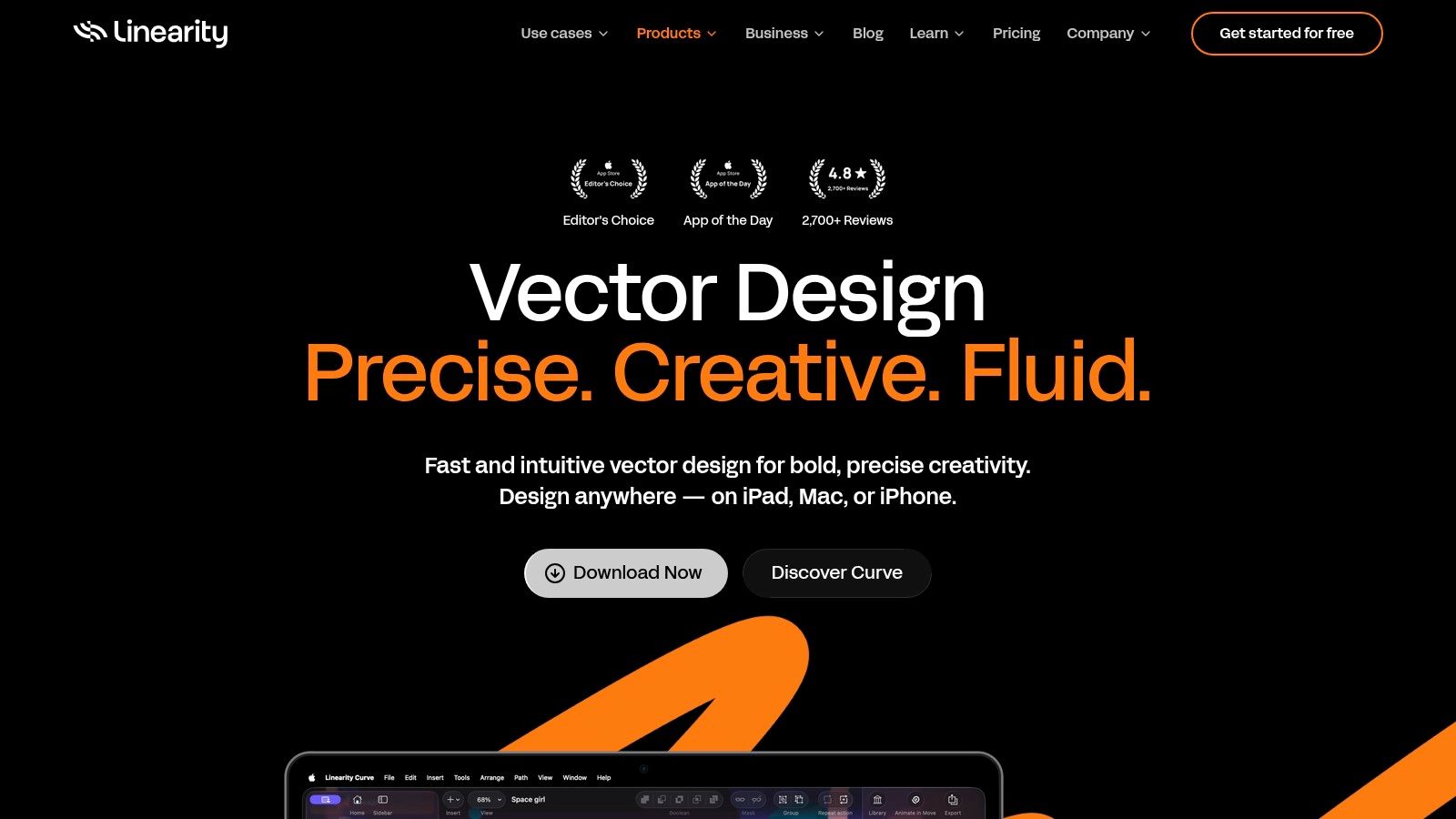
The platform stands out with its seamless cross-device functionality across Mac, iPad, and iPhone, ensuring your projects are always in sync. A key benefit is its integrated ecosystem; a single subscription includes Linearity Move, allowing designers to take static designs from Curve and animate them for motion graphics projects. Features like the AI-powered Auto Trace for converting raster images to vectors and quick background removal simplify common but tedious tasks, making the workflow remarkably efficient.
Key Details & Pricing
- Best For: UI/UX designers, illustrators, and marketers working exclusively within the Apple ecosystem.
- Pros: Lightweight and fast, easy to learn, great value with animation software included, strong cross-device sync.
- Cons: Only available on Apple platforms, lacks some of the advanced enterprise features of larger suites.
- Pricing: A free starter plan is available. The Pro plan, which includes Linearity Move, is priced at $9.99/month per user (billed annually).
Website: linearity.io/curve/
12. Adobe Express
Adobe Express is the company's answer for designers and marketers who need to create high-quality social media content, flyers, and simple brand assets quickly. Positioned as a user-friendly, template-based tool, it bridges the gap between complex professional software and the need for speed. Its strength is its deep integration within the Adobe ecosystem, making it one of the best graphic design apps for teams already invested in Creative Cloud.
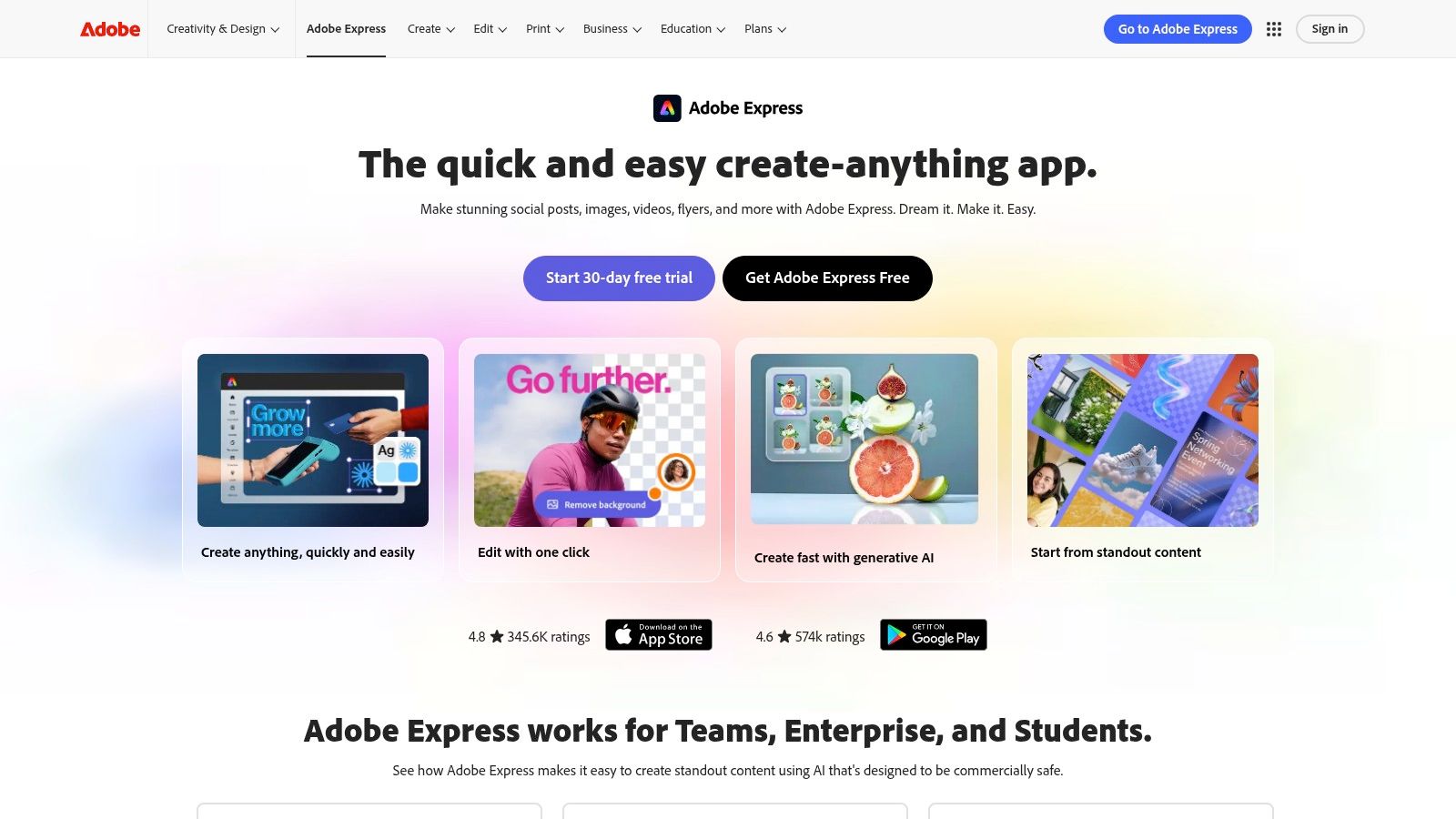
Express allows you to import and work with linked assets from Photoshop and Illustrator, ensuring that core brand elements remain consistent. The platform also incorporates Adobe Firefly AI for generative tasks and provides access to the vast Adobe Stock library. This combination allows for rapid content production without sacrificing brand control, thanks to features like brand kits and template locking that help maintain consistency across a team.
Key Details & Pricing
- Best For: Social media managers, marketers, and small businesses needing fast, on-brand content.
- Pros: Seamless integration with Photoshop, Illustrator, and Adobe Stock; excellent for maintaining brand consistency; generative AI features are included.
- Cons: Less granular control compared to full desktop apps; some advanced stock and AI features are limited on lower-priced plans.
- Pricing: A free plan is available with basic features. The Premium plan, which unlocks all features and assets, starts at $9.99/month and is included with most Creative Cloud subscriptions.
Website: adobe.com/express
Top 12 Graphic Design Apps Comparison
| Tool | Core focus & key features | UX / Quality | Value / Pricing | Target audience | Unique selling points |
|---|---|---|---|---|---|
| Adobe Photoshop | Raster editing, layers, masking, generative AI (Firefly), cross‑platform | ★★★★★ ★🏆 | 💰 Subscription (Adobe CC) | 👥 Photographers, retouchers, compositors | ✨ Best‑in‑class retouching & plugin ecosystem; tight Adobe integration |
| Adobe Illustrator | Precision vector tools, artboards, typography, iPad support | ★★★★★ | 💰 Subscription (Adobe CC) | 👥 Logo, branding, print designers | ✨ Industry standard for vector/print workflows; robust type tools |
| Canva | Template‑first design, asset libraries, brand kit, real‑time collaboration | ★★★★ | 💰 Free tier + paid plans (seat‑based) | 👥 Marketers, social teams, non‑designers | ✨ Fast template workflows; strong collaboration & brand controls |
| Affinity Designer | Vector + pen tools, StudioLink, CMYK/print, one‑time purchase history | ★★★★ | 💰 One‑time license / low cost promotions | 👥 Freelancers, print designers wanting no subscription | 🏆 Perpetual licensing; high performance on Mac/Win/iPad |
| Procreate | iPad painting, Apple Pencil, Brush Studio, time‑lapse & animation | ★★★★★ | 💰 One‑time iPad purchase | 👥 Illustrators, concept & lettering artists | 🏆 Best drawing feel on iPad; affordable one‑time buy |
| CorelDRAW Graphics Suite | Vector/layout, prepress, PowerTRACE, web/cloud access | ★★★★ | 💰 Perpetual + subscription options | 👥 Signage, apparel, print production pros | ✨ Strong tracing & prepress tools for production workflows |
| Figma | Cloud‑first UI/UX, components, prototyping, real‑time collaboration | ★★★★★ 🏆 | 💰 Free tier + seat‑based subscription | 👥 Product teams, UI/UX designers, large orgs | ✨ Best real‑time collaboration & design system scaling |
| Sketch | Mac‑native vector UI, symbols, shared libraries, web inspect | ★★★★ | 💰 Per‑editor subscription / license | 👥 macOS designers focused on UI & brand assets | ✨ Fast native Mac experience; solid component workflows |
| Inkscape | Open‑source SVG editor, multi‑page, broad import/export, cross‑platform | ★★★★ | 💰 Free & open source | 👥 Hobbyists, students, budget‑conscious vector users | ✨ Completely free; strong SVG & extension ecosystem |
| GIMP | Free raster editor, layers/masks/filters, plugin/scriptable | ★★★ | 💰 Free & open source | 👥 Budget editors, Linux users, hobbyists | ✨ Powerful free Photoshop‑style tooling; highly extensible |
| Linearity Curve | Apple‑centric vector app, Auto Trace, sync across Apple devices | ★★★★ | 💰 Subscription (Apple platforms) | 👥 Apple‑focused illustrators & brand creators | ✨ Lightweight, easy to learn; includes Linearity Move for motion |
| Adobe Express | Template‑based social content editor, brand kit, Stock & Firefly ties | ★★★★ | 💰 Free tier + paid features (Adobe) | 👥 Social creators, small teams, marketers | ✨ Fast social/video templates; integrates with Photoshop/Stock |
Final Thoughts
Navigating the extensive world of creative software can feel overwhelming, but as we've explored, the key isn't finding a single "perfect" application. Instead, the goal is to build a personalized toolkit that aligns with your specific projects, budget, and creative workflow. The search for the best graphic design apps is less about a definitive winner and more about finding the right combination for your individual needs as a designer.
From the powerhouse duo of Adobe Photoshop and Illustrator, which continue to set the industry standard for professionals, to the remarkable value and performance of Affinity Designer, the options are more diverse than ever. We've seen how web-based platforms like Figma and Canva have completely changed collaborative design and accessibility, making high-quality design possible for teams and non-designers alike. Meanwhile, specialized tools like Procreate demonstrate the incredible creative potential of mobile devices, turning an iPad into a professional-grade illustration studio.
How to Choose Your Design Toolkit
Selecting the right software requires a clear assessment of your primary needs. Don't be swayed by features you'll never use. Instead, consider these practical factors:
- Your Core Discipline: Are you primarily a vector illustrator, a UI/UX designer, or a digital painter? Your main focus should guide your primary software choice. An illustrator will gravitate towards Procreate or Illustrator, while a UI designer will find Figma or Sketch indispensable.
- Collaboration Needs: If you work with a team, collaborative features are non-negotiable. Figma and Adobe Express are built from the ground up for real-time teamwork, a stark contrast to the more isolated, file-based workflows of traditional desktop apps like CorelDRAW.
- Budget and Business Model: Subscription fatigue is real. If you prefer a one-time purchase, Affinity Designer offers incredible power without a monthly fee. For those just starting, free and open-source options like Inkscape and GIMP provide a no-cost entry point to learn fundamental design principles.
- Platform and Hardware: Your operating system and devices dictate your options. Sketch remains macOS-exclusive, while Procreate is an iPad-only experience. Ensure the software you're considering is compatible with the hardware you own or plan to purchase.
Actionable Next Steps for Your Creative Journey
With this information, your next step is to take action. Don't just read reviews; get hands-on experience. Nearly every paid application on our list offers a free trial period.
- Identify Your Top 2-3 Contenders: Based on the categories and considerations above, pick the apps that seem most promising for your work.
- Sign Up for Free Trials: Dedicate a week to each. Don't just poke around the interface; try to complete a real-world project from start to finish. This is the only way to truly understand a tool's workflow and limitations.
- Evaluate the Learning Curve: How intuitive do you find the software? Check out tutorials and community forums. An active, supportive community can significantly ease the learning process and provide inspiration when you hit a creative block.
Ultimately, the best graphic design apps are the ones that feel like an extension of your own creativity. They should reduce friction, not add to it. The ideal tool gets out of your way, allowing you to focus on what truly matters: bringing your ideas to life. Your software is a partner in your creative process, so choose one that supports and amplifies your unique vision.
Finding the right apps is just the first step. To truly accelerate your creative workflow, you need high-quality assets. The Creators Toolbox offers a curated library of design resources, from textures and mockups to color palettes, designed to integrate seamlessly with the very apps we've discussed. Explore our collection and spend less time searching and more time creating at Creators Toolbox.