Email Studio for Gmail: Features, Limits and Workflows
You've got a short list of names in a sheet and a message that's almost the same for each person. Pasting everyone into BCC feels sloppy. Copying the note into twenty separate windows is how a Tuesday disappears, and one wrong first name makes the whole batch look careless.
That's the moment people reach for Email Studio for Gmail. It can turn one draft into separate notes that open with the right name. Convenience and Gmail's own rules are different questions. A clean send to yourself doesn't prove a bigger list is safe, that people agreed to hear from you, or that the permissions on the consent screen are ones you want to grant.
Judge the fit by volume, consent, and privacy. Treat a successful test as a rehearsal, not a green light.
What Email Studio for Gmail Does and Where It Runs
Email Studio for Gmail is a Google Workspace add-on that turns one message into separate, addressed notes for a list of contacts. A consultant sending the same proposal to forty clients can keep the body identical while each note opens with the right first name. The result reads like forty form letters, not one group blast.
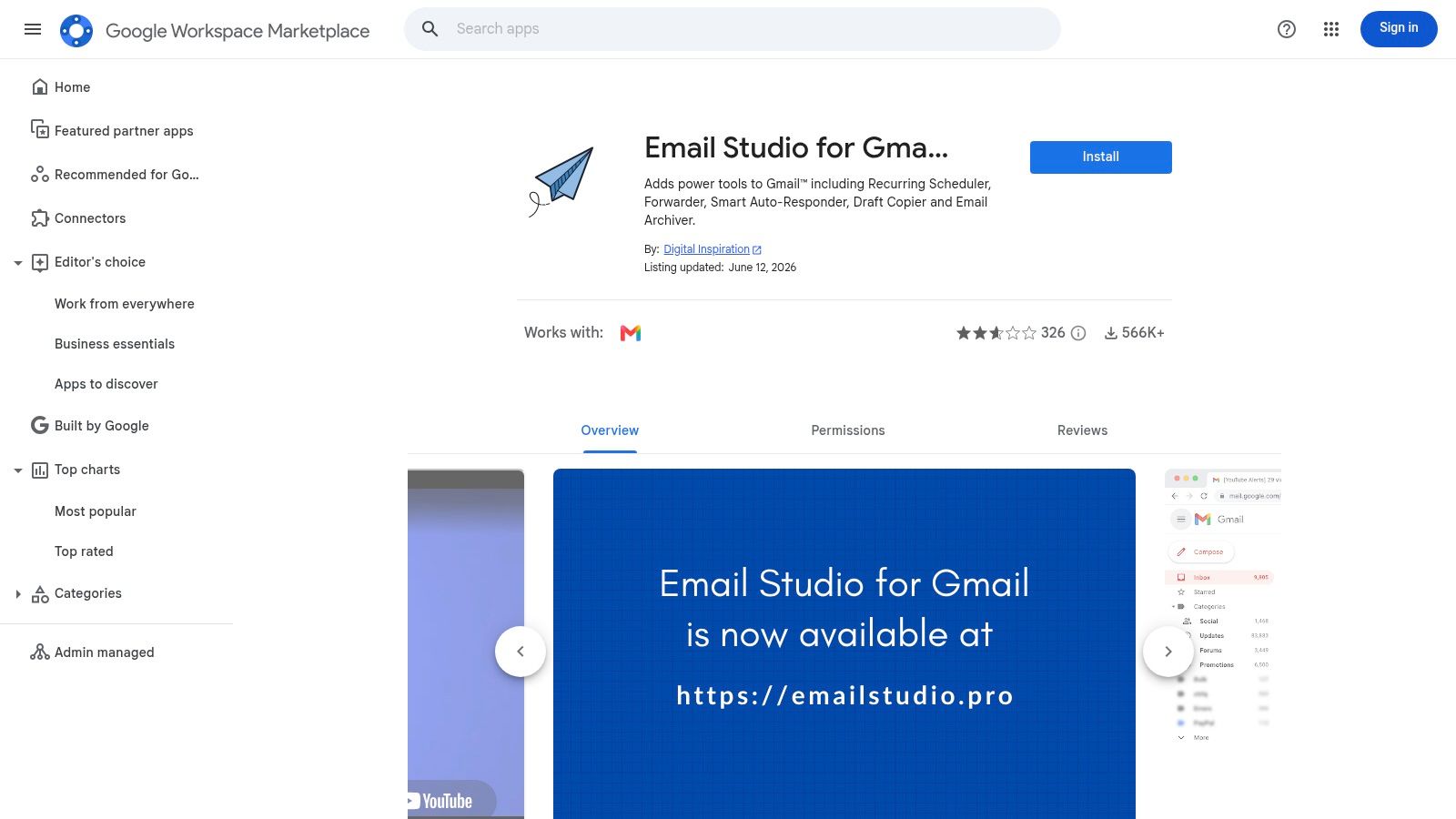
The Google Workspace Marketplace listing gives the add-on a launch date of July 29, 2018, and the project maintains a public GitHub repository. It is written with Google Apps Script, Google's cloud-based scripting environment for Workspace automation. That foundation matters because the add-on extends Gmail and Google Contacts instead of acting as a separate desktop email client.
It works like a power strip, not a second appliance. The strip plugs into the mail and contacts already in the account. The current still comes from Google, so drafts, sent mail, and contact records stay in the same place you open every morning. Convenience is one question; Gmail's sending rules, recipient consent, and account access are separate checks.
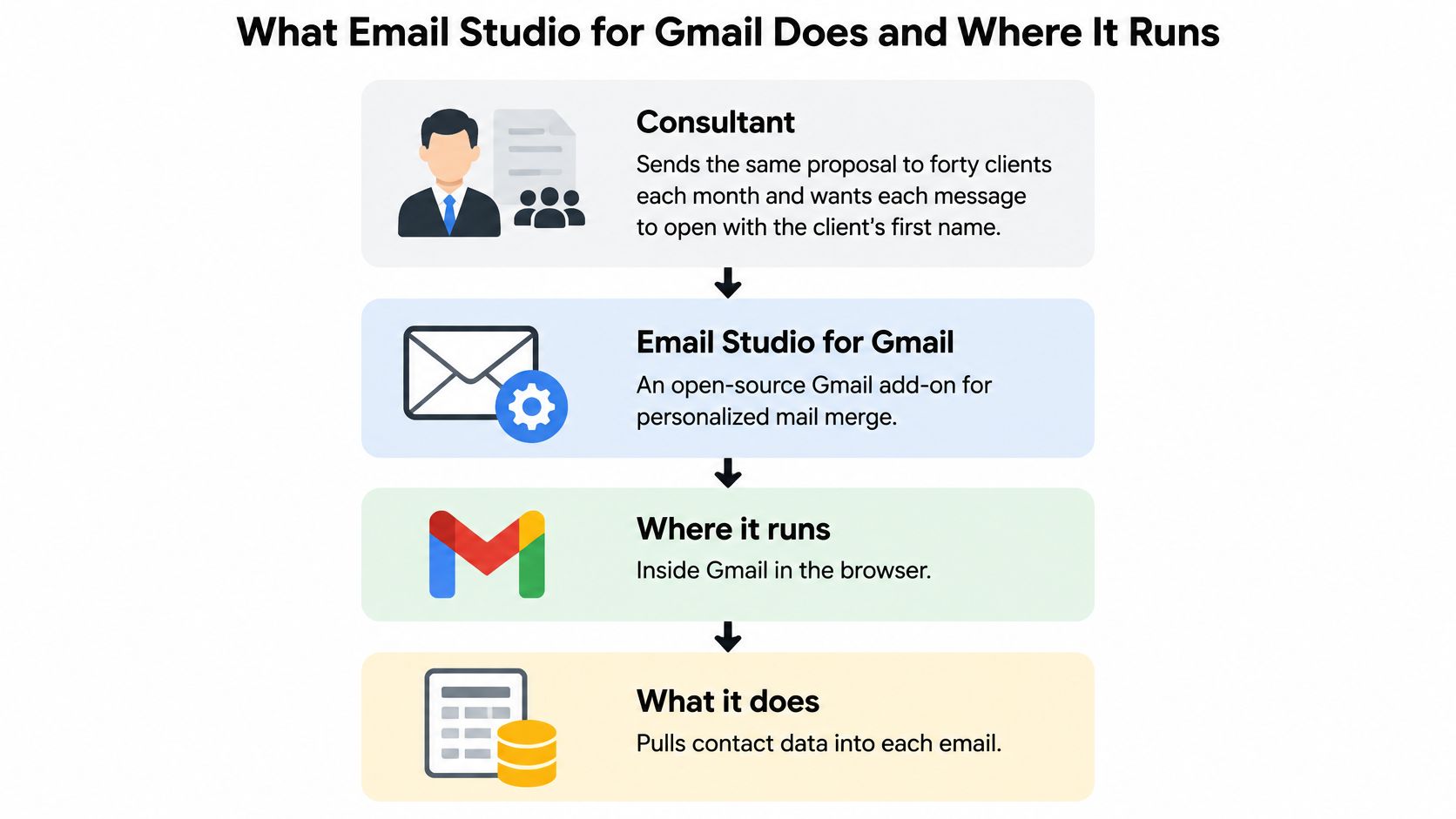
Where the add-on actually runs
The product was built for the Gmail website and for the Gmail app on Android. You can start a personalized send on a laptop, then check the same account on a phone between meetings. There is no second mail program to install and no contact export into another inbox.
Use this table as the lookup for the jobs you already repeat.
| Capability | What It Does | Best Used For |
|---|---|---|
| Mail merge | Sends one personalized message per contact without showing other recipients in CC or BCC | Individual outreach to a known list |
| Email scheduling | Holds a message and sends it at a chosen time | Timing regular messages to suit recipients |
| Draft copying | Duplicates saved drafts so templates can be reused | Recurring messages such as follow-ups or invoices |
| Forwarding | Passes a message on from within Gmail | Sharing one thread with a new contact |
| Automated replies | Sends a set response to incoming mail | Out-of-office or acknowledgement replies |
| Mobile workflows | Extends the same functions to the Gmail app on Android | Working between meetings from a phone |
Match each row to a task on this week's list. A monthly proposal is mail merge. A note that should leave after the laptop is shut is scheduling. A reminder that keeps getting rewritten is draft copying.
Personalization uses contact fields such as {{First Name}} and {{Full Name}}. Each person gets an individually addressed message, and nobody else appears in CC or BCC. If a row does not match a job you do this week, leave that function alone. Volume, consent, and account access only matter for the jobs you run.
Permission Checklist Before You Authorize Access
Privacy and reliability are separate risks. The product page says user data remains in Google Drive, Sheets, and Gmail rather than on the provider's servers, and that you can uninstall the application while leaving account data intact. The Digital Inspiration product page is also where a user review reports a hard stop at duplicating five drafts at a time before the interface closes. A storage claim doesn't tell you which permissions the consent screen requests, whether a Workspace admin can block the add-on, or what happens to tokens, logs, failed sends, and recipient lists.
The Marketplace listing confirms the add-on requires access to your Google account. Read that access the way you'd read a contract, before you click Allow.
Questions to answer before you click Allow
| Check | Question to Answer | How to Verify |
|---|---|---|
| Permissions | What Google account access is requested? | Read the consent screen before approving |
| Workspace admin control | Can an administrator restrict deployment? | Review app access settings in the Workspace admin console |
| Data location | Does data stay in Drive, Sheets and Gmail? | Confirm in those products after a test run |
| Uninstall effect | Is account data intact after removal? | Test with a dummy account and check drafts and sheets |
| Batch reliability | Do large draft jobs complete? | Test five drafts first, then increase gradually |
| Failed sends | Where are failed sends recorded? | Not stated in the published material; send a dummy batch with one bad address and note where the error shows up |
| Recipient data | Who can see client or subscriber lists? | Keep lists in a restricted sheet and remove after use |
Separate the risks: "Data stays in Google" is not a promise of minimal permissions, a clear audit trail, or a batch that finishes.
If you handle client lists, keep the merge in its own Sheet, share that Sheet with nobody who doesn't need it, and delete or archive it when the send is done. A freelancer's contact book is often more sensitive than the message itself.
Where failed sends land isn't described in the available material, so treat that row as an open question. Run the dummy batch before you trust a live list. And don't assume a job of dozens of drafts will behave like a job of five. The reported five-draft cutoff is a reliability warning, not a privacy one. Prove the batch size on copies you can afford to lose.
Gmail Sending Limits That Shape Every Mail Merge
A perfect test send is not proof that a large campaign is safe. Email Studio for Gmail still sits inside Gmail's quotas and anti-abuse systems. No toggle in the add-on raises that ceiling.
Google's Gmail mail merge documentation sets a maximum of 1,500 recipients per day, and regular messages and mail-merge messages share that quota. Gmail also adds an unsubscribe link automatically. A morning of ordinary follow-ups shrinks the room left for the merge. Say you've already sent eighty regular emails. A list of 1,450 contacts leaves you with 1,420 slots, so thirty people wouldn't go out. A list of 1,400 contacts, plus those same eighty, fits with twenty to spare.
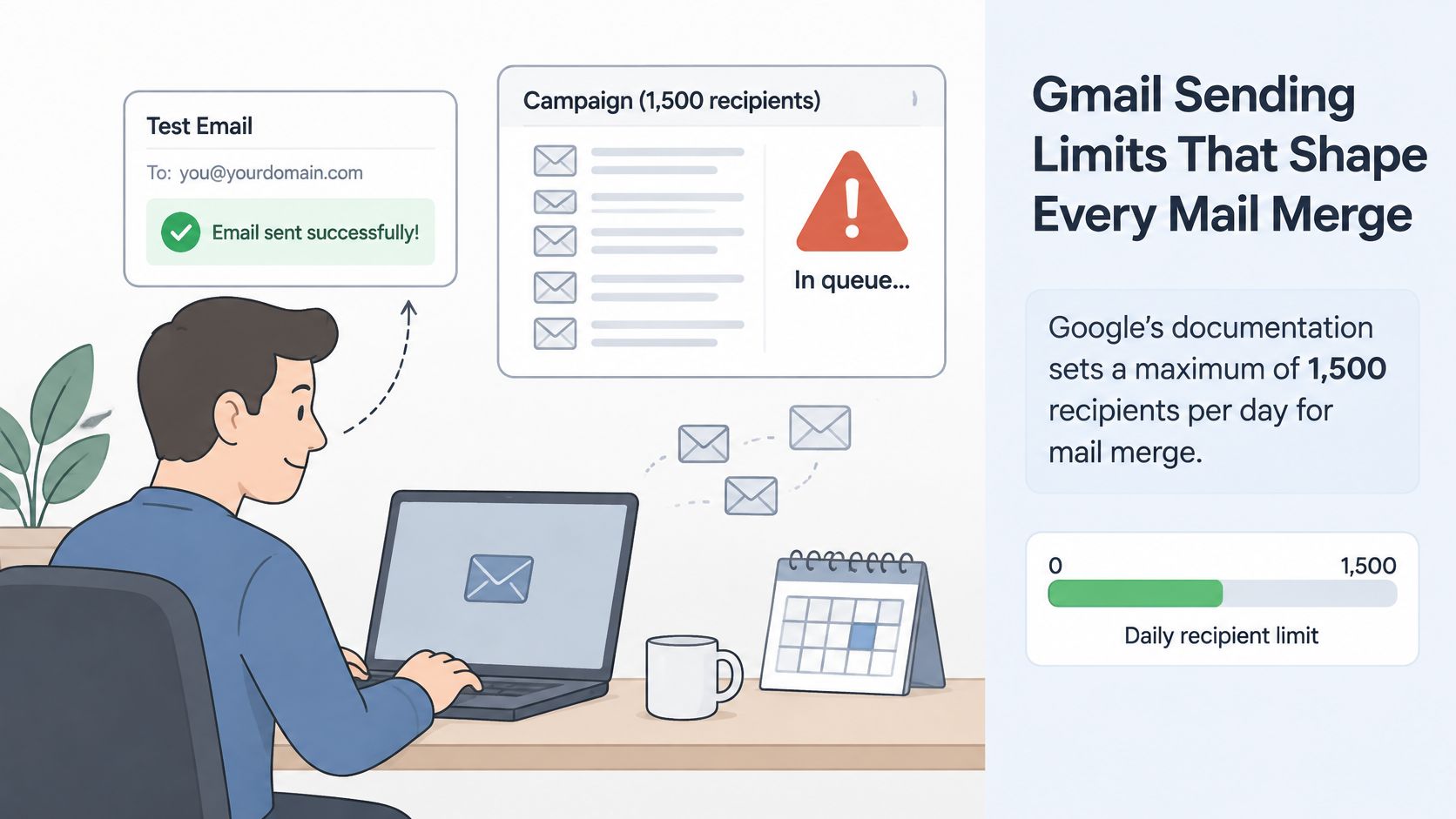
Count the day's total sends before a merge, not only the names on the sheet.
What a merge message can't do
The same documentation bars several habits people expect from a normal Gmail compose window. These aren't style tips. They're hard limits on the merge itself.
| Restriction | Effect on a Mail Merge | What to Do Instead |
|---|---|---|
| Daily recipient cap of 1,500 | Regular and merge messages share one daily quota | Count the day's total sends before a large merge |
| Automatic unsubscribe link | Added to every merge message | Keep it visible; do not remove it |
| No replies or forwards | Recipients cannot reply within the merge workflow | Send follow-up threads separately |
| No scheduled sends | Merge messages go out immediately | Send at the time you choose, manually |
| No confidential mode | Merge messages cannot use confidential mode | Send sensitive content in a different way |
| No plain-text messages | Merge messages cannot be sent as plain text | Accept the default format |
| No sending from another domain | Messages send only from your own Gmail address | Use the account that matches your brand |
Higher automation doesn't mean higher scale. The cap, the forced unsubscribe link, and the blocked features come from Gmail, not from a setting you can relax. If you need segmentation, sequences, suppression lists, or reporting you can plan around, this inbox workflow is the wrong container. Small, personal outreach to people who expect your mail is the job it can hold.
How to Run a Mail Merge from Contact List to Send
A mail merge is a form letter with blanks. The convenience is that the add-on fills each blank from a contact record and sends separate copies. The limit is that Gmail still treats those copies as ordinary sends, so judge the job by list size, consent, and what the add-on may see, not by whether one polished test went through.
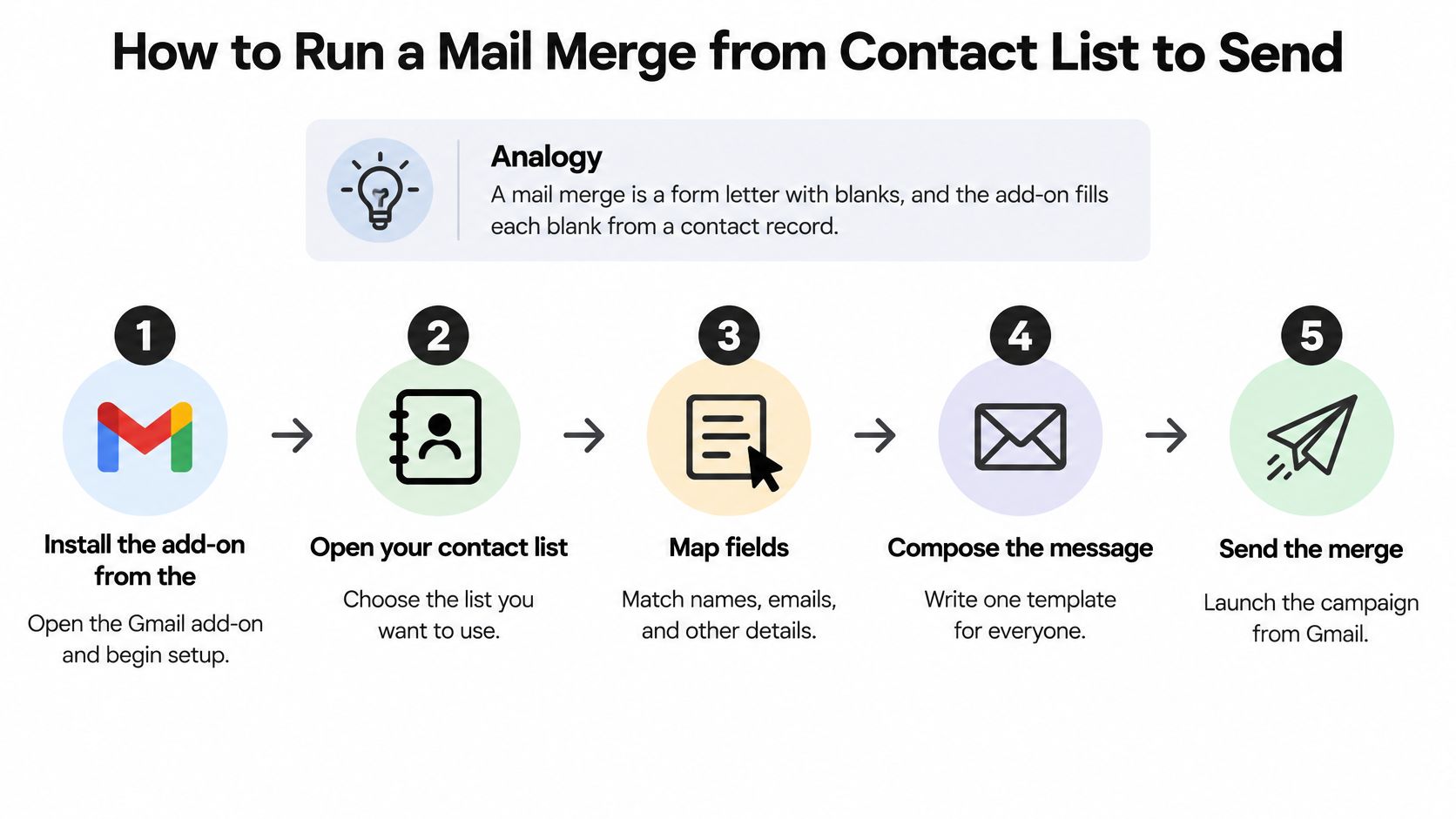
The six moves from list to Sent mail
Install and approve only what you reviewed. Add Email Studio for Gmail from the Workspace Marketplace listing, then accept the permissions you already checked. The add-on requires access to your Google account, so read the exact permissions listed on the consent screen before you approve. The usual slip is tapping through the consent screen because you want the button to go away.
Build the list where the blanks can find it. Use Google Contacts or a Sheet with columns for first name, last name, email, and any custom field you need. The merge can only print what's in a cell. A blank first name becomes "Hi," with a sad little comma, so scan for empty cells before you go further. Also check that the people on the list asked to hear from you or have a clear reason to expect the note; a merge only speeds up whatever list quality you bring to it.
Write the letter once. Place tags such as
{{First Name}}where the personal detail belongs, and leave the rest of the prose identical. One template is the point. Typing a real name into the template by accident sends that name to every row.Test it on yourself. Send the merge to your own address with the actual template and fields. You're checking that every tag fills and that the greeting sounds like a person wrote it. Testing only with your most complete contact hides the gaps.
Do the allowance math. Add today's ordinary sends to the recipient count and stop if the total would cross the daily cap. Ordinary mail and merge mail draw from the same allowance. Counting only the sheet is how the last names get left behind.
Send, then open Sent mail. Launch the merge and confirm each note was left. A panel that says the job finished isn't the same as every address accepting the message.
A correct test looks boring, which is what you want. Every tag is filled, the greeting reads naturally, and the unsubscribe link sits at the foot of the message. Passing that test only proves the mechanics; it does not make a cold list consented, and it does not raise Gmail's allowance.
If you're also comparing Gmail-native outreach tools before you commit, the Mixmax software assessment from KeenVerdict is a clear outside look at another approach to sequences and templates.
Everyday Routines for Drafts, Schedules and Auto-Replies
A freelance designer invoices six clients on the first working day of each month. The reminder is almost the same every time. The amount isn't. She keeps one invoice draft, duplicates it, and types only the figure and the name. That's draft copying used as a template, and the benefit is a shorter morning with fewer copy-paste mistakes.
Scheduling is the next beat. She queues a Monday 9 a.m. delivery so the client sees the reminder at the start of the day, not buried under Sunday night mail. The message stays out of her own busy morning, and it arrives when the reader is most likely to act on it.
Forwarding is a handoff, not a blast. When a contract comes back signed, she forwards that same thread to her bookkeeper. The history stays intact, so nobody has to ask which version was agreed.
A week away from the inbox
On vacation she turns on an automated reply. It says when she's back and who to contact if a deadline can't wait. Clients get an answer instead of silence, and she isn't checking mail from a train platform.
If the message doesn't repeat, and it doesn't need a fixed send time, leave it as a normal compose.
These habits suit one-to-one notes and small groups. A merge can't borrow scheduling, forwarding, or a confidential wrapper, so don't force a campaign into a routine built for a single client.
Before you automate anything, answer two questions.
- Does this message repeat? If yes, start from a duplicated draft instead of a blank compose window.
- Does it need a fixed send time? If yes, schedule that single message. If no, send it when you finish writing.
Those two answers pick the function. They don't pick a bigger platform. Before a one-person studio adds another subscription, the technology budget data for business researchers from TopToolAdvisor is a useful check on what similar teams already spend on software. If the same week also includes posts that should publish on a clock, free social media scheduling tools show how creators time that work outside the inbox.
Mail Merge Versus a Dedicated Email Platform
More automation doesn't mean more scale. The right container depends on the list, not on how smooth the last test felt.
A workshop organiser is inviting 120 people who already agreed to hear about one event, and each note should open with a first name. Email Studio for Gmail fits. The list is personal, the send is occasional, and nobody needs topic segments.
A publisher has 4,000 subscribers, wants welcome sequences, splits the list by topic, and needs open-rate reporting. That's campaign infrastructure. A Gmail add-on won't supply suppression lists, predictable deliverability tooling, or that kind of analytics. A dedicated email platform is the right tool, and we tell readers to check each tool publisher's website for current pricing, availability, and requirements.
A freelancer has 300 past clients who opted in and wants a reminder every quarter. The list can fit in a single day's allowance, but the work repeats. Manual merges will get old. Weigh that effort against a platform before the fourth quarter arrives.
How the cases map to a choice
| Factor | Email Studio Fits When | Dedicated Platform Needed When |
|---|---|---|
| List size | Well under the 1,500 daily cap | List grows past what one day's cap can cover |
| Sending frequency | One-off or occasional sends | Recurring campaigns or drip sequences |
| Consent | Every recipient has agreed to hear from you | Consent records must be tracked per contact |
| Personalization depth | First name and a few contact fields | Content varies by segment or behaviour |
| Segmentation | Not needed | Required for topics, locations or stages |
| Suppression lists | Handled manually | Automated and enforced across campaigns |
| Analytics | Basic checks in Sent mail | Open, click and bounce reporting needed |
The organiser lands in the left column on every row. The publisher lands in the right column on segmentation, sequences, and analytics. The freelancer is the awkward middle. List size and consent say the add-on can cope, while frequency says a platform will hurt less over a year.
If any row in the dedicated-platform column describes your work, switching is worth the setup. A small test that looked perfect doesn't rewrite that table as the list grows. Teams comparing channels beyond the inbox can use the same kind of side-by-side thinking in social media management and marketing.
Run a Small Test Send Before Your First Campaign
Pick five to ten people who have already agreed to get your mail. Run the template and the fields, not a lorem-ipsum stand-in. You're deciding whether this workflow deserves the rest of the list.
Confirm three things on each test message. It landed in the inbox, the first name is the right person, and the unsubscribe link sits at the foot. Then write down how much of the day's recipient allowance the test plus your ordinary mail already used. That remainder is the size of the next run, not the size of your hopes.
A send-to-self check won't show every spam-folder risk. Run a copy of the message through a mail tester from MailGenius before the first live batch, and read the score as a warning light, not as a trophy.
Raise the batch only after a small run finishes cleanly. The draft-duplication stall from real use is a reason to creep upward, not a reason to throw the full sheet at the add-on on day one. Run the dummy-account removal check before any live campaign, and keep questions about a workflow you're stuck on pointed at contact@creatorstoolbox.com.
The short walkthrough below is a useful companion if you want to see a Gmail add-on install from the outside before you click through your own consent screen.
Scale inside the cap when the list fits, consent is clear, and batches complete without a stall. Move to a dedicated platform when list size, sequences, segments, suppression, or reporting match the right-hand column. One clean test doesn't overrule that split.
Creators Toolbox publishes weekly roundups of tools, guides, and practical notes for designers and creators who spend as much time in Gmail as they do in design apps. If you're weighing an inbox add-on against a fuller email platform, start with the comparisons and how-to pieces on Creators Toolbox. Bring the workflow you're stuck on, and check the site before you authorize another tool with your contacts.