Make a Landing Page Work With Keyboard Navigation
By Steven Van ·
Trace tab order, visible focus, skip links, and modal return focus through a worked page
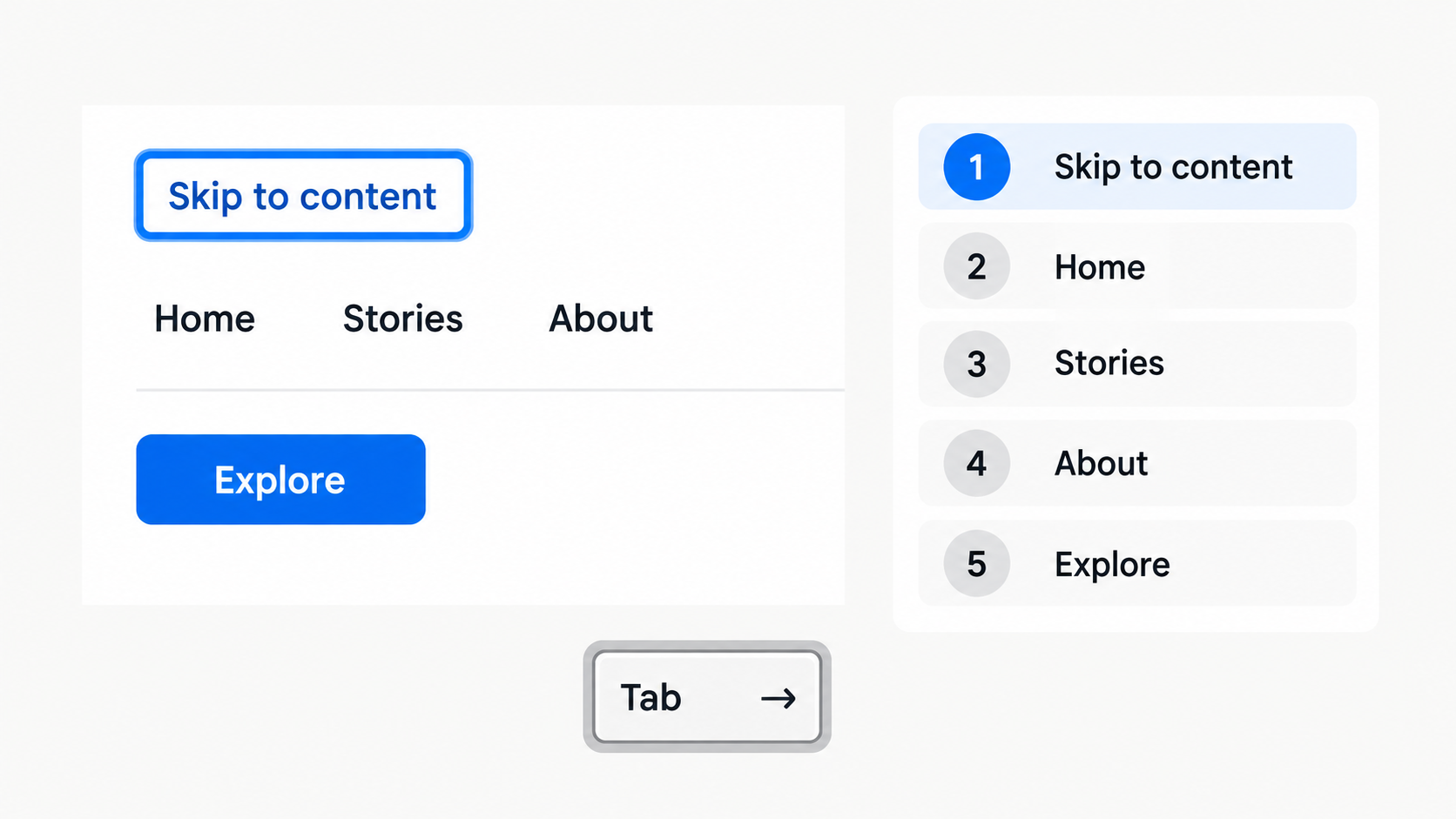
AI-generated conceptual illustration; not a product screenshot, measured result, or factual diagram.
A landing page can look finished while leaving someone unable to open the navigation, play a demonstration, or submit the main form. Keyboard access makes those gaps unusually clear. Put the pointer aside, start at the top, and try to complete the page’s central task. Every moment when you lose your place is a design problem worth investigating.
This walkthrough uses a fictional landing page for Fieldnotes, a workshop newsletter. The page has a header, three navigation links, a preview dialog, a short FAQ, and a signup form. The goal is to join the newsletter after checking what a typical issue contains. The walkthrough is a proposed test and implementation plan, not a claim that this fictional page has passed an accessibility audit.
Draw the journey before drawing a focus ring
List the controls a visitor needs: skip link, logo link, navigation links, preview button, FAQ disclosures, email field, consent checkbox if required, and submit button. Static headings, paragraphs, and decorative pictures do not normally need extra Tab stops. Someone reading with assistive technology has other navigation methods for that content.
Write down the expected sequence at both wide and narrow layouts. On the narrow page, the navigation links may sit inside a menu opened by a button. When the menu is closed, its hidden links must not remain unexplained stops in the sequence. When opened, the links need a discoverable place in the journey.
The central requirement is meaningful operation, not a mathematical rule that focus must follow every visible pixel. W3C’s focus-order explanation describes preserving meaning and operability. For Fieldnotes, matching the straightforward reading order is the least surprising starting point.
Use the element that already fits the action
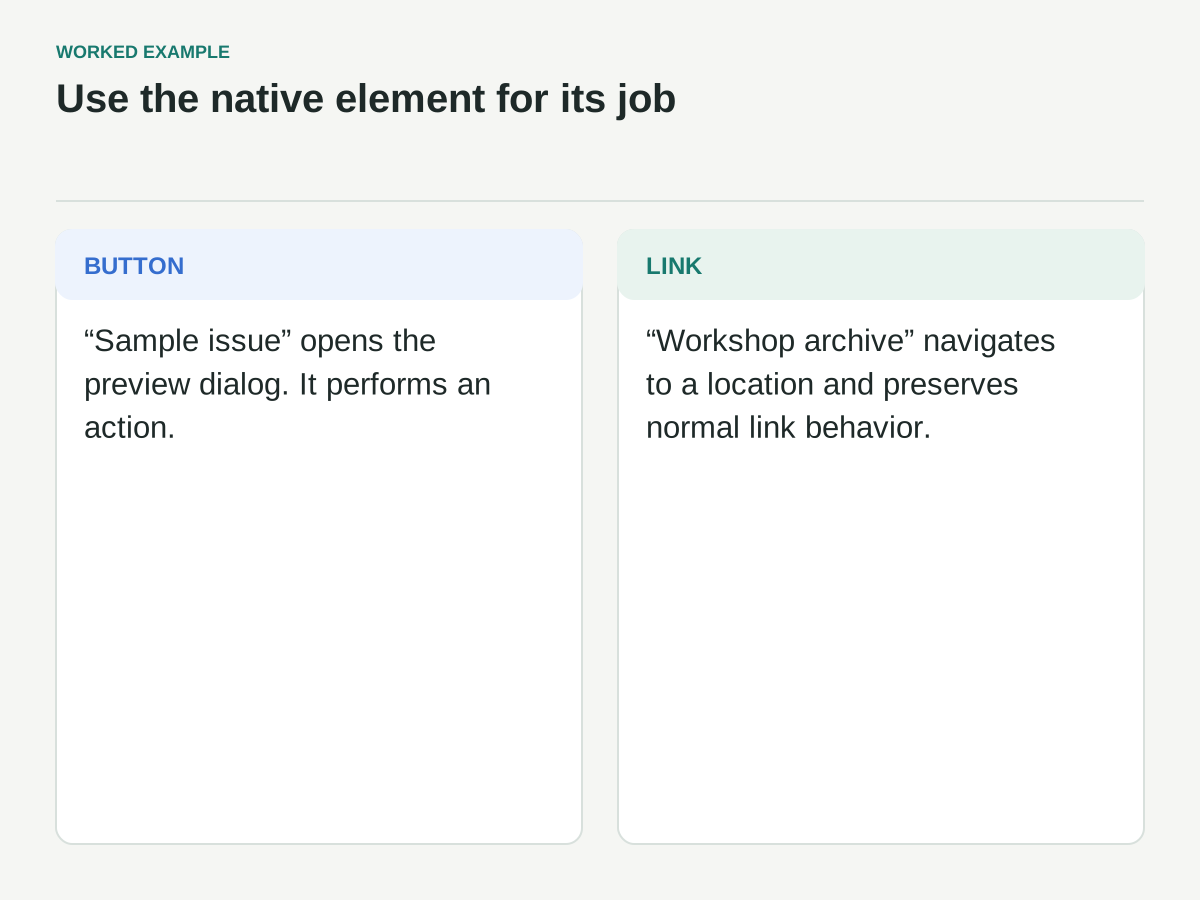
A link takes the visitor to a location. A button performs an action, such as opening the preview. An email field accepts an address. Start with those native elements rather than making a generic container imitate each one. A styled rectangle with a click handler is not automatically equivalent to a button.
For the header, make “Sample issue” a real button if it opens the dialog. Make “Workshop archive” a link if it navigates to another page. The distinction matters when someone expects browser link actions or normal button activation. Accessible names should describe the actual action, including on icon-only controls.
Keep native keyboard behavior unless there is a concrete reason to implement a recognized custom interaction pattern. The broader principle in WCAG’s keyboard guidance is that functionality must be operable through a keyboard interface, apart from the criterion’s specific exception for input inherently dependent on a movement path. A newsletter page has no obvious need for that exception.
Fix document order before adding tabindex
If the visual layout places the form below the introduction but the keyboard jumps to it before the header, inspect the document structure. CSS rearrangement and manually assigned tab positions can produce a journey that differs from what the page appears to say.
For Fieldnotes, use one sensible underlying order: header, introduction, preview, benefits, FAQ, signup, footer. Let layout change how those regions occupy space without inventing a separate keyboard sequence. Avoid positive tabindex values as a shortcut for patching a poorly ordered document. They create another ordering system to maintain when controls are inserted later.
A negative tabindex can serve a different purpose: allowing script to focus a heading or container without adding it to ordinary sequential navigation. Use that deliberately for a destination such as the main content or an error summary, then test the next Tab press. Adding focusability everywhere makes a page longer to traverse without necessarily making it easier to understand.
Give repeated navigation a bypass
Place a “Skip to main content” link near the beginning of the page. It may be visually hidden until focused, but it must become visible when a keyboard user reaches it. Its destination should take the visitor beyond the repeated header rather than merely scrolling a few pixels.
W3C’s bypass-blocks guidance explains the need for a mechanism to bypass repeated blocks. A skip link is one practical approach. For this page, its destination is the main region containing the newsletter introduction.
Test both movement and continuation. Activate the skip link, confirm that the destination is visible, and press Tab again. If focus continues through every header link anyway, the interaction has not achieved the intended shortcut. Also check a sticky header: it must not cover the destination so completely that the visitor cannot tell where they landed.
Design focus for the actual backgrounds
Focus is a persistent location marker, not a hover effect. Fieldnotes uses cream sections, a dark preview area, and a bright signup button. A single pale outline may disappear on one of them. Inspect the ring on every surface and on controls next to other borders.
W3C’s focus-visible explanation says a keyboard-operable interface needs a mode in which the focus indicator is visible. Do not remove the browser outline without providing a usable replacement. A custom ring should remain evident for as long as the control has keyboard focus.
Test focus when the control is partly offscreen, inside a scrolling region, and next to a sticky banner. Try increased zoom and a high-contrast environment where available. The question is whether the person can locate the current control, not whether the screenshot matches a brand specification. A distinctive outline that survives the environment is more useful than an elegant one that disappears.
Treat the preview dialog as a complete interaction
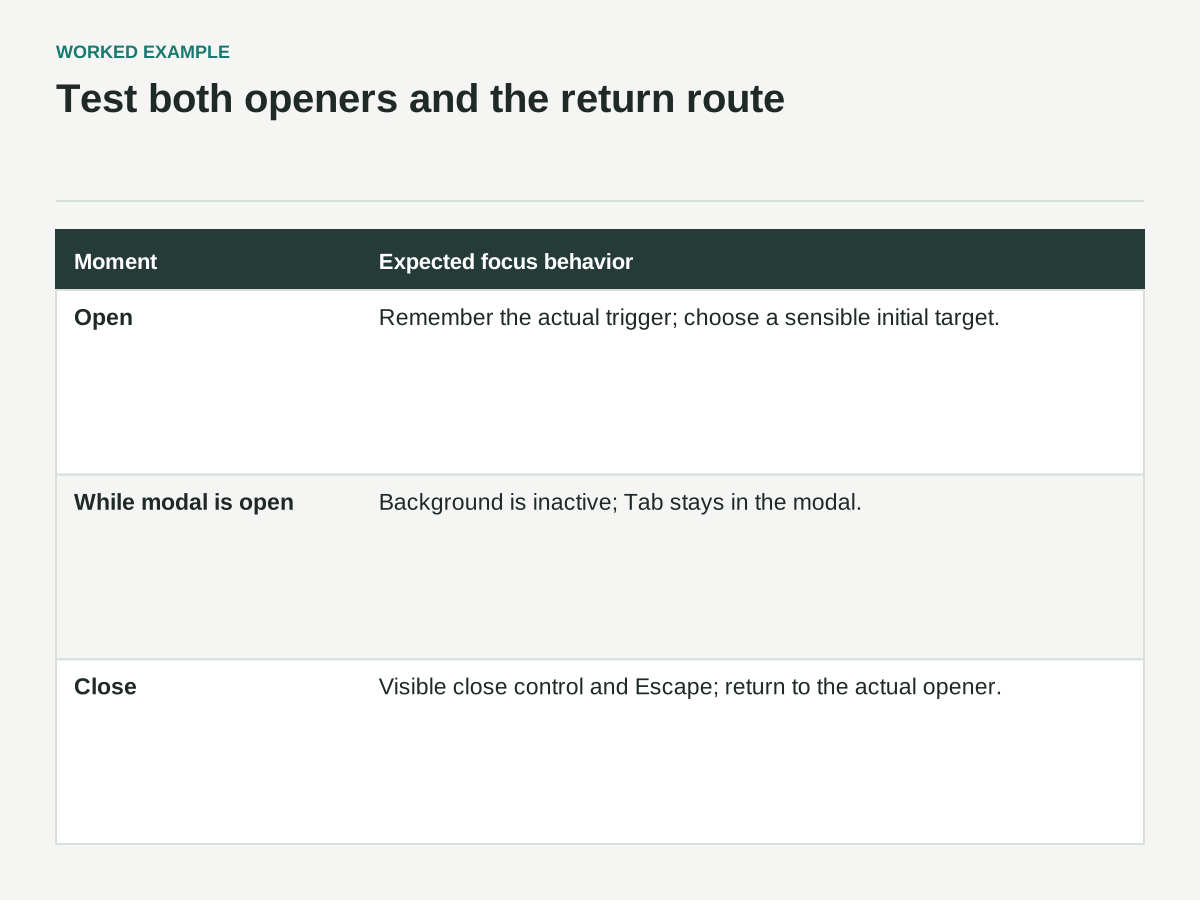
Opening a dialog changes the visitor’s immediate context. Record the opener before moving focus into the preview. Choose an initial target that makes sense for the content: perhaps the dialog heading for a substantial sample, or a simple first control for a short interaction. The heading needs an accessible relationship to the dialog’s name.
While a modal is open, the background should not remain an active keyboard playground. Provide a visible close button, support Escape for this ordinary dismissible preview, and keep Tab navigation within the modal. On closing, return focus to the opening button unless the workflow has changed in a way that makes another target more logical.
These behaviors follow the WAI-ARIA modal-dialog pattern. The pattern also explains that initial focus depends on the dialog’s content. Do not copy a focus target mechanically from an unrelated example, and do not assume adding an ARIA role implements the behavior.
For Fieldnotes, opening the preview from the hero and opening it from the footer must return to the correct respective trigger. That detail catches implementations that always send focus to the first preview button. Test repeated opening, reverse tabbing, and closing after scrolling the dialog. If a native dialog or component library is used, verify its real behavior in the supported browser and assistive-technology combinations.
A keyboard route to rehearse
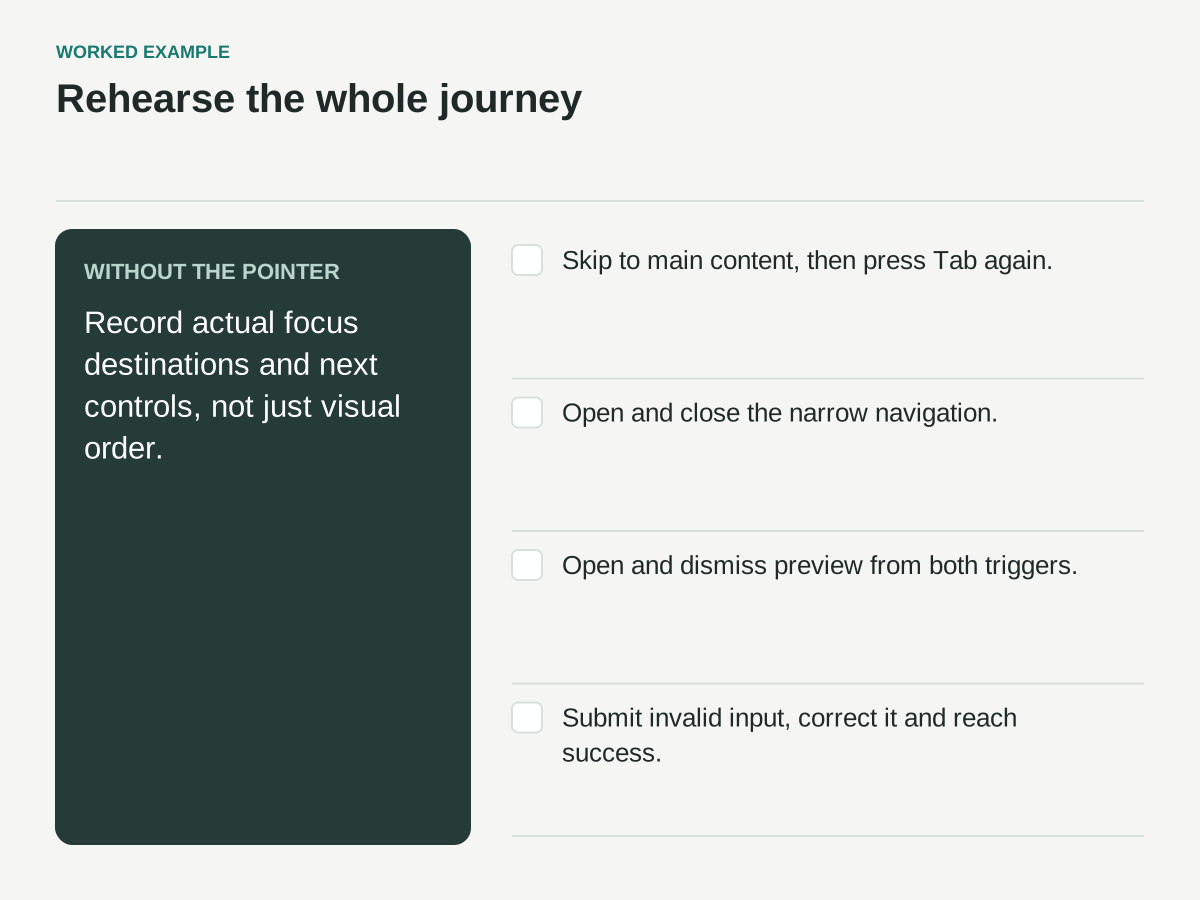
Run this route in the real page at wide and narrow widths. Every outcome below is expected behavior, not an observed pass.
| Starting point and action | Expected result | Evidence to record |
|---|---|---|
| Reload; Tab to skip link; activate; Tab again | Main content is reached visibly and the header is bypassed | Actual focus destination and next control |
| Narrow menu closed; open and close it | Hidden links are absent from the closed tab sequence; opener remains recoverable | Forward and reverse tab order |
| Open sample from hero, then from footer | Focus enters the modal; background is inactive; Escape closes; focus returns to the actual opener | Both opener-specific paths |
| Submit invalid email; correct and resubmit | Error recovery remains reachable; useful input and focus are preserved | Keystrokes and focus after each state change |
Do not mark the route passed merely because the visual order looks correct. Test the supported browser and assistive-technology combinations separately from this keyboard-only rehearsal.
Keep simple sections simple
An FAQ does not require a custom accordion with elaborate arrow-key handling. A native disclosure can be a reasonable starting point when each question independently expands an answer. If you use a custom accordion, follow its documented interaction pattern and make the expanded state available programmatically.
Do not make the entire benefits section focusable just because the cards animate on hover. If a card has no action, it does not need to masquerade as a control. If it contains a link, the link should have a clear name and visible focus without forcing a second stop on the wrapper.
Similarly, avoid placing a button inside a link to make a clickable card. Nested interactive behavior complicates both activation and focus. Choose one primary link with an appropriate clickable area, or separate the actions clearly. The smallest interaction model that supports the real task is usually the easiest one to inspect.
Walk the form through failure as well as success
Reach the email field by keyboard, enter an invalid address, and submit. The visitor should learn what happened and how to correct it. Confirm that the entered value remains available, that the error is associated with the field, and that any movement of focus is intentional.
Then correct the address and submit again. If submission is asynchronous, watch what happens to the focused button while the request is pending. Removing that button from the document can strand focus. A success state should be understandable without requiring someone to hunt visually for a small message at the bottom of the page.
This article’s focus is navigation, so record the form’s error-copy problems separately rather than turning the keyboard pass into an unlimited content review. The navigation-specific questions are enough for this pass: can the visitor reach the error, return to the field, correct it, resubmit, and understand the resulting state?
Record defects as reproducible paths
A useful issue says: at narrow width, Tab to “Menu,” activate it, Tab twice, then close it; the next focus indicator disappears behind the closed panel. That report identifies the state, action, result, and expected recovery. “Accessibility broken on mobile” gives the implementer much less to work with.
Keep a compact record for each defect: route, viewport, browser, initial state, keystrokes, expected result, actual result, and severity for completing the task. Include whether the issue also appears with assistive technology, but do not equate a keyboard-only check with a full screen-reader evaluation.
Retest the exact path after a fix and then test nearby paths. A change to close-menu focus can affect opening the preview immediately afterward. A new sticky notice can obscure rings that were previously visible. The journey is a connected system, so local repairs need a short regression pass.
A final keyboard release pass
Reload the page and complete the main task without the pointer. Traverse forward and backward, use the skip link, open and close the navigation, inspect the preview, expand an FAQ, submit an invalid form, recover, and reach the success state. Repeat at a narrow layout and increased zoom.
Check that every actionable control is reachable and identifiable, no hidden control steals a stop, and no interaction traps the visitor without an exit. Record remaining issues honestly. Passing this journey is useful evidence about this page, but it is not a blanket conformance claim. The practical finish line is a visitor who can find their place, take the next action, and recover when the page changes.