GoFullPage Screenshot Extension: Features and Uses
Does GoFullPage need permission to see the pages in your browser? Many people answer no, because installing it produced no warning about reading data on the sites they visit. Then they try to capture a page with an embedded dashboard and a prompt appears, asking for access to tabs, web navigation and website content. Both experiences are real, and the gap between them is where much of the confusion about this GoFullPage screenshot extension begins.
The silence at install describes the default, not the ceiling. Capture starts with you, page by page, and the reach grows only when a page contains something the default route can't touch.
GoFullPage Features at a Glance
| Capture mode | What it captures | Best for | Extra access |
|---|---|---|---|
| Visible area | Only what is on screen | Quick single-view captures | None |
| Full page | The whole scrollable page, stitched into one image | Long articles, documentation, receipts | None beyond standard access |
| PDF export | The full page as a PDF, with a landscape option and smart page splitting | Printable references and archives | Standard access; a download can ask for an optional permission |
| Editor export | A capture opened in the built-in editor before saving | Annotated bug reports and client feedback | Same access as the capture itself |
| Iframe content | Scrolled content inside embedded frames or framesets | Pages with embedded panels or dashboards | Optional permission, requested when needed |
Visible area records the screen you're looking at and nothing else, which makes it the fastest option when the whole point fits above the fold. Full page is the mode many users install the extension for: it scrolls the document to the bottom and returns one tall image, so a long article, a changelog or a receipt arrives complete instead of as six separate files.
PDF export turns that same tall capture into something printable. Two releases shaped how it behaves: version 6.6 added wide export and smart page splitting that keeps text lines from being cut between pages, and version 7.1 added URL and date options to PDF and editor exports for premium users, as the Chrome Web Store listing for GoFullPage records.
Editor export opens the capture in a built-in editor so you can mark it up before saving, which is the difference between a screenshot a developer can act on and one they have to interpret. Iframe content is the row that surprises people: material inside an embedded frame lives in a separate document, so scrolling it needs optional access requested at the moment of capture.
The first two rows cover most everyday tasks. The rest matter only when the page has a printable layout, an annotation need, or embedded panels. And the tool is widely used rather than niche: the listing tracked by ChromeExtensions.org reports approximately 11,000,000 users and an average score of 4.9 stars from about 85,100 ratings.
Take Your First Full-Page Capture
Install from the Chrome Web Store by searching for GoFullPage and adding it to Chrome. Pin the icon from the extensions menu so it stays one click away in the toolbar; an extension you have to hunt for through a puzzle-piece menu is one you stop using. Then open the page you want and let it finish loading, including images and video that appear only as you scroll down.
- Click the GoFullPage icon in the toolbar. The capture options appear in a panel.
- Choose a mode. Visible area for a single screen, full page for a long article, a receipt or a documentation page.
- Let it work. The extension scrolls the page in viewport-sized steps and stitches the tiles. A long page can take several seconds, and the tab needs to stay in front.
- Open the result in the editor if you need to circle something or add a note, or save straight to an image file or a PDF.
- Check before you share. Open the saved file, look at the top for a repeated header and at the lower sections for blank patches where an image should be.
That fifth step is the one people skip. A capture can look perfect in the thumbnail and still have a duplicated navigation bar across the first three screens, or a chart that never rendered because the page hadn't finished loading when the scroll passed it.
Practical rule: capture a page you use every day first, not the client deliverable. You'll learn where this particular site breaks before it costs you anything.
If the page contains an embedded panel or a dashboard widget, expect a permission prompt for iframe access during the capture. Decide before you click accept whether that page is one you're comfortable granting extra reach to, because the answer is easier to reason about before the deadline than during it.
How GoFullPage Builds a Full-Page Capture
Think of a photographer standing in front of a wall too wide for one frame. They shoot overlapping photos from left to right, then join them into a single panorama. A full-page capture works the same way, except the wall is vertical and the camera is your browser.
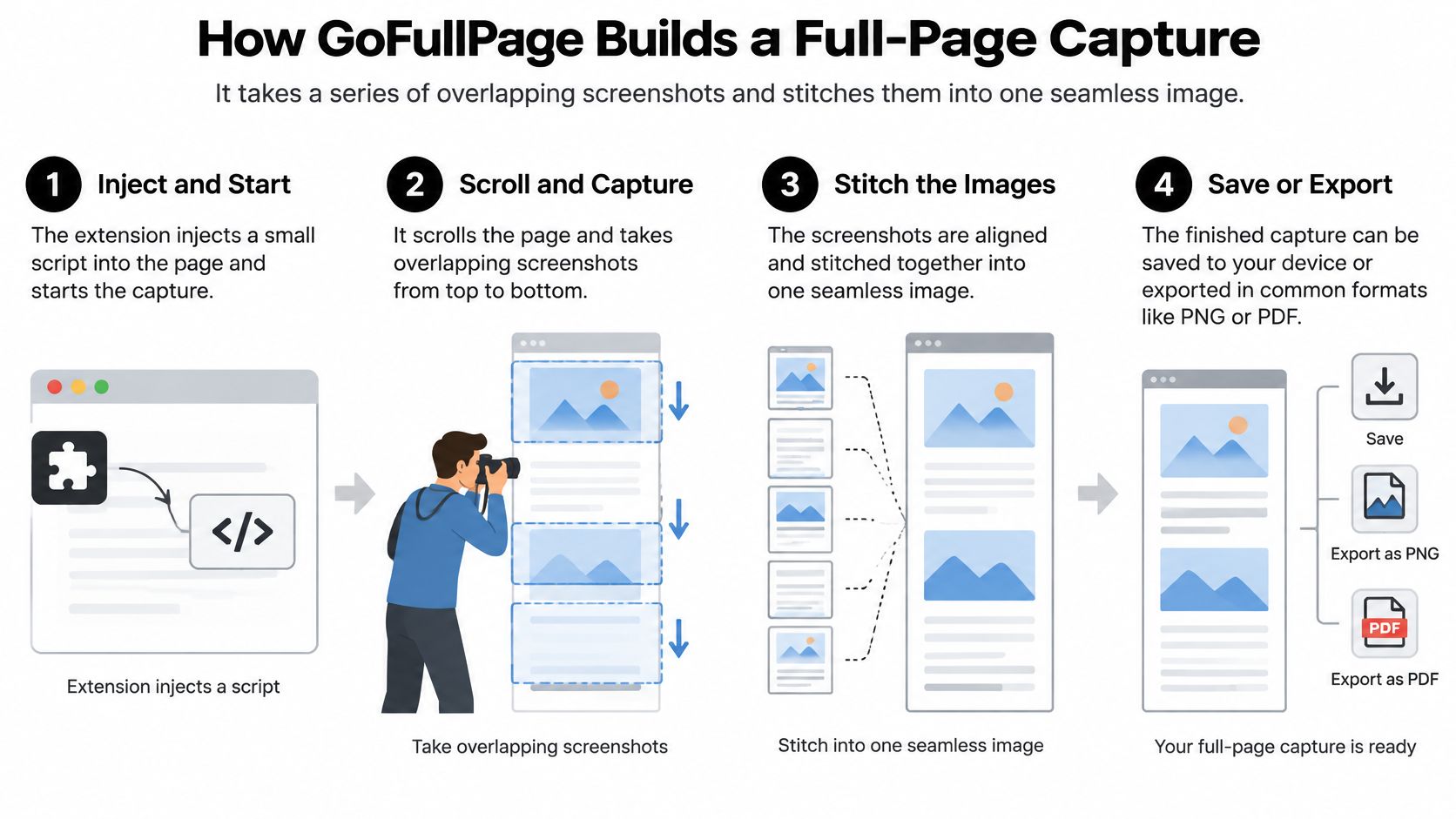
Here's the sequence in plain terms:
- Measure. The extension injects a small script into the page that reads the document height and the current scroll position.
- Scroll and shoot. It moves to the first position and asks the browser to capture the visible tab. That request goes through a function called
captureVisibleTab(), which captures only the currently visible area and returns a data URL. - Repeat. It steps down by one viewport at a time until it reaches the bottom of the document, taking a frame at each stop.
- Composite. Each tile is placed on a canvas at its recorded offset and joined into one image.
Chrome's own documentation for the tabs API confirms the constraint that shapes the whole design: captureVisibleTab() captures only what's on screen, and it requires either activeTab or suitable host permissions. There's no single call that grabs a whole page, which is why the scroll-and-stitch pipeline exists at all.
Where the stitches show
Once you know the mechanism, the failures stop looking random. Each one comes from the seam between two tiles.
- A header that repeats. Fixed and sticky navigation sits in the same screen position in every frame, so it lands in every tile. Test one capture on a sticky-header site before you rely on it, and crop or cover the duplicates in the editor if the page can't be adjusted.
- Animations that disagree. Scroll-triggered effects fire as the page moves, so one tile can catch a section mid-fade. Capture after the page has fully loaded and avoid capturing while a carousel is running.
- Missing lazy-loaded images. Images that load only when they enter the viewport may not arrive before the scroll passes them. Scroll the page once by hand first, then capture, so the browser has already fetched them.
- A height that keeps growing. Pages that add content as you scroll, like infinite feeds, never reach a stable bottom. A production workflow detects the final document height before compositing, and you can do the same by checking the result rather than assuming it.
Waiting for network and image stabilization after each scroll, and neutralizing fixed overlays where the page allows it, solves most of these. So does a habit: open the file and scroll through it before attaching it to anything that matters.
When Permissions Change What GoFullPage Can Reach
"No special permissions at install" is the most repeated line about this tool, and it's also the most misread. It describes what the extension can reach before you do anything. It does not mean the extension can never reach a page. Access is contextual and user-initiated: you click, a page needs more, and the request appears at that moment.
The extension's own FAQ and privacy guidance lays this out. Optional permissions may be requested for downloads and for scrolling content inside iframes or framesets. Iframe capture can require temporary access to tabs, web navigation and website content.
| Situation | Extra access needed | Can it be captured? |
|---|---|---|
| Standard web page, visible area or full page | None at install | Yes |
| Download triggered from a capture | Optional permission for downloads | Yes, after granting it |
| Content inside iframes or framesets | Optional access for scrolling frames, with temporary access to tabs, web navigation and website content | Yes, after granting it |
| Browser-internal pages or the Chrome Web Store | Not applicable | No |
| Authenticated dashboard or client page | Standard access, plus optional access if it uses iframes | Yes, review permissions first |
Why an iframe is different
An ordinary page is one document, so one scroll and one set of frames covers it. An iframe is a page inside a page, with its own document, its own scroll position and often its own origin. To include what's inside it, the extension has to scroll a document it wasn't reaching before, and that's a wider reach than a normal capture needs. That's why the prompt appears on some sites and never on others.
A permission prompt mid-capture isn't a malfunction. It's the extension telling you the page contains something the default route can't reach, and handing you the decision.
Checking and revoking access
Open your browser's extensions page, find GoFullPage in the list, and look at the permissions shown for it. Optional permissions you granted can be removed there, and site access can be narrowed to specific origins rather than all sites. Revoking iframe-related access doesn't break normal full-page capture; it just means embedded panels come out blank until you grant it again.
For client work, make this a step rather than an afterthought. Before capturing a private dashboard or an authenticated account page, look at what the extension currently holds, grant only what the job needs, and remove anything broader afterwards. Teams evaluating browser extensions for a shared machine should treat that review as part of onboarding.
Everyday Workflows Where a Full-Page Capture Saves Time
A writer assembling a client proposal needs the pricing page as it looked on the day of the quote. They capture it in full-page mode, export a PDF with the URL and date attached, and the client receives a printable record instead of a link that might change next month.
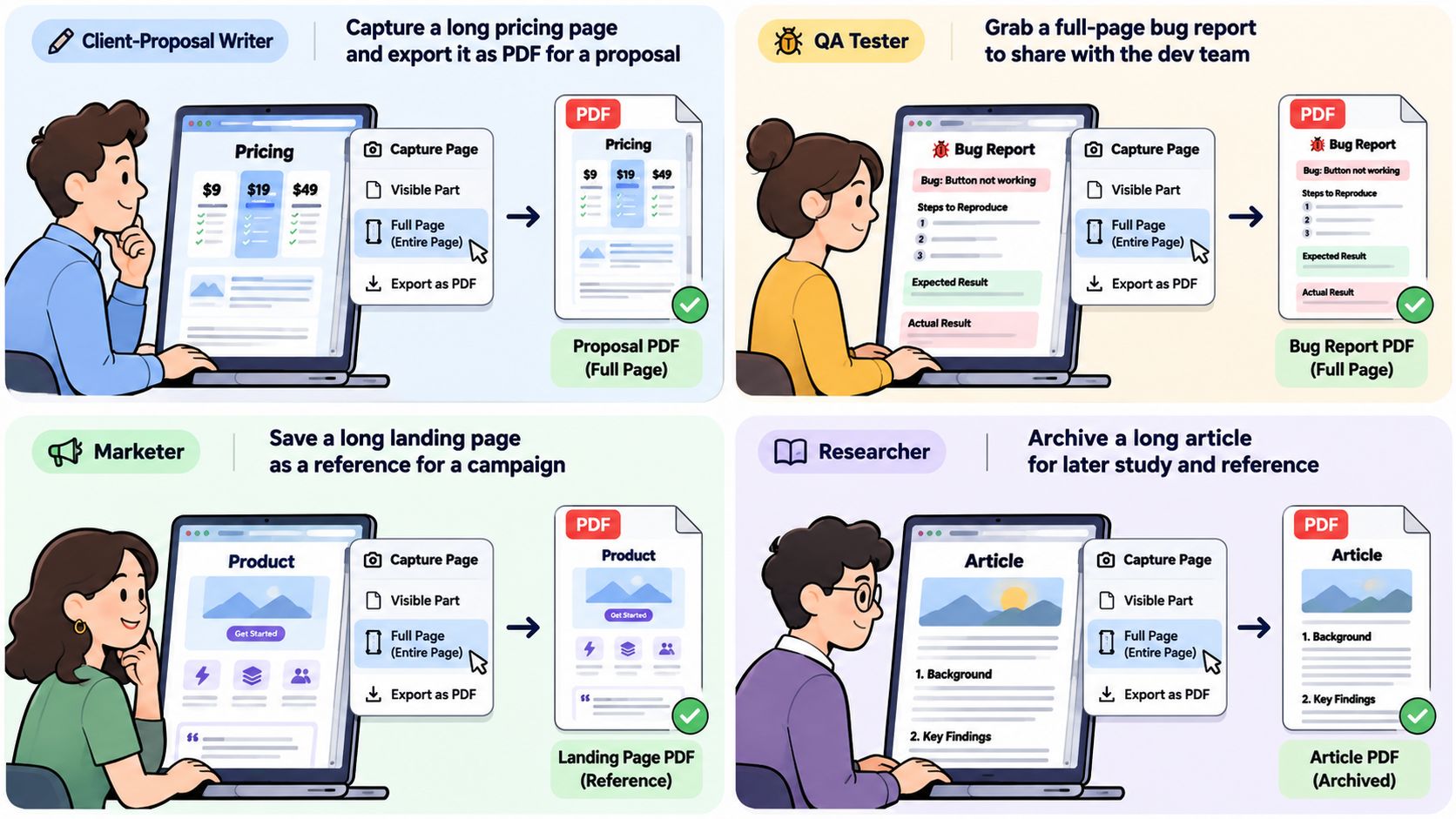
A tester filing a layout bug opens the editor export, circles the element that broke and attaches the image to the ticket. The editor is what makes the report actionable: the developer sees the exact spot rather than a description of it. The check before sending is one look at the top of the file to confirm the sticky header didn't duplicate.
A researcher archiving a long article exports it as a PDF and flips through the page breaks to make sure no line of text sits cut in half. If PDF archiving is part of your routine, this walkthrough on how to save a webpage as PDF covers the file-handling side once the capture exists.
A documentation writer capturing a page with an embedded status panel hits the one case that needs a decision: the panel stays blank until iframe access is granted. Grant it for that site, capture, then review whether the access should stay.
Four scenarios, two or three modes. That's the pattern many people settle into. If your captures feed into a design review, the UI and UX design software comparisons on Creators Toolbox help you line up the tools that receive those images.
Decide Whether GoFullPage Fits Your Workflow
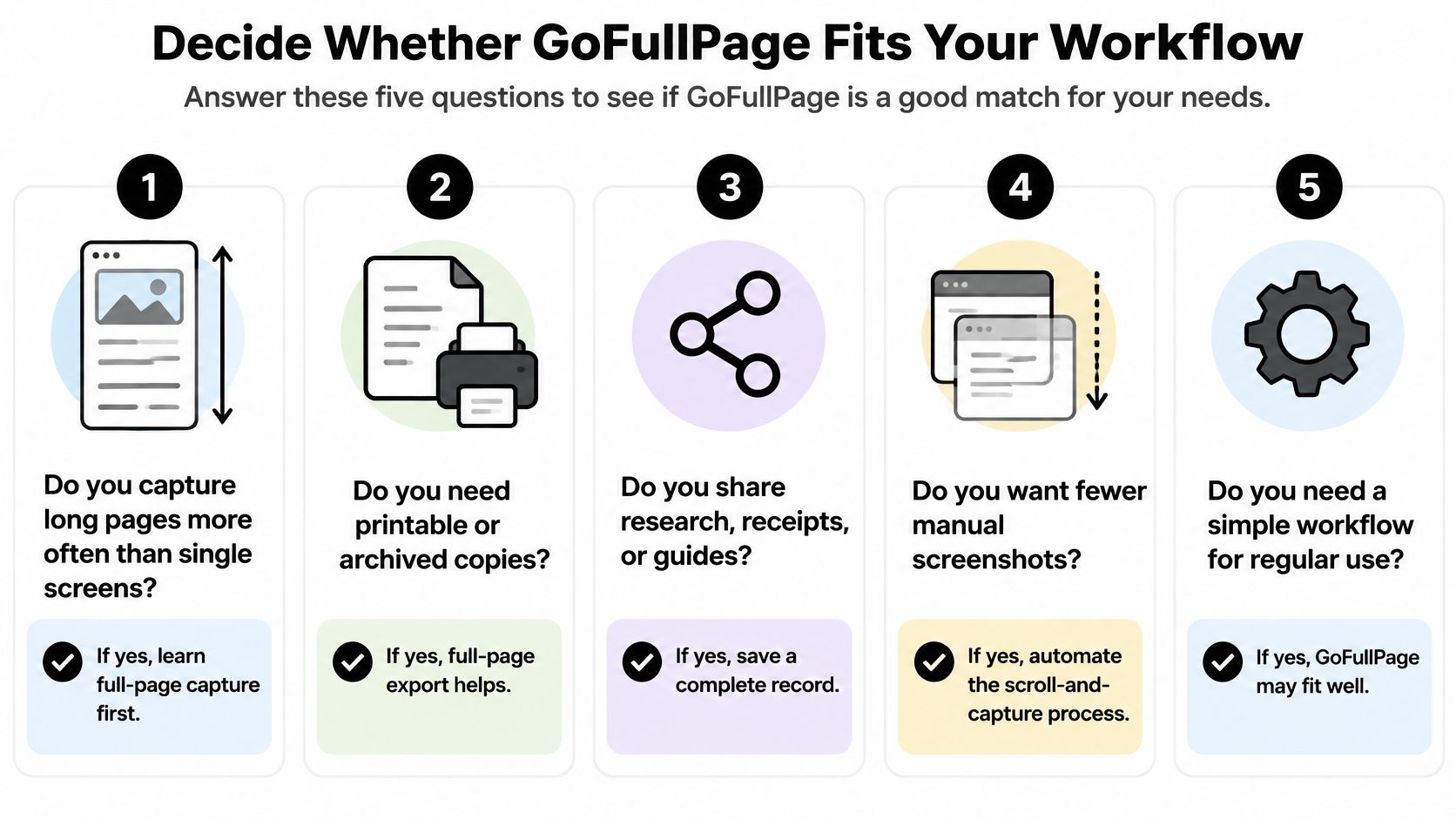
Five questions settle this faster than any feature list.
- Do you capture long pages more often than single screens? If yes, learn full-page mode first and ignore the rest until you need them.
- Do you need printable or archived copies? Test PDF export on one real page from your own work, not a demo page.
- Do your pages use embedded frames or panels? Decide in advance whether you'll grant iframe access, so the prompt doesn't arrive mid-deadline.
- Do you handle client or private dashboards? Review granted permissions before each job and remove what you no longer need.
- Do you need to annotate captures? Use the editor export and open the file before it goes anywhere.
Each yes points to one row in the first table and one permission choice. That's the whole shortlist.
Here's a test you can run in ten minutes. Install the extension, capture one long page you use at work, and inspect the result for three things: a repeated header at the top, blank patches where images should be, and any embedded frame that stayed empty. If the file looks right and the permissions you granted match what you expected, the tool fits. If something failed, note which of the three it was and adjust the mode or the access before the next job.
Choosing between capture tools works like any other software decision, which is why Creators Toolbox publishes side-by-side comparison pages of tools covering features, pricing and which one suits a given workflow. If your captures end up in written documentation, our guide to a markdown notes app covers how those files fit a docs pipeline.
At Creators Toolbox we publish side-by-side comparisons of the tools creators use, covering features, pricing and which option suits a given workflow, and we keep a steady feed of release notes and practical guides for browser utilities like this one. If you're weighing a screenshot extension against the rest of your capture and documentation stack, start with our comparison pages and see how the options line up for your work. Visit Creators Toolbox to browse the latest tool breakdowns and guides.