Use the Explore viewer to step through complex diagrams
By Steven Van ·
The animated Explore viewer shows a selected shape and its connections, with up to six levels, keyboard control and shared views in live collaboration.
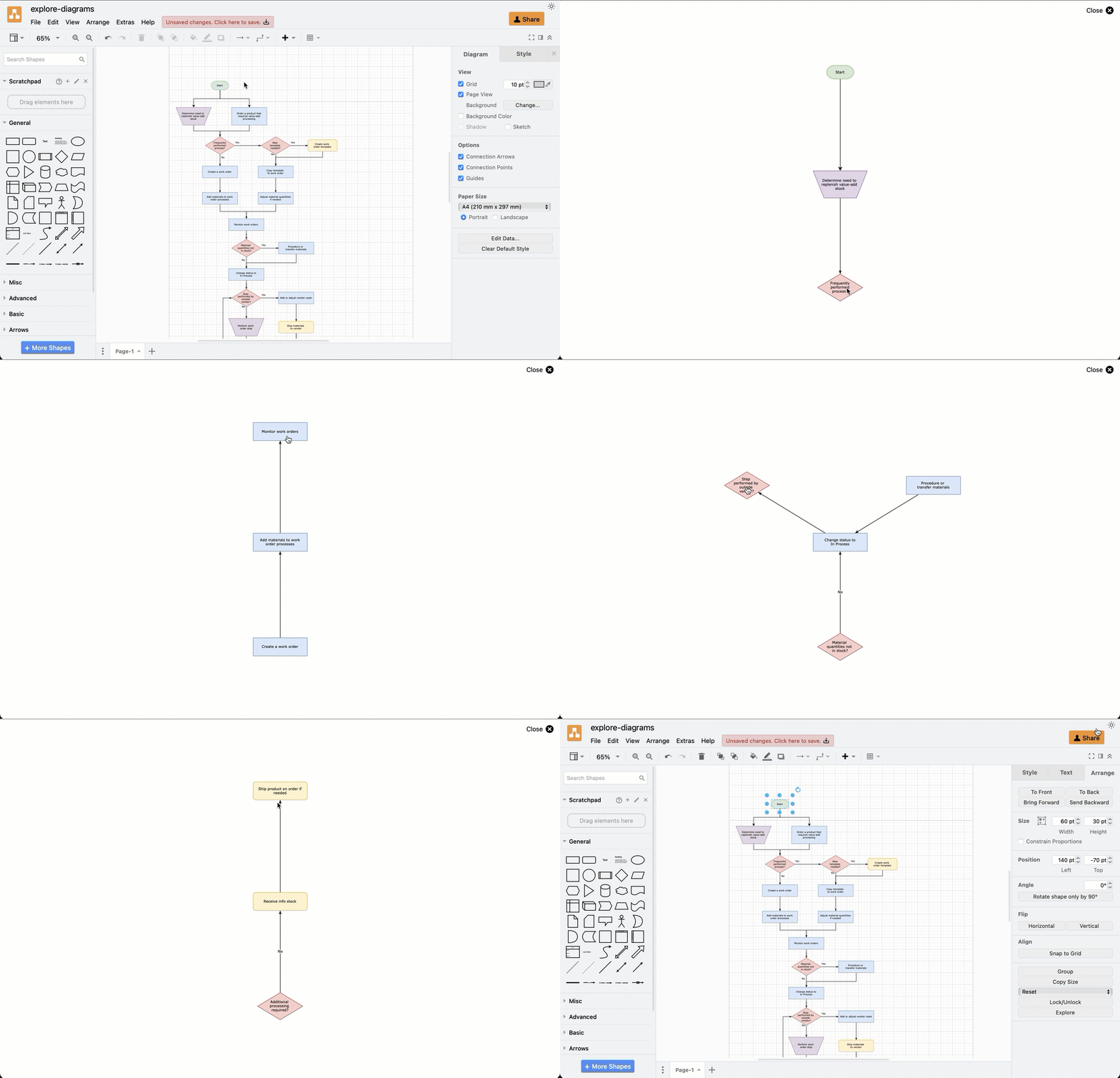
The draw.io Explore viewer is now animated and more interactive, according to the announcement. It shows a selected shape and the shapes directly connected to it, without the rest of a complex diagram. Clicking a connected shape moves it to the centre and brings in its own connections.
Opening the viewer
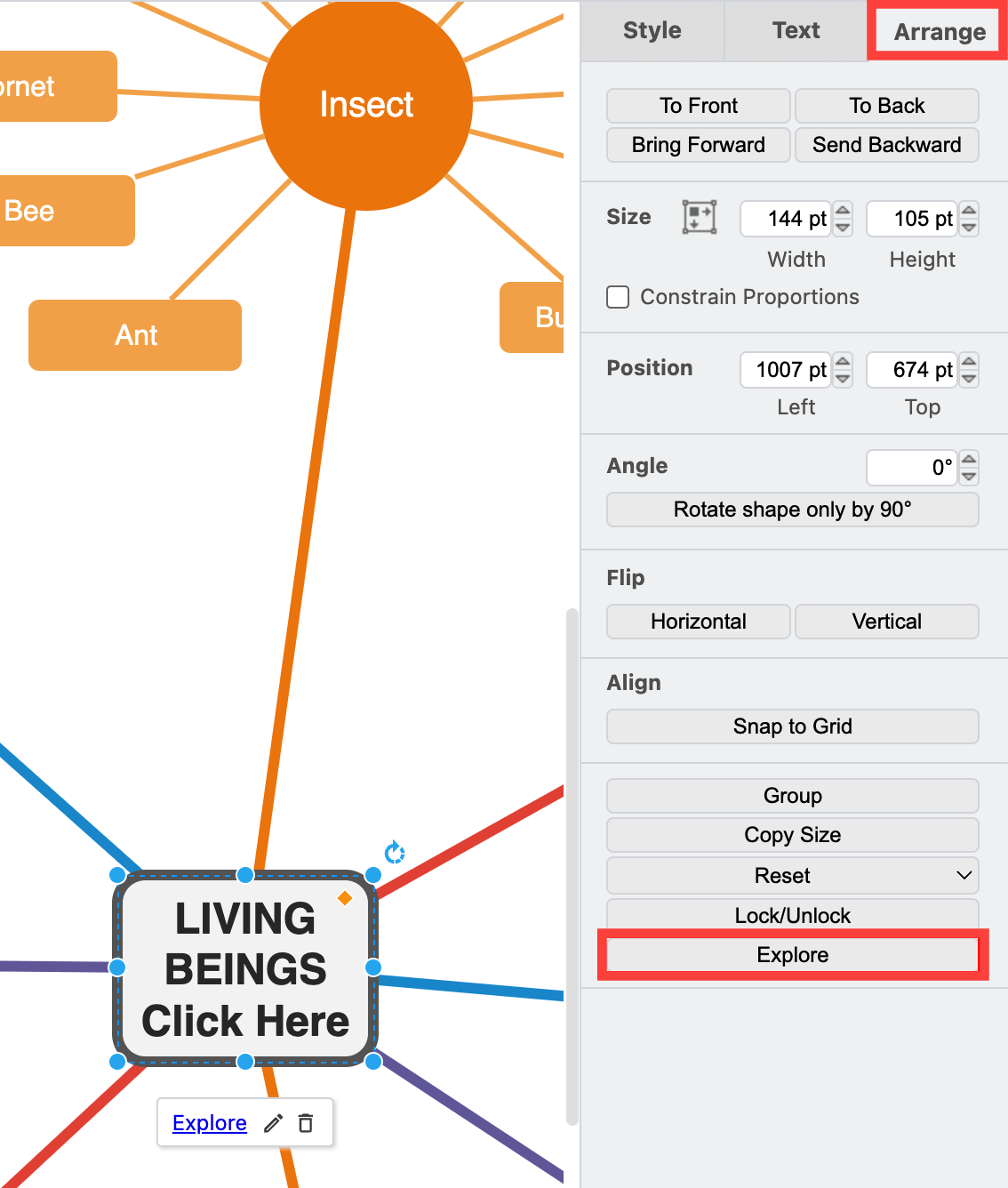
Select a shape and click the Explore button in the Arrange tab of the format panel. The viewer opens with that shape in the centre and its connected shapes around it. If you select a connector, the diagram is explored from its source shape.
You can also choose File > Publish > Explore. With nothing selected, the viewer starts from the shape with the most connections on the current page, or from the sub-diagram with the most connected shapes if the diagram has several. Explore is also available from presentation mode, and in the lightbox through a custom link with the Explore action.
Explore is disabled if the selected shape has no connectors. Unconnected shapes and standalone connectors are not shown, which includes swimlanes, pools, tables and groups, since they are not typically attached to connectors.
Moving through a diagram
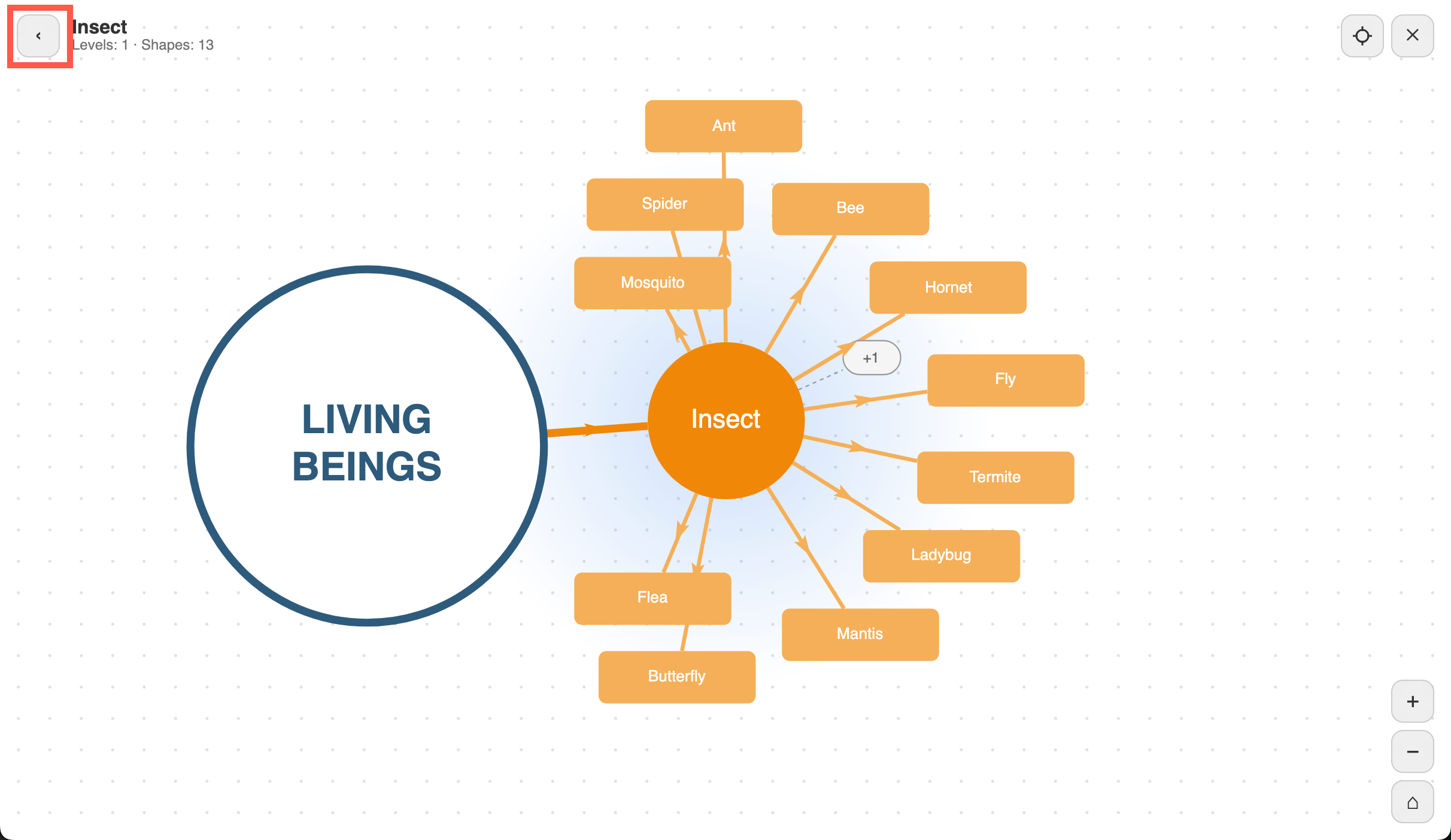
- Go back: click the arrow at the top left, or press Backspace or Alt+Left (Option+Left on macOS).
- More levels: zoom out with the mouse wheel, the Zoom Out tool or the - key to add further levels of connected shapes, up to six. Zooming in removes them.
- Hidden shapes: a shape with many connections shows 12 of them, plus a grey shape with a count such as +8. Clicking it shows 12 more.
- Pull shapes: dragging a shape pulls its connected shapes along elastically, and it returns to the centre on release.
- Highlighting: hovering over a shape highlights it and its connected shapes and dims the rest. Animated arrows run along connectors from source to target.
- Reset: returns to 100% zoom with the current shape and its first level of connections.
Keyboard, collaboration and the classic viewer
The viewer can be used from the keyboard: Tab cycles through connected shapes level by level, arrow keys highlight the nearest shape, Enter or Space explores from it, and Escape closes the viewer. Screen readers announce the name of the highlighted shape.
When you present to everyone in a real-time collaboration session, collaborators see the same centre shape, levels, zoom and highlights.
The previous viewer remains available as the classic Explore viewer, which shows connected shapes one level at a time without animation. To use it, set forceExplore to false in the editor configuration or clear Interactive Explore in Extras > Configuration.
Where it helps
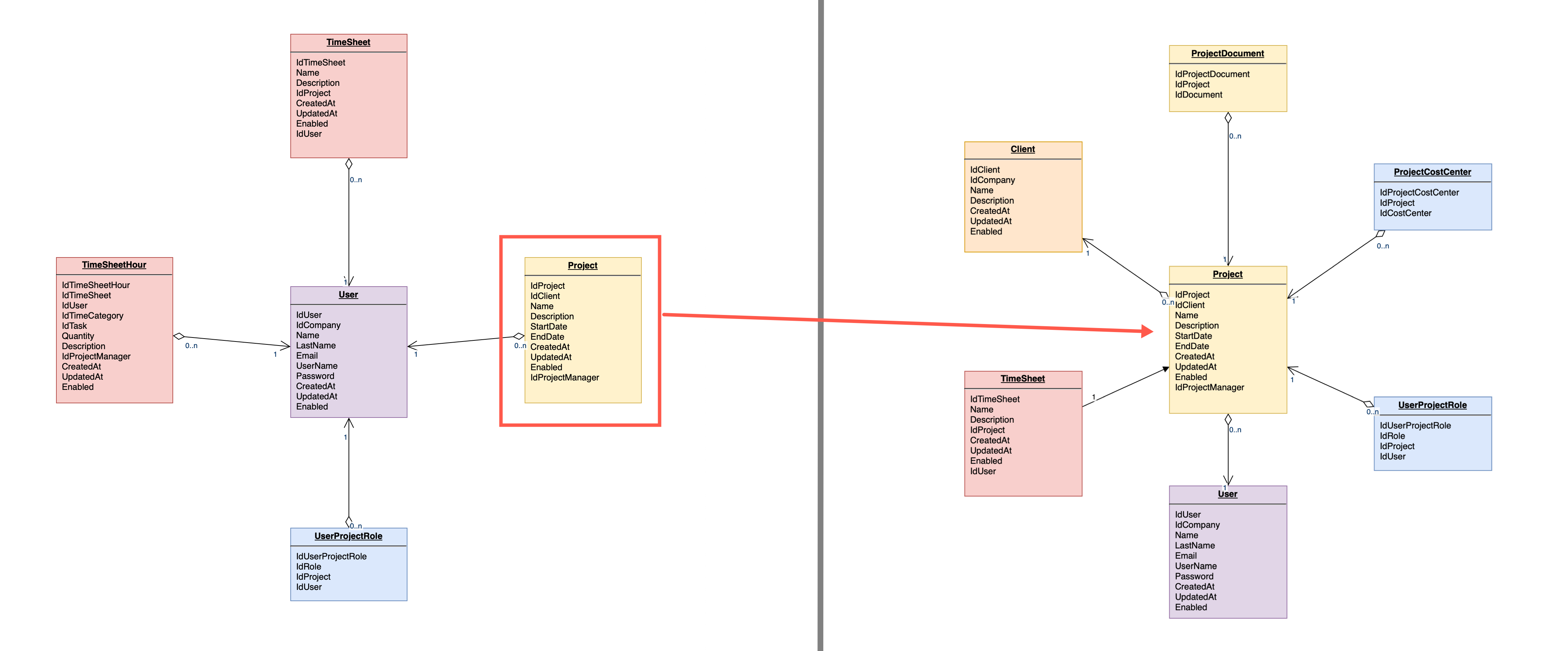
The draw.io examples include following reporting lines in an organisation chart, stepping through mind map branches, seeing which tables relate to an entity in a database schema, exploring UML class relationships, and tracing a path through a flowchart or BPMN diagram.