Build an Icon Family With Consistent Optical Weight
By Steven Van ·
Redraw six original icons using shared geometry and optical corrections at small sizes
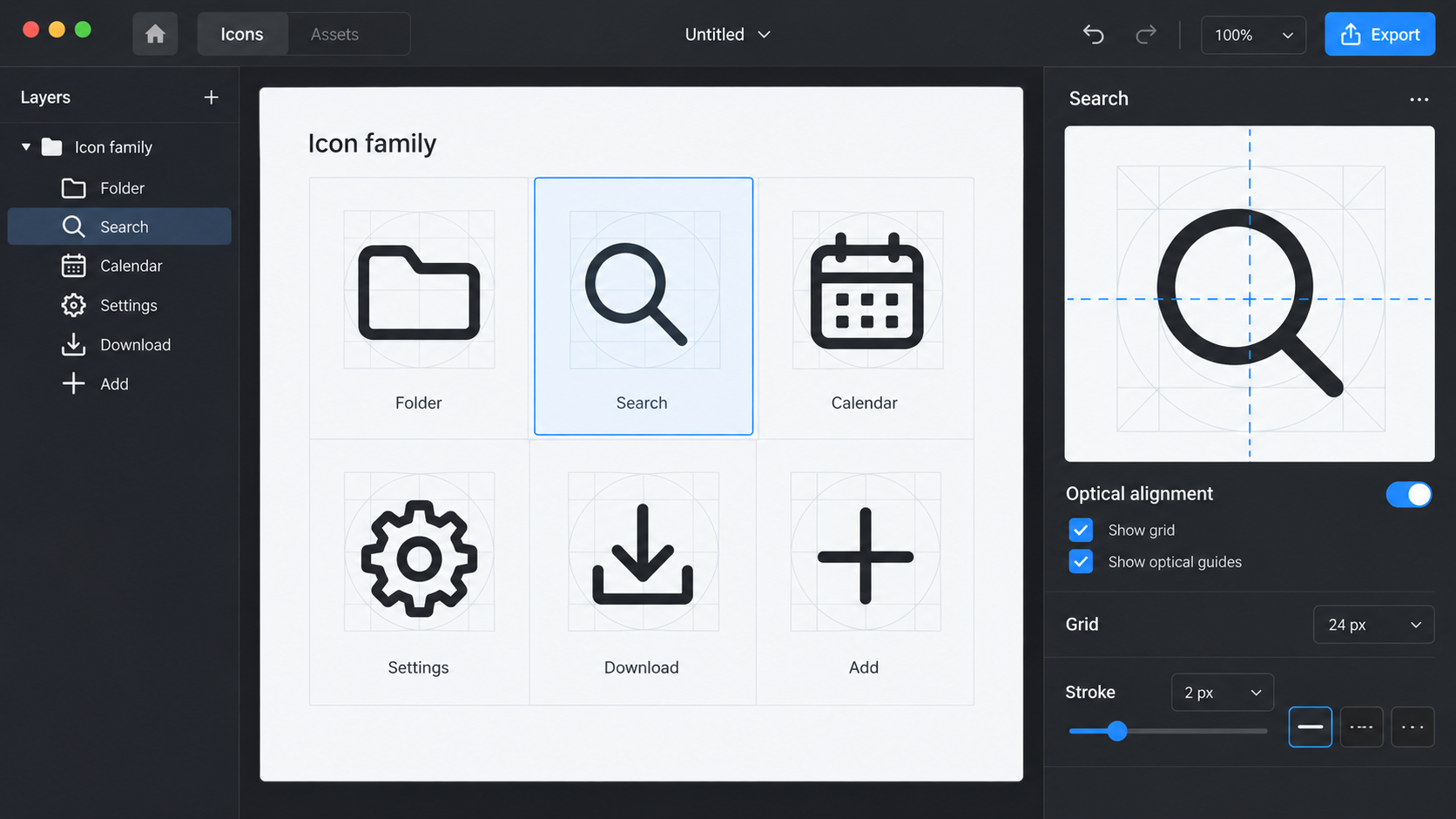
AI-generated conceptual illustration; not a product screenshot, measured result, or factual diagram.
Six icons can share the same stroke width and still look like six unrelated drawings. A circle may feel smaller than a square. A dense folder may look darker than a sparse arrow. A diagonal can seem slightly misplaced even when its coordinates are mathematically centered.
Optical consistency means judging the set as people will see it, then making controlled corrections. Geometry provides a starting point; it does not make every decision. The useful deliverable is a family of icons plus a short record of the rules and exceptions that hold the family together.
This exercise uses six original icon concepts for a fictional resource library: search, folder, download, link, bookmark, and settings. The measurements below are proposed design choices for the exercise, not universal standards or observations from a user study. Draw your own shapes rather than tracing an existing library.
Define the context before the grid
Decide where the icons will appear. Our library uses them beside text labels in navigation and inside compact controls. The primary drawing target is a twenty-four-unit square, with checks at sixteen, twenty, and twenty-four CSS pixels. That range is a project requirement, not a claim that one drawing will automatically work at every size.
Choose an outline family with rounded ends and restrained corner rounding. Keep the metaphor simple enough to recognize without internal decoration. A settings icon does not need a mechanically accurate gear. It needs a clear relationship to the settings label and a shape that can coexist with the other five icons.
Also decide whether icons are decorative or carry meaning independently. A magnifying glass next to the visible word “Search” may be redundant for assistive technology. An icon-only search button still needs an accessible name. Drawing quality and accessible implementation are separate responsibilities, and both belong in the handoff.
Establish a shared construction sheet
Create a twenty-four-unit canvas with a central axis and a nominal safe region. For this exercise, begin with a two-unit stroke and a twenty-unit outer working area. Keep the same basic cap and join treatment across the first pass. The values are provisional and should be changed if the actual interface demands it.
Draw a square, circle, horizontal rectangle, and vertical rectangle as reference shapes. They help you compare perceived size without forcing every symbol into the same silhouette. A folder naturally occupies a wide rectangle; a bookmark is taller and narrower. Equal bounding boxes would make those two concepts feel awkward for different reasons.
IBM’s UI icon design guidance uses a square grid to coordinate proportion, placement, and line treatment. Use that as evidence for the value of a shared construction system, not as a requirement to copy IBM’s measurements or its icon artwork. Your family should fit its own context.
Draw all six before polishing one
Make a rough but coherent first pass. Search is a ring and handle. Folder is an open outline with a small tab. Download combines a downward arrow and receiving tray. Link uses two interlocking loops. Bookmark is a vertical outline with a notched lower edge. Settings uses a simplified gear and central opening.
Place the six icons in a row at their intended display size. Do not judge them only at a large drawing zoom. An enlarged gear can look elegant while its central opening closes visually in a compact button. A tiny gap that is clear on the construction sheet can disappear at the size where people actually use it.
At this stage, look for family-level mismatches. Does the folder have sharp corners while everything else is rounded? Is the link symbol much more detailed? Does the download tray introduce a filled region absent elsewhere? Resolve those differences before spending time on small coordinate changes.
Compare perceived mass, not just bounds
The settings gear contains more contour than the bookmark. With identical strokes and outer dimensions, it may look heavier. First try reducing unnecessary detail or enlarging internal negative space. Do not immediately make its stroke thinner; that can create a new inconsistency when the icon appears beside another outlined control.
The search ring may look small next to the folder even when both share a nominal height. Try a modest increase in the ring’s diameter or a different handle proportion. Compare the revised pair at actual size. The goal is similar visual presence, not identical measured area.
Record corrections as specific exceptions: search ring extends slightly beyond the nominal circular guide; folder top edge sits lower to balance the tab; settings opening is enlarged for the small-size version. That record makes the choices maintainable. “Eyeballed until it looked right” is difficult for the next designer to reproduce.
An optical-adjustment worksheet
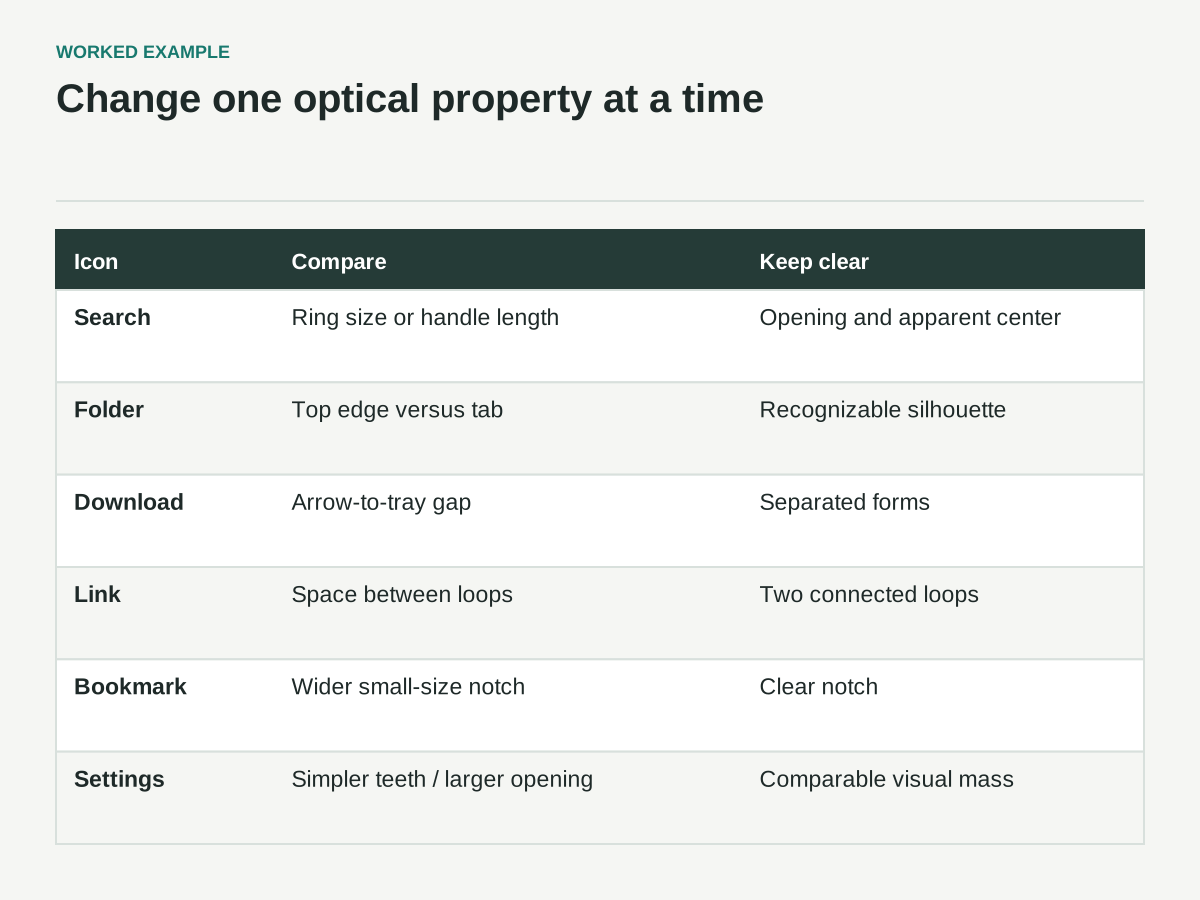
Use these as proposed comparisons for your original drawings. They are hypotheses to inspect at 16, 20 and 24 CSS pixels, not measured findings about supplied icon files.
| Icon | One adjustment to compare | What must stay clear |
|---|---|---|
| Search | Slightly enlarge the ring or shorten the handle, one at a time | The opening and apparent center beside its label |
| Folder | Adjust top-edge position relative to the tab | A recognizable folder without a heavy upper edge |
| Download | Change arrow-to-tray gap before shifting the full shape | Separation between arrow and receiving tray |
| Link | Open the negative space between loops | Two connected forms rather than a dark knot |
| Bookmark | Widen the notch for the small-size variant | A clear notch without changing the master unnecessarily |
| Settings | Simplify teeth or enlarge the center opening | Recognizable settings metaphor with comparable visual mass |
Record the chosen coordinates and variant name only after comparing the actual exported assets. The conceptual hero shows filled symbols, not this six-member outline family or its approved geometry.
Center the visible shape
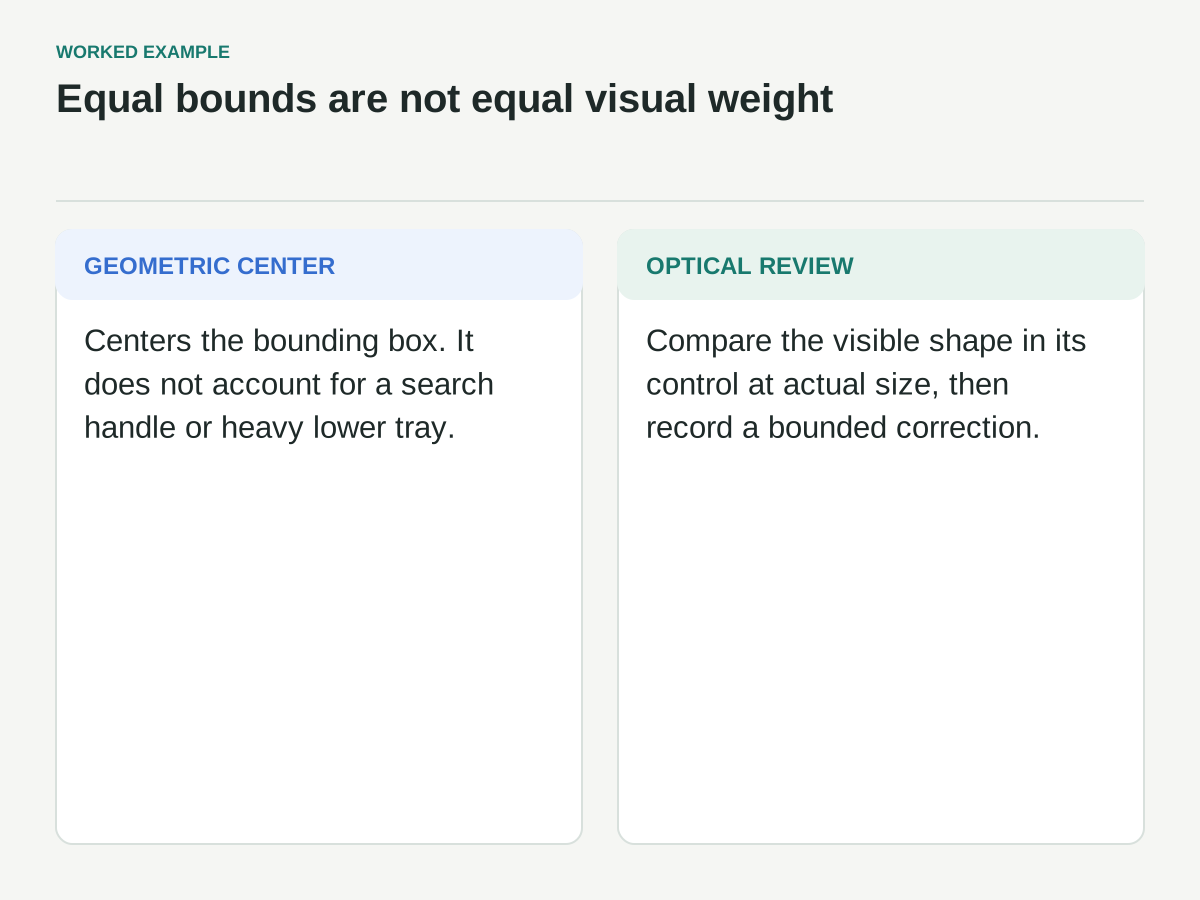
A search icon’s handle shifts its apparent center. A download symbol with a tray has more visual mass below the arrow. Centering the bounding box can leave either symbol looking misplaced inside a button. Compare each icon within the actual container, not only against its canvas axes.
For the search icon, try moving the combined shape a small amount toward the upper-left or shortening the handle, then compare both versions. For download, adjust the spacing between the arrow and tray before moving the whole symbol. Different causes need different corrections; a global offset is not always the best repair.
Use a labeled comparison sheet so reviewers know which property changed. If you alter size, stroke, and position together, you cannot tell which change improved the result. Keep the original nearby, name the alternative, and choose based on the intended display rather than the enlarged construction view.
Pay attention to negative space
Internal gaps are part of an icon’s weight. The link symbol can become a dark knot if its loops overlap too densely. The bookmark notch can look pinched. The folder tab can create a small triangular pocket that attracts more attention than the main silhouette.
Inspect those spaces in both light and dark interface themes. The same family may need adjustments in context, but do not assume a separate drawing is required before checking the actual result. Use the real foreground and background colors rather than a generic black-on-white sheet alone.
Simplify where detail does not help recognition. In the fictional settings icon, reducing the number of teeth may produce a clearer small symbol. That choice trades mechanical resemblance for legibility. Document it as a design decision, and verify the label or surrounding context still makes the action understandable.
Treat small-size variants as deliberate assets
If the twenty-four-unit drawing becomes muddy at sixteen pixels, create an explicit small-size variant rather than expecting scaling to solve everything. That variant might use fewer gear teeth, a wider link gap, or a shorter search handle. Preserve the family’s recognizable shape while removing details that do not survive.
Keep the variants named by intended size or role. Do not silently replace the master with a small-size correction that damages larger uses. A developer should know whether the icon component selects a variant automatically or whether the designer must specify it at each placement.
SVG’s viewBox attribute defines the user-coordinate rectangle mapped into the SVG viewport. A consistent viewBox helps assets share a predictable coordinate system, but it does not guarantee consistent optical weight. Check both the geometry and the way the consuming application sizes the asset.
Verify the export, not just the drawing file
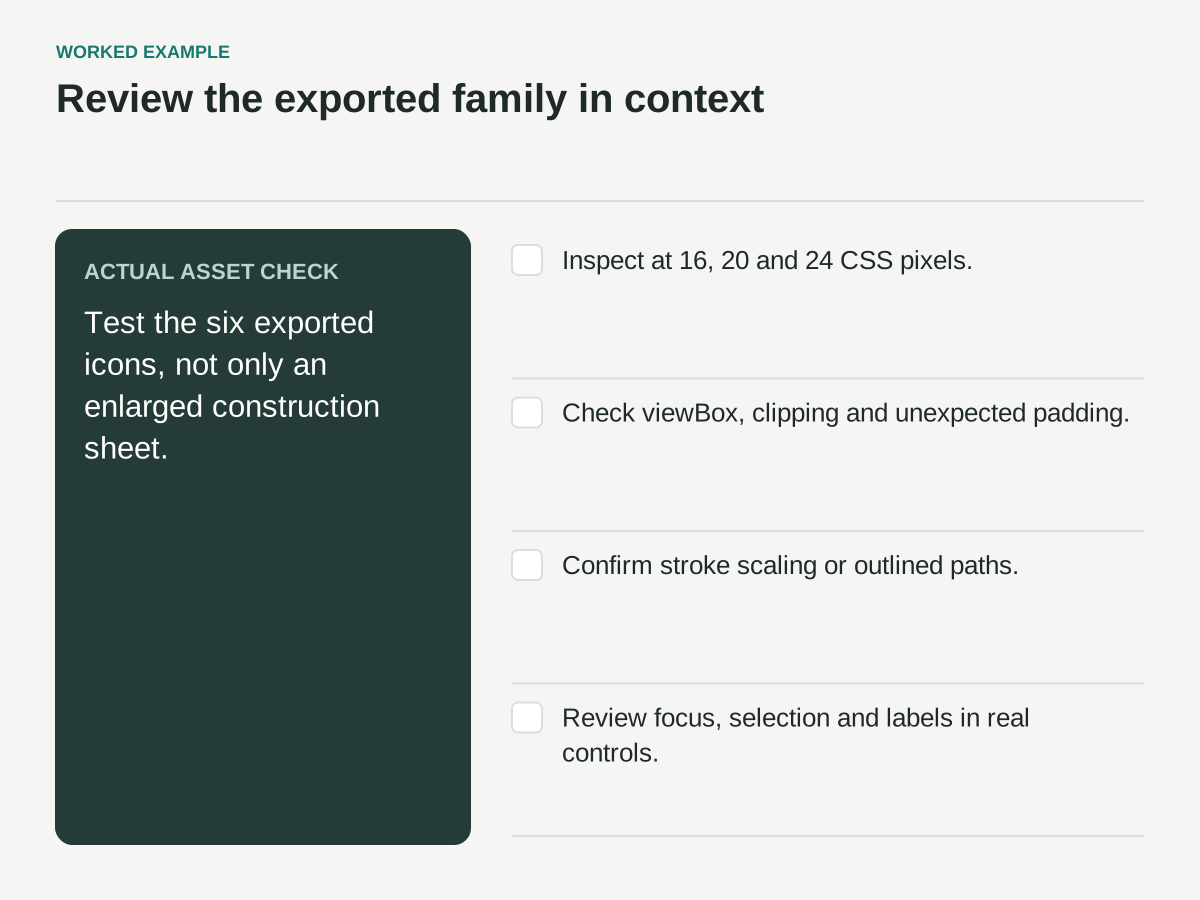
Export the six icons and put them in a simple reference page or design specimen at the target sizes. Check that strokes, joins, clipping, and spacing match the approved drawing. Look for unexpected padding caused by a different viewBox or an export that includes an invisible object outside the intended bounds.
If strokes remain live, confirm how the implementation scales them. If strokes are outlined, confirm that the resulting paths still render cleanly. Neither choice is universally correct; each affects editing and implementation differently. Make the choice explicit so a later optimization step does not change appearance accidentally.
Test the actual interface states: default, hover, focus, selected, and disabled where applicable. The icon is only one part of a control. A focus ring should not collide with a protruding shape, and a selected state should not rely on a subtle change that is impossible to notice at small size.
Review the family in meaningful groupings
A row of six icons is useful, but the real interface creates other comparisons. Put search beside its field, folder beside a resource title, download inside its action button, and settings in the navigation. An icon that feels balanced in isolation can appear too strong beside small text.
Ask reviewers to identify the specific mismatch. “The download icon is heavier than the bookmark at twenty pixels” is actionable. “The icons feel off” is a starting impression that needs a closer comparison. Keep the review focused on family consistency before debating alternative metaphors or broader visual identity.
Do not infer recognition from visual polish alone. If the audience may not understand the link or bookmark metaphor, retain labels or plan an appropriate usability check. An optically consistent icon can still communicate the wrong action. The drawing review and the meaning review answer different questions.
Package the rules with the assets
The handoff should include the six final assets, their intended sizes, the construction grid, stroke and corner decisions, and the optical exceptions. Include an example of correct placement beside text and inside a control. A small specimen is often more useful than a long list of abstract adjectives.
Add a rule for future additions: start from the shared guides, compare against at least one sparse and one dense family member, and review at actual size before exporting. This prevents the seventh icon from inheriting only the stroke width while ignoring the rest of the system.
Finish with a practical check: all six use the agreed geometry, gaps remain open, apparent size is balanced, exported bounds are predictable, and the implementation provides accessible names where needed. Keep the exceptions visible. A good icon family is consistent because its differences were considered, not because every shape was forced into identical measurements.